It’s Calendar Season!

The Holiday Season is just around the corner, so it’s no surprise that a number of calendars are popping up on MagCloud.

Whether you are looking for a gift idea for your family, a fundraiser for your children’s sports team, a new way to gain exposure for your art and photography or another way to build brand awareness for your small business– at $5.60 for a 28-page publication on MagCloud, creating a calendar is both easy and affordable.

Throughout the rest of this week we’ll explore designing calendars with Microsoft Word, iWork Pages, and using MagCloud’s Flickr Uploadr.

First up: Microsoft Word.

Getting Started
In past blogs we’ve discussed the number of resources for Microsoft Word templates. Whether you are visiting Microsoft’s Website, or the program’s built-in project gallery (available on a Mac), you can find various calendar templates to get you started.

In this particular exercise, I have created my own custom template by inserting a table into each page that is 6 columns and 7 rows. To avoid running into issues with rotating pages, when I export the final calendar, I have designed for the landscape appearance while working in a portrait setting. To do this, I have simply set the text orientation on it’s side.

To complete this calendar you will want to have a minimum of 15 images–preferably in a landscape format.

You can start with one of the basic templates, and follow along to make it your own. I’ve created two versions to get you started: a casual look with sans-serif fonts, and a more sophisticated look with a classic serif font. You can download them here:

Download the Formal Word Template
Download the Casual Word Template

Styling Your Calendar
The calendar template has built-in style sheets, so you can easily change the fonts and colors to fit your needs.

Select "FORMAT >> Style"

To make the necessary adjustments, you must first select a block of text that you wish to modify (for example to change the font style of the days of the week, you could select “Thursday”). Go to FORMAT >> Style; once in the “Format” dialog box, you can narrow the list of fonts to the ones of interest by selecting “User-defined Styles.”

Now you can choose to “Modify” each of these paragraph styles to change the look of your template.
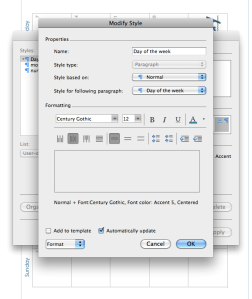
Modify Paragraph StyleWithin the “Modify Style” dialog box you can select different fonts, weights and colors for the “Day of the week” paragraph style.

**Be sure to check “Automatically update” so that when you save your changes, all uses of that style throughout the document are updated to the new look.

Repeat these steps to adjust the “month” and “number” styles to customize your calendar further.

Make it Personal with Photos
Now it’s time to insert photos into the blank pages of your calendar.
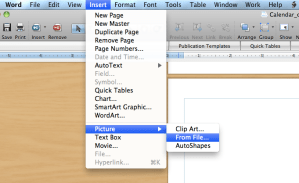
Insert Picture (from file)

To do so, select Insert >> Picture >>From File… Within the dialog box you can select saved photos to insert one at a time on the blank pages.

You will need to rotate each image -90º onto it’s side, (to the left or “counter-clockwise”) so that they will be oriented properly in the printed version.
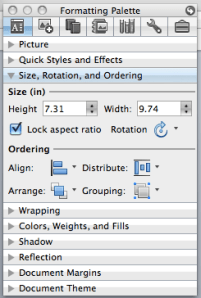
Lock image aspect ratio**Designer Tip: Be sure to adjust photos proportionately, so they maintain the same aspect ratio and don’t look stretched or distorted. On a Mac, you can select “Lock aspect ratio” in the “Formatting Palette,” to ensure that images look their best. You can also set this preference while you have an image selected, and then by going to the “Format” menu and selecting Picture >> Size >> “Lock aspect ratio”**

Save, then Export to a PDF
Microsoft Word 2003: To export your Word 2003 document as a MagCloud PDF on a PC, first go into Tools > Options and select the Save tab. Ensure that the box next to Embed TrueType Fonts is checked, but the boxes next to its subcategories (“Embed characters in use only” and “Do not embed common system fonts”) are unchecked.

Then, in the “Save to PDF” dialog box, click the “Options” button and check the “ISO 19005-1 compliant” box, which should also automatically put a check in the “Bitmap text when fonts may not be embedded” box.

Click Okay, then go to File > Save As and select PDF from the file type drop-down menu to save your PDF.

Microsoft Word 2007 (PC): To export your Word 2007 document on a PC, click on the Microsoft Office Button in the upper left hand corner and choose “Word Options”. Select the Save tab on the left and make sure that the box for “Embed fonts in this file” is checked, but uncheck the boxes below it (“Embed only the characters used in the document” and “Do not embed common system fonts”).

Then, in the “Save to PDF (or XPS)” dialog box, click the “Options” button and check the “ISO 19005-1 compliant” box, which should automatically put a check in the “Bitmap text when fonts may not be embedded” box.

Microsoft Word (Mac): When exporting your PDF on a Mac, there is no option to embed fonts, so simply select File > Save As and choose PDF from the Format drop-down menu.

*This usually is only an issue if you have empty, hidden or transparent text frames in your document, or when a single character within a block of text uses a different font than the rest of the paragraph. If you have problems, you will either need to eliminate these, or embed the fonts in a different program before uploading to MagCloud. (see the help section)

WANT MORE HELP WITH WORD AND TEMPLATES?

Microsoft Office Word Template Site

Mactopia (for Mac Word Help/How-to’s)

Check back with us tomorrow for more how-to’s and tips with calendars using iWork Pages, and again on Friday for a quick an easy calendar that you can make straight from your flickr account using MagCloud’s Flickr Uploadr!
Designing a Magazine: A Publisher’s Perspective

MagCloud publisher Hacker Monthly recently wrote a great blog post about how they go about designing a magazine. They shared their experience as “non designers” and how they mastered using Adobe InDesign.

Here’s an excerpt of the post:

The questions I’ve got the most since I started Hacker Monthly are “How do you design the magazine?”, “What tools do you use?” and “What books/tutorials do you recommend?”. This post answers all of the questions (and possibly more).

As you might already know, I’m not a designer. My only design experience is drafting up the simplest looking website or user interface in Adobe Fireworks (I never really gotten my way around Photoshop). When I was starting up Hacker Monthly, I wanted to outsource the design since I have zero experience in print. This turns out pretty costly, so I decided to do it myself. Now, it’s the part of the job that I love the most.

To start, learn to use Adobe InDesign. The first version of Hacker Monthly was designed using Pages. It looked okay, but it just doesn’t have that magazine feel. So countless hours of tutorials and books later, I ended up using InDesign. It’s the best tool you can use. To save you the trouble, the only tutorial you need to see is Nigel French’s Designing a Magazine Layout Hands-on Workshop on Lynda.com. Nigel French is exceptionally good at guiding through the total newbie (umm…me) on both magazine design principles and using InDesign professionally.

To read the full post please visit the Hacker Monthly blog.

Easy Design with Templates in Apple’s [iWork] Pages

If you’ve been holding off on publishing through MagCloud because you didn’t have the design skills, couldn’t afford expensive design software and didn’t have a best friend who is a graphic designer, why not use a template in a more accessible application?

PC users, I apologize, as this post doesn’t apply to you, but Mac lovers: GET EXCITED.

With Apple’s iWork Pages it’s easy to make a MagCloud-ready PDF. Here in my second exploration of basic design software, I’ll dive into using Apple’s design tool that comes in their iWork productivity suite (retails for just $79 at store.apple.com) to create your MagCloud publication.

When you open Pages it will offer you a number of template options. Any designed to print full size on an 8.5”x 11” piece of paper are almost great starting points for creating MagCloud publications. A number of other sites also offer Pages templates, but for my example today, I’m going to use the standard “Program” template in the application’s “Template Chooser”.

The original Pages version is available here: Download original Pages Template and my MagCloud-ready version with a Southern California theme, is available here: Download Modified Template

GETTING STARTED:
To get started, you’ll want to find and open a template.

In this case I found mine in the “Template Chooser” within the Pages application. Because the template is designed for a US Letter sized paper (8.5” x 11”) it will be really easy modify for my own use.

CUSTOMIZING A TEMPLATE:
Apple’s Pages templates all come with built-in Paragraph and Character style templates which make it much easier to keep a consistent style throughout your publication.

Rather than start with a blank document, I always start with a template in Pages and modify it to suit my needs, this way I already have built-in paragraph and character styles.

*With this particular application, it’s my suggestion that you work on setting up your template before you start adding any of your content.

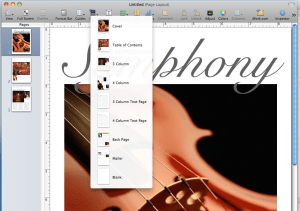
Add all pre-designed pages within the template
Within the template there are a number of layout styles available. In my example here there are eight (varying from a cover, table of contents, feature article and 4-column text page, etc).

The reason for doing this is that you want to see what’s available to you, and actually modify the “template” so that you can use it again and again, rather than having to copy and paste design elements repetitively throughout the design process.

Change view to “Facing pages”
This not only helps with visualizing layout, but also will help you decide which page styles are going to be right-hand pages and left-hand pages.

Add guides to pages and adjust layout for trim
Adding guides to the outside edges of each page will ensure that everything will fit inside the trim line). Because MagCloud trims its documents to 8.25” x 10.75” we are going to lose 0.125” inches off the top and bottom, and 0.25” off the outside edge. This means in order for our template to be centered on the printed page, we are going to have to adjust the content on the page. With your Rulers active and visible, you’ll want to drag guides into place (0.13 in from the top and bottom, 0.25 from the outside edges). Be sure when you are designing your templates that you are making a conscious decision as to which pages will be left-hand pages and which will be right-hand pages. It will help to name them as such when you “capture” the layouts in a later step.

Adjust style sheets to your needs
Not making a ‘Metropolitan Symphony Program?’ Then go through each page and make the necessary adjustments to layout and fonts. You’ll notice this is exactly the same layout, with different fonts and colors. Amazing how simple style changes can make a template your own.

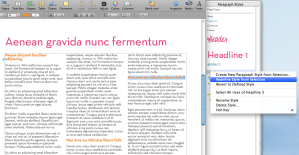
Tip: After you have adjusted a font in the font menu, such as the headline, update your template style sheet so you can easily apply the same style again. You can do this by either “right-clicking” or “ctrl+ click” on the name of the font style in your “Styles Drawer”, then select “Redefine Style from Selection.”

“Capture Pages” for future use
Save yourself a lot of work in the future by establishing your own templates with your style/colors and fixed text. Once you have modified the provided pages in the template with your own fonts and colors, you can “Capture Pages” to use in your template over and over again. You can do this by “right-clicking” or “ctrl+ click” on the page thumbnails on the left margin or by selecting “FORMAT> Advanced> Capture Pages”


Tip: since you have adjusted your content for the trim settings, be sure to name pages accordingly, like “Left-Feature” or “Right-4 paragraph story”). To delete the old template pages, select “FORMAT> Advanced> Manage Pages.”

Commit to a page count and layout
Planning ahead will save you a lot of design time. You should come up with an outline for your publication before you start laying out pages or entering content. This is important because inserting one page at the front of your document will throw off the layout for all of the subsequent spreads. You should also take your layout into consideration when designing and capturing your template spreads, because certain content will be better suited for a right-hand or left-hand page layout.

Save your file as a “Template” for future issues
If you plan to have future issues with this same style, be sure to save your personalized document as a template. It’s easy to do, just select “File> Save as Template.” This puts a copy of your file into the Pages Template Chooser so you can find it easily next time you launch the application.

TURNING YOUR DOCUMENT INTO A PDF:
This part couldn’t be easier! Simply select “FILE> Export.” Leave the default settings for PDF, and save your file.

WANT MORE INFORMATION ABOUT PAGES?

Apple’s Pages ’09 site

Apple Store: iWork $79

PREVIEW THE TEMPLATES ON MAGCLOUD

Original Brochure Template

Original Brochure Template with minor changes

Transformed Brochure Template with Southern California theme

Transform Templates into Professional Publications

Who says you have to be a professional designer to create a MagCloud-ready PDF? The MagCloud team has been exploring a variety of word processing and basic design applications that make creating a magazine super simple.

First up was Microsoft Word.  There are a large number of Word templates available that are almost perfectly designed for creating MagCloud magazines.

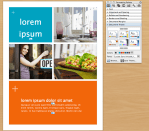
Whether you are visiting Microsoft’s Website, or the program’s built-in project gallery (available on a Mac), you can find great templates to get you started on creating your brochure, catalog, calendar or just about any other document you can imagine.

I’ll be using the “Brochure” template here as a pilot, but we’ll explore other templates in the future.

The original Microsoft version is available Download original Microsoft Template and my MagCloud-ready version is available Download MagCloud Ready Template.

GETTING STARTED:
To get started, you’ll want to start by finding and opening your template.

In this case I found mine in the “Project Gallery” within the Microsoft Word application. Because the template is designed for a US Letter sized paper (8.5” x 11”) it will be really simple to modify for my own use.

ADJUSTING MARGINS:
Because MagCloud trims its documents to 8.25” x 10.75” we are going to lose 0.125” inches off the top and bottom, and 0.25” off the outside edge. This means in order for our template to be centered on the printed page, we are going to have to adjust the margins. Doing this consistently on every page can be tough, so I use a little trick with the document margin settings and offset them by 0.25.” This way, when the pages are trimmed that 0.25” off the outside edges, the content of the page still looks centered.

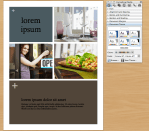
To access these settings, you will go to Format>>Document. Using the settings in the screen shot below, you can adjust the margins on the page, and then proceed to adjust the content so it fits within the guides. *Be sure to select “Mirror margins” to see the inside and outside margin options. In this example the document had a 0.5” margin all the way around, so I adjusted the margin by -0.25” on the inside, and +0.25” on the outside.

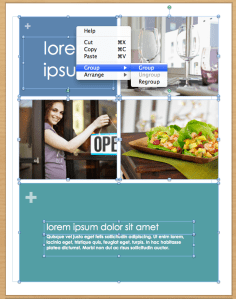
Adjusting the individual elements on each page can be tricky, so I recommend selecting one item on the page, using “ctrl + A”(PC) or “cmnd + A” (Mac) to select all, then right-clicking (or in some cases ctrl+click) on the mouse and selecting the option “Grouping>Group” to group the objects together. This allows you to move all of the page’s contents at once, so you don’t lose the integrity of your design. Be sure to reverse the process by right-clicking after the move and select “Grouping>Ungroup”, so you can once again modify the elements individually.

MAKING IT YOUR OWN:
Microsoft does some pretty awesome things with their Word templates by establishing color and font palettes, for the more novice user, this means you can keep your fonts and colors consistent through the document, and for those feeling a bit more daring, you can actually customize the palettes to make the document more your own. Each template comes in a set of colors, and fonts, but you can mix and match these to suit your needs.

Below you will see the same template with a different color schema and font collection.

TURNING YOUR WORD DOCUMENT INTO A PDF:

Microsoft Word 2003: To export your Word 2003 document as a MagCloud PDF on a PC, first go into Tools > Options and select the Save tab. Ensure that the box next to Embed TrueType Fonts is checked, but the boxes next to its subcategories (“Embed characters in use only” and “Do not embed common system fonts”) are unchecked.

Then, in the “Save to PDF” dialog box, click the “Options” button and check the “ISO 19005-1 compliant” box, which should also automatically put a check in the “Bitmap text when fonts may not be embedded” box.

Click Okay, then go to File > Save As and select PDF from the file type drop-down menu to save your PDF.

Microsoft Word 2007 (PC): To export your Word 2007 document on a PC, click on the Microsoft Office Button in the upper left hand corner and choose “Word Options”. Select the Save tab on the left and make sure that the box for “Embed fonts in this file” is checked, but uncheck the boxes below it (“Embed only the characters used in the document” and “Do not embed common system fonts”).

Then, in the “Save to PDF (or XPS)” dialog box, click the “Options” button and check the “ISO 19005-1 compliant” box, which should automatically put a check in the “Bitmap text when fonts may not be embedded” box.

Microsoft Word (Mac): When exporting your PDF on a Mac, there is no option to embed fonts, so simply select File > Save As and choose PDF from the Format drop-down menu.

*This usually is only an issue if you have empty, hidden or transparent text frames in your document, or when a single character within a block of text uses a different font than the rest of the paragraph. If you have problems, you will either need to eliminate these, or embed the fonts in a different program before uploading to MagCloud. (see the help section)

DESIGNER TIPS AND TRICKS:

1. Establish a style/color palette before you start inputting your content.
2. Save versions of your document as you play with the design, colors and fonts–this way you can open them up and compare your options side by side.
3. Use the styles panel to make changes in Paragraph and Character styles rather than adjusting selections on the page… this way you keep your styling consistent throughout your document.

WANT MORE HELP WITH WORD AND TEMPLATES?

Microsoft Office Word Template Site

Mactopia (for Mac Word Help/How-to’s)

Publisher Profiles

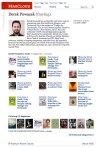
A great way for publishers to share more information with their readers is via their MagCloud Profile Page.

Every MagClouder has a profile page and for publishers that’s a great place to promote your magazines and tell readers more about yourself, your publications and even which MagCloud magazines you are personally following. Each MagCloud profile also has a unique url “yourusername.magcloud.com” so you can easily share your profile with the world.

You can customize your profile from within your account settings.  Here you can upload a personal photo (separate from your magazine image), promote a link to your personal or business website and write a short bio. You can also click on your “public profile link” to see a preview of how your profile will appear to your readers.

Readers can access your public profile anytime they click your name when viewing your magazine or issue pages. It’s a great way for readers to learn more about their favorite magazine publishers and message you directly using the “contact link” on your profile page.

So let your magazine fans know more about you and update your profile today.

Create a Magazine with Adobe Photoshop

If Photoshop is your design tool of choice you can create a magazine in Photoshop by following a few simple steps.

1. Create each page as a separate JPEG (quality 10 setting) file in the sRGB color space.  To create your JPEG files, start by creating a 8.5″ x 11″, 300 DPI Photoshop document. Since there are no bleed settings in Photoshop, it is best to create Guides to show where the trim will be (0.125″ from the top and bottom, 0.25″ from the outside edge). Keep in mind that the side with the outside edge bleed will switch as you design a righthand versus a lefthand page. Once you have finished your first page, save it as a JPEG file in the sRGB colorspace with a quality setting of 10. Do not use “Save As Photoshop PDF” as the resulting file size will be too large to upload to MagCloud in a multipage document. Repeat these steps until all your pages have been created. Note: naming your files by page number will simplify the process going forward, with the cover as “Page 1.”

2. Combine these JPEG files using Adobe Acrobat® or another PDF merging software into a multipage PDF.  To merge your pages in Adobe Acrobat, go to File > Create PDF > Merge Files Into Single PDF… In the Combine Files window that opens, click the “Add Files” button, navigate to the folder where you saved your MagCloud JPEGs, and select them all.  Tip:  Name your files consecutively this way when you select order by file name it will put them in the correct page order. 

3.  Once you are ready to create the PDF, chose “Larger File Size” for better quality (this is the largest paper icon next to File Size) and click the “Combine Files” button. Acrobat will automatically assemble your PDF for you.

4. Upload your PDF file to MagCloud and publish away.

Happy Publishing!

Flickr Photo Magazine Tips and First Week Faves

Hey MagClouders, we are so glad you are enjoying the new “Upload to Flickr” feature. To help you get a little more out of this new feature we thought we would share a few of our favorite “Flickr Hacks” with you:

Bigger Images on Each Page: If you want to make sure your photo takes up as much of the page as possible be sure to size it at 1875 by 2625 pixels at a minimum of 300 dots per inch resolution. This will allow your photo to fill up most of the page.

Multiple Image on a Page: Create a single image file (jpg, gif, png or tiff) that contains multiple photos and upload it as part of your Flickr set. Make sure the single image file is 1875 by 2625 pixels at a minimum of 300 dots per inch resolution. When your MagCloud magazine is created, this file will be placed on a single page just like your other photos, creating the impression of multiple images on a single page.

If you have other questions on how to use the “Upload to Flickr” feature check out our FAQ.

We’ve been very impressed with some of the magazines we’ve seen created from Flickr sets in just the first week. Below are just a few of our personal favorites. We can’t wait to see what else you do with this cool new feature

How to Publish a Magazine in a Day and a Half

When the biggest dust storm in 70 years blew through Australia, the photos of it were stunning. So on Wednesday at noon, I decided to make a photo magazine. It was published on MagCloud Thursday night. All told, it was 31.5 hours from idea to publication, and that’s with a few hours of sleep thrown in. I think this shows the power of print-on-demand in general, and MagCloud in particular, so I wanted to share my experience and show you how you can do it, too.

Editor’s Note: This post is courtesy of Derek Powazek.

Step 1: Pick a Topic

In this case, the dust storms were news, so I started with that. You can go with something timely, something you happen to know a lot about, or something your friends are smart about. Go with what you know.

Step 2: Gather Content

This is the most time-consuming step. For my magazine, I started by writing to a few friends I had in Sydney. Then I searched Flickr for photos I liked, and wrote to the photographers to ask for their participation (here’s Flickr’s FAQ on this). I also found a group on the topic and posted there.

Important: Flickr photographers, especially good ones, are inundated with requests for their images. If you contact someone, take the time to write a good message. Introduce yourself, say what exactly you’;re asking for, and why you’re asking them. Remember that you’re asking them to trust you, and you’ve gotta earn that trust

In my message, I made sure to say that I was going to publish the issue on MagCloud, but that I would set the markup to zero so I wouldn’t be making any money on the work. I also offered to send them a copy of the printed magazine if their work was selected

I asked for their name, a short bio, and their URL. (If you can’t pay people, the least you can do is make sure they’re credited appropriately and promote them on a contributor page with a bio and URL.) I asked for a mailing address for the printed copy and the high res version of the photos. Finally, I asked them to email all of that to my Gmail address

Remember to also say that you’re not asking them to give up their copyright; just grant you permission to use the photo in this specific case. Photographers are increasingly savvy about this, as they should be.

Another option would have been to seek out Creative Commons licensed photos; you can even search Flickr for them; but I wanted to make direct contact with the photographers. I sent 74 invitations.

Step 3: Wait for Permission

I can’t tell you how important this is. Do not just grab photos from the web and use them. The photos will look terrible, you’ll violate MagCloud’s guidelines, and you’ll piss off a lot of photographers. And, oh yeah, it’s illegal.

In my case, within a few hours, I had received 124 submissions from 55 people. Only one person politely declined. No one was angry or offended that I had asked.

Step 4: Design the Magazine

Now that you’ve got all the content, it’s time to design the magazine.

Here’s where you might have to hire a talented friend. For me, print design is my happy place; I’ve been doing it since high school ; so I cranked up InDesign and got to work. If you’re just starting out, MagCloud has templates.

I decided to do a 40 page magazine to keep the price as low as possible while still creating something that was heavy enough to feel substantial. That gave me a series of spreads to play with.

Aside: I love the challenge of placing photos together. Whenever you pair images, the reader will create a mental story about why those images are together. Some spreads are about content (people, water, buildings), while others are about color or shape. I could geek out on this for days. And I have.

I was able to include 54 photos by 34 people in the final design.

Step 5: Break the News and Proof

Now that the design is done, you know who’s in and who’s not. Now you have to break the news to your contributors.

I made two labels in Gmail accepted and rejected and sorted all the submissions into one or the other. Then I replied to each submission with one of two emails. For the ones that didn’t make it, I thanked them profusely for trusting me with their work, reassured them that it was great stuff, and apologized for not being able to find space for it. Be truthful here – people will understand. For the ones that were accepted, thank them profusely, and ask for their help one more time.

I made a screen-resolution PDF of the magazine and sent it to each of the accepted photographers. I asked them to help me proof it, making sure their name, bio, URL, and photos were all right. No matter how hard you proof something, there are always mistakes, and if everyone takes a moment to look it over, you’ll catch them all.

I also strongly believe that when people are contributing their work for free, you owe it to them to make sure you get it right. They should be as excited about it as you are. Giving them a PDF preview helps you share in the joy of making a magazine together

The email also gives everyone one last chance to bail before its too late. If someone absolutely hated it for whatever reason, you could still easily remove it. Once it’s online and people have seen it, it’;s more difficult to make corrections.

In my case, several contributors wrote back asking for corrections, which were easy to make. But most just wrote back to say it looked great.

Step 6: Publish!

This is the easiest step, thanks to MagCloud. In the bad old days, publishing would mean days of printing, waiting, deliveries, and endless packing and mailing. Now all you have to do is kick out a PDF and upload it to MagCloud they take care of the rest.

I hit the Publish Now button at 7:30pm on Thursday 31.5 hours after I had the idea. You can see it here.

Step 7: Followthrough

Once the issue is up, you’ve gotta tell people about it. MagCloud has some promotional tools in place, but there’s no substitute for your own connections. I emailed a few friends, posted to Twitter and Facebook, and of course posted it to my site.

I still have a little work to do. I’m going to make sure that copies get into the mail to the contributors, as promised.

But, really, I can’t believe how easy it was. Making print media used to be so difficult. I remember cutting and gluing long columns of text together, shooting flats, and generally sweating for days to create my college newspaper. Now the the most time-consuming part is simply asking for permission from the content creators.

I share this story not to brag about how clever I am, and my mom assures me that I am, but to show how everyone can make real, live printed magazines, too. The content is out there, the people are willing, and the tools have never been easier.

What’s your magazine going to be?

Editor’s Note: Strange Light Magazine has been receiving international acclaim. See RexBlog and TIME Magazine for recent coverage.