
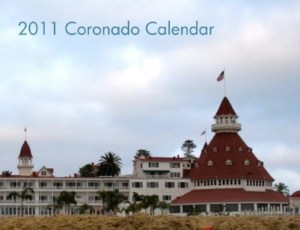
 The Holiday Season is just around the corner, so it’s no surprise that a number of calendars are popping up on MagCloud.
Whether you are looking for a gift idea for your family, a fundraiser for your children’s sports team, a new way to gain exposure for your art and photography or another way to build brand awareness for your small business– at $5.60 for a 28-page publication on MagCloud, creating a calendar is both easy and affordable.
Throughout the rest of this week we’ll explore designing calendars with Microsoft Word, iWork Pages, and using MagCloud’s Flickr Uploadr.
First up: Microsoft Word.
Getting Started
In past blogs we’ve discussed the number of resources for Microsoft Word templates. Whether you are visiting Microsoft’s Website, or the program’s built-in project gallery (available on a Mac), you can find various calendar templates to get you started.
In this particular exercise, I have created my own custom template by inserting a table into each page that is 6 columns and 7 rows. To avoid running into issues with rotating pages, when I export the final calendar, I have designed for the landscape appearance while working in a portrait setting. To do this, I have simply set the text orientation on it’s side.
To complete this calendar you will want to have a minimum of 15 images–preferably in a landscape format.
You can start with one of the basic templates, and follow along to make it your own. I’ve created two versions to get you started: a casual look with sans-serif fonts, and a more sophisticated look with a classic serif font. You can download them here:
Download the Formal Word Template
Download the Casual Word Template
Styling Your Calendar
The calendar template has built-in style sheets, so you can easily change the fonts and colors to fit your needs.

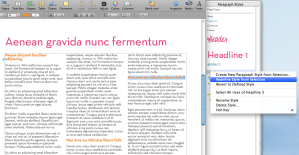
To make the necessary adjustments, you must first select a block of text that you wish to modify (for example to change the font style of the days of the week, you could select “Thursday”). Go to FORMAT >> Style; once in the “Format” dialog box, you can narrow the list of fonts to the ones of interest by selecting “User-defined Styles.”
Now you can choose to “Modify” each of these paragraph styles to change the look of your template.
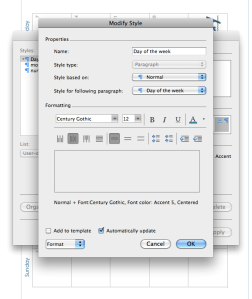 Within the “Modify Style” dialog box you can select different fonts, weights and colors for the “Day of the week” paragraph style.
**Be sure to check “Automatically update” so that when you save your changes, all uses of that style throughout the document are updated to the new look.
Repeat these steps to adjust the “month” and “number” styles to customize your calendar further.
Make it Personal with Photos
Now it’s time to insert photos into the blank pages of your calendar.
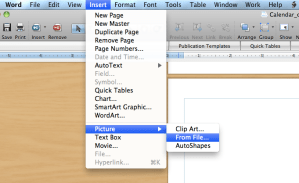
To do so, select Insert >> Picture >>From File… Within the dialog box you can select saved photos to insert one at a time on the blank pages.
You will need to rotate each image -90º onto it’s side, (to the left or “counter-clockwise”) so that they will be oriented properly in the printed version.
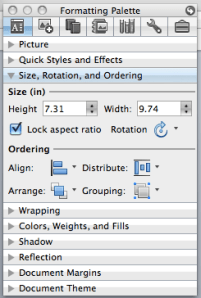 **Designer Tip: Be sure to adjust photos proportionately, so they maintain the same aspect ratio and don’t look stretched or distorted. On a Mac, you can select “Lock aspect ratio” in the “Formatting Palette,” to ensure that images look their best. You can also set this preference while you have an image selected, and then by going to the “Format” menu and selecting Picture >> Size >> “Lock aspect ratio”**
Save, then Export to a PDF
Microsoft Word 2003: To export your Word 2003 document as a MagCloud PDF on a PC, first go into Tools > Options and select the Save tab. Ensure that the box next to Embed TrueType Fonts is checked, but the boxes next to its subcategories (“Embed characters in use only” and “Do not embed common system fonts”) are unchecked.
Then, in the “Save to PDF” dialog box, click the “Options” button and check the “ISO 19005-1 compliant” box, which should also automatically put a check in the “Bitmap text when fonts may not be embedded” box.
Click Okay, then go to File > Save As and select PDF from the file type drop-down menu to save your PDF.
Microsoft Word 2007 (PC): To export your Word 2007 document on a PC, click on the Microsoft Office Button in the upper left hand corner and choose “Word Options”. Select the Save tab on the left and make sure that the box for “Embed fonts in this file” is checked, but uncheck the boxes below it (“Embed only the characters used in the document” and “Do not embed common system fonts”).
Then, in the “Save to PDF (or XPS)” dialog box, click the “Options” button and check the “ISO 19005-1 compliant” box, which should automatically put a check in the “Bitmap text when fonts may not be embedded” box.
Microsoft Word (Mac): When exporting your PDF on a Mac, there is no option to embed fonts, so simply select File > Save As and choose PDF from the Format drop-down menu.
*This usually is only an issue if you have empty, hidden or transparent text frames in your document, or when a single character within a block of text uses a different font than the rest of the paragraph. If you have problems, you will either need to eliminate these, or embed the fonts in a different program before uploading to MagCloud. (see the help section)
WANT MORE HELP WITH WORD AND TEMPLATES?
Microsoft Office Word Template Site
Mactopia (for Mac Word Help/How-to’s)
Check back with us tomorrow for more how-to’s and tips with calendars using iWork Pages, and again on Friday for a quick an easy calendar that you can make straight from your flickr account using MagCloud’s Flickr Uploadr!








 Publisher's Corner