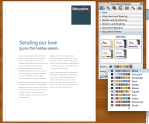
The Importance of Layouts and Templates

Whether you’re a design newbie, or a seasoned veteran, sitting down to create a new publication can be a daunting task. There’s nothing more frustrating than staring at a blank page, feeling stuck, and unsure of where to begin. It’s often easier to change things that don’t work for you, than to completely start from scratch, which is why we suggest starting with an existing document. It can be the design of a similar publication, or a simple template that has preloaded margins, column guides and style sheets, that you can quickly adjust for a head start. The advantage of dong this, it that the basics of the page are already in place so you can focus on your content and styling.

Why use a template?

Whether you are creating a 12-page or 120-page publication, if you plan to create a series with the same style, you’ll definitely want to invest the time to develop style sheets, and come up with a few layouts that you can repurpose each time you publish. This will help you keep a visual consistency not only throughout each publication, but also from publication to publication over time.

Some of our publishers have done a great job of this, and you can see how it helps reinforce their brand to have consistent styling throughout each publication.  Check out a few issues of Hacker Monthly or Livestrong, or portfolios by professional photographer David Livingston and you will see what we mean. Each of these publishers have developed a consistent style using templates that is unmistakably and identifiably their own.
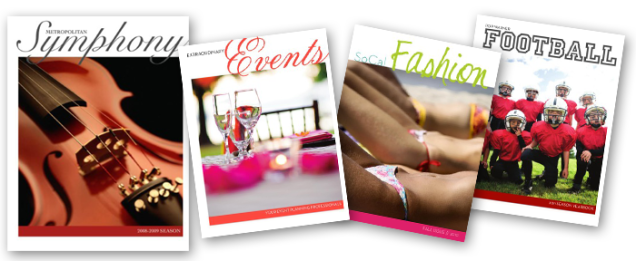
Not an expert at design? No problem. Using a professional-looking template can increase your credibility, and make any publisher look like a pro. Find a template that has a style that resonates with you and use it as a springboard to get yourself started. You can see some great examples of this in our blog post Easy Design with Templates in Apple’s [iWork] Pages, where we turned a basic Symphony Program into a business services guide for an event planning company, a sports team yearbook, and a fashion magazine, with just a few changes in font, colors and photography.

Finding Templates
Where to look and what to look for…

Some software comes equipped with built-in templates, and you can also find great free and paid templates online at the companies’ websites, like Microsoft has for Word and Publisher here, or Adobe has for InDesign at Adobe.com

Still can’t find what you need? Other resources exist where you can buy specific designs for your needs and many of these sites make their templates available for a variety of design programs like Inkd and Stocklayouts.com.

When picking your templates, there are a number of things to consider for your publication:

1. Is this template for an 8.5″ x 11″ document? If it’s designed as a 17″ x 11″ spread, do I know how to adjust it to the right size?

2. What sort of page-layouts are included in the template?

3. Does the template have the right ratio of graphics to text for my needs?

4. Are there hidden layouts that I don’t see? * Hint: if you are using iWorks Pages, there probably are!

5. Does the style suit the audience I am trying to reach? If not, is it easily changed with a few font/color tweaks?

6. Don’t feel restricted by the stock photography or color palette used in a template. Keep in mind our example of the Symphony Program being transformed into a fashion magazine or an event planner’s business collateral

7. Ask yourself, “This template isn’t designed for my specific use-case, but does the overall layout and feel fit my purpose? Could I transform it into something that works?”

Ready to customize your template?
A few tips for making any template fit your needs.

– Unless you get a template directly from our blog, you will likely have to alter some of their settings to accommodate MagCloud’s printing requirements. Before you start making any edits to your template, be sure the document settings match those in the MagCloud Help Section.

– When you make changes to fonts and colors, always do this by editing the font or paragraph style sheets. This way, if you don’t like a change that you have made, it will be easy to adjust and will change that style use on all of the pages of the template.

– Always start with the original file and make 2 or 3 versions, each with different fonts or colors. Then save each as it’s own template so that you can compare them and easily decide which one you like best.

Ready, Set, Start Publishing!

Now that you have your template selected, it’s up to you to make it your own. Need a bit of extra help? Check out our other Tips & Tricks blog posts, or visit the help sections of your software’s site. Many of them have great how-to resources and videos to help you on your way.

Adobe InDesign

Microsoft Office

iWorks Pages

Trim, Bleed and All That Jazz

One of the trickiest things about designing for print is understanding trim size and all things related to it.

After the printed pages come off our presses and are bound together, they need to be “trimmed” so that each page is exactly the same size.  This ensures each page in your publication is even, giving it that professional look.

While we always try to trim as accurately as possible, it’s natural for the trim line to vary slightly in one direction or the other, which is why we recommend that you include a “bleed” and work within a “safe zone” when you design your PDF.

Bleed

To ensure that no important parts of the page are cut off in the trimming process a “bleed” area is defined.  The “bleed” extends beyond the “trim” for when you want a photo or color to extend to the edge of the page.  For Standard, Digest, and Digest Landscape publications, the bleed is the top 0.125 inches, the bottom 0.125 inches, and the outside 0.25 inches of your PDF. For Flyer publications, the bleed is the 0.125 inches on all sides of the 8.5″ x 11″ PDF.

The reason to include a bleed in print files is to ensure that images you want to go to the edge of the page always do so, regardless of how exact the trim is.  If an image is cropped at the 8.25” x 10.75” trim edge on a Standard size publications, as shown in the below diagram on the left, and the print is trimmed slightly wider, then there will be a white bar between the printed image and the edge of the page.  If the image is extended all the way to the 8.5” x 11” PDF edge instead, filling the bleed area as shown in the below diagram on the right, then the printed image will go all the way to the edge of the page regardless of where the actual trim occurs.

Safe Zone

The “safe zone” is the area inside the trim line where your text and graphics are not at risk of being cut off or lost into the binding in the final print, regardless of any variation in the trim.  For MagCloud publications this area is 0.25 inches within all sides of the trim edge.

Any content that you want to appear completely within the final printed publication should be kept inside the safe zone.  Placing content too close to the top, bottom or outside edge of the PDF could result in that content being cut off during trimming.  This is something to keep in mind when adding page numbers to your publication, as those tend to be placed closer to the page edge.  Similarly, placing content too close to the inside edge of the PDF could result in that content being lost into the binding if your publication is perfect bound.  By keeping your content within the safe zone, you ensure that it will appear completely in the final print and digital copies of your publication.

For more information and step-by-step instructions to set up your PDF with the bleed and safe zone in mind be sure to check out our Getting Started page.

Next up in the MagCloud Design series: The Importance of Layouts and Templates

Design Blog Series

We realize designing a great looking publication can be time-consuming and a bit tricky so for the next month we’ll be doing a series of blog posts sharing some of the MagCloud team’s favorite design tips and resources.

These will range from guidance on how to create a MagCloud-ready PDF, to design do’s and don’ts, as well as the latest trends in fonts, color and content layout.

Tomorrow we’ll kick off the series with a post on how to work with trim size when creating a MagCloud-ready PDF.

Let us know in the comments section if there are any specific topics you would like us to include in the Design Blog Series.

Happy Designing!

Magazine Cover Design Inspiration

At MagCloud, we’ve seen a lot of magazine covers and know that the cover can significantly influence the popularity of an issue. Today, we’re sharing a few online resources that can provide more “food for thought” when you’re sitting down to design the cover of your next issue.

We know our customers’ design experience and expertise ranges significantly so no matter where on the spectrum you fall, it’s best to stay updated on the latest design software and trends available to you.

Let’s dive right in. Layers Magazine is an invaluable resource for designers of all sorts. Whether you’re looking to build a better portfolio or want to know how to make your magazine cover stand out among the rest, the website offers a variety of sections with tips and tricks for getting the most out of Adobe’s design tools.

Typography arguably plays an important role for your cover. Even if your magazine is image-driven, there is still a need to spend time researching trends and case studies before thoughtfully selecting a font. Don’t know where to start? Typophile’s Typography 101 will have you weighing the pros and cons of Venetian vs. Garalde types in no time. If you get stuck or have a question about using a specific font, head on over to the forum section and ask the experts!

For help designing graphics to insert into your magazine layout, check out Abduzeedo, which has a section devoted to daily inspirations for designers. Their interview section features established photographers, graphic artists, illustrators and others that can also provide real inspiration when you’ve hit a wall with your issue. Finally, Designmoo and 365psd let you download free graphic design files and collaborate with a community of designers.

It’s also essential to stay on top of today’s trends in print design. Visit Colourlovers for the latest in color trends and Trendland for trends across all mediums. It’s truly a go-to site for every designer.

Have a favorite site, blog or resource that we didn’t mention? Share it in the comments below! And, don’t forget to share this article. Your friends and followers will thank you!

How-to-Guides Make Publishing on MagCloud a Snap!

We’ve just released a series of step-by-step guides to help our publishers create PDFs that are MagCloud publish-ready.

There are guides for a wide variety of design, desktop publishing and word processing applications including Adobe InDesign, QuarkXpress, Apple Pages, Microsoft Publisher and Microsoft Word.

The How-to-Guides walk you through document settings, trim and bleed tips, image sizing, color spacing, designing for perfect binding, PDF exporting and more.

All guides are available for free digital download or you can order a print copy at MagCloud of course :).

If you are looking for inspiration check out some of our existing design templates for brochures, cookbooks and calendars.

Happy Publishing!

QUICK TRICK: PDF Export Presets for Adobe InDesign

Exporting to a PDF seems like it should be the easiest part of the design process, but one little checked-box can throw off your PDF settings, and cause a lot of frustration.

To solve the problem I have created a PDF preset file for InDesign that you can quickly download and use every time you want to publish to MagCloud.

The process is very simple, and it works for a Mac or PC.
Just follow these four steps.

SAVE AND EXPORT A PDF FROM INDESIGN:

1. DOWNLOAD the MagCloud PDF Export Job Options file (note you may need to ctrl+click or right click and save this file)

2. Install the Preset:
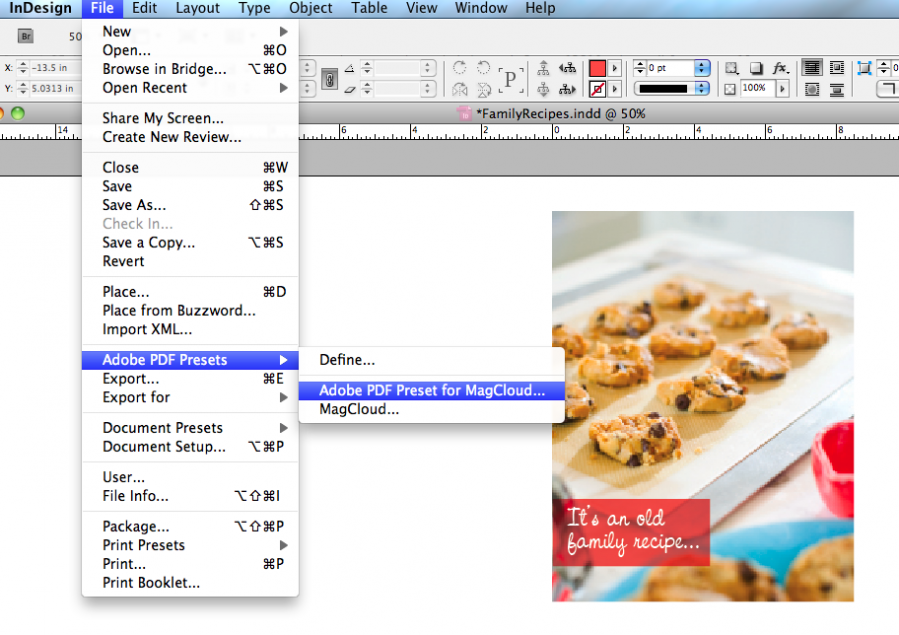
Within InDesign, go to FILE>> Adobe PDF Presets>> Define >> “Load” >> Find and Select the file you downloaded called “MagCloud_PDF_Export” >> Click “Done.”

3. To use these imported settings, with your file open in InDesign, Select FILE >> PDF Presets >> “Adobe PDF Preset for MagCloud”

4. Name and Save your PDF and you are ready to publish!

*Note, the preset will only work properly if you have set your document up perfectly from the start. To be sure you have your document settings adjusted properly, go to the InDesign Help Section on MagCloud.

Easy Custom Cookbooks with Microsoft Word

The holidays are creeping closer, so we’re back today, with another template to transform your family’s favorite recipes into a colorful, beautifully-published recipe book that you can give to your friends and loved-ones this holiday season.

Yesterday I shared a template for using an Adobe InDesign template, which you can read more about here. Today we’re looking at using Microsoft Word to create a quick and easy recipe book.

GETTING STARTED:
To get you started with publishing your own recipe book, you can follow along with the one I created for this demo.

DOWNLOAD the MagCloud-ready Word Template.

CUSTOMIZING YOUR TEMPLATE:

Editing Master Pages:
To edit the page number styles and the logo on the right-hand pages, you will need to acces the document’s master pages–these can sometimes be tricky to find, so be sure you are in “Publishing Layout” which you can select by going to VIEW >> Publishing Layout.

Then, in the lower right-hand corner of the application window, you can toggle from the document content to the master page layouts.

(Tip: be sure to toggle back to the content pages once you have made your changes.)

Making it your own:
Changing the paragraph styles of the document makes it easy to change the overall look of your cookbook with minimal effort.

For a quick transformation you can start by changing the “Document Theme” within the Formatting Palette. This transforms both the fonts and color palette quickly and then you can make more minor adjustments using the techniques below.

Change the Text and Accent Colors:
Much like you can change the theme, you can also simply adjust the colors used within the template using the “Colors” Options within the “Document Theme” section of the Formatting Palette.

By selecting this fly out menu you can select different color palettes, and see how picking them, transforms the look of your recipe book.

Change the Font Style Sheets:
1. With the Styles Segment of the Formatting Palette open, select the text that you would like to modify on the page.
2. You should see the current style become highlighted in the toolbox panel.
3. Click on the fly-out window to the right of the highlighted style name and select “Modify Style…”
4. Within the dialog box, you can adjust the font, color, sizing and other properties of the associated style.
5. Select “Ok” to save your changes.

Swapping-in and Adding Your Own Photos:
1. Select the image you want to replace.
2. Within the Picture Segment of the Formatting Palette, click on the “Replace…” button
3. Select the image you would like using the dialog box.

(Tip: If you want to add more photos to the template:
Simply go to INSERT >> Picture >> From File… )

Inserting More Recipe Pages:
1. Within the navigation panel, select a page and “right-click” or “ctrl + click” on the mini preview of the page you would like to duplicated.
2.  Select “Duplicate Page”
3. Drag the new mini page that has been added to the Navigation Panel to the desired location in the order of the document.
(Tip: You can also select a page and go to INSERT >> Duplicate Page)

SAVE AND EXPORT A PDF

A quick note about export settings:
Because this template has been designed with elements that bleed off the page (like the cover which has color that goes edge-to-edge), you will need to set your document so that it will export as such.

To do this:
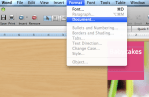
1. Go to FORMAT >> Document…
2. In the dialogue box, confirm that your settings match the ones pictured in this screen shot. (Top: 0.13″, Bottom: 0.13″, Inside: 0″,  Outside: 0.25″, Gutter: 0.25″, mirror margins is checked)
3. Select “Page Setup”
4. Under paper size, if you don’t already have “MagCloud” selected, Select Paper Size >> Manage Custom Sizes…
5. Create a new paper size that is 8.5″ x 11″ with a User-defined non-printable area that is 0″ al the way around.

Microsoft Word 2003: To export your Word 2003 document as a MagCloud PDF on a PC, first go into Tools > Options and select the Save tab. Ensure that the box next to Embed TrueType Fonts is checked, but the boxes next to its subcategories (“Embed characters in use only” and “Do not embed common system fonts”) are unchecked.

Then, in the “Save to PDF” dialog box, click the “Options” button and check the “ISO 19005-1 compliant” box, which should also automatically put a check in the “Bitmap text when fonts may not be embedded” box.

Click Okay, then go to FILE > Save As and select PDF from the file type drop-down menu to save your PDF.

Microsoft Word 2007 (PC): To export your Word 2007 document on a PC, click on the Microsoft Office Button in the upper left hand corner and choose “Word Options”. Select the Save tab on the left and make sure that the box for “Embed fonts in this file” is checked, but uncheck the boxes below it (“Embed only the characters used in the document” and “Do not embed common system fonts”).

Then, in the “Save to PDF (or XPS)” dialog box, click the “Options” button and check the “ISO 19005-1 compliant” box, which should automatically put a check in the “Bitmap text when fonts may not be embedded” box.

Microsoft Word (Mac): When exporting your PDF on a Mac, there is no option to embed fonts, so simply select File > Save As and choose PDF from the Format drop-down menu.

*This usually is only an issue if you have empty, hidden or transparent text frames in your document, or when a single character within a block of text uses a different font than the rest of the paragraph. If you have problems, you will either need to eliminate these, or embed the fonts in a different program before uploading to MagCloud. (see the help section)

WANT MORE HELP WITH WORD AND TEMPLATES?

Microsoft Office Word Template Site

Mactopia (for Mac Word Help/How-to’s)

Create A Personal Photo Magazine

Photo enthusiasts who are short on time or not comfortable with design tools and creating PDF files may want to give Poyomi a try. Poyomi is a new web service that lets you take your desktop or online photos and easily lay them out in a personal magazine format and have them printed and shipped on-demand.

Poyomi connects to online photo sharing services such as Flickr, Picassa and SmugMug making it super fast to create your a personal photo magazine. Simply choose your photos or photo set and select one of the four themes to have your photos automatically put in a magazine format.


Poyomi uses MagCloud for order taking, printing and shipping offering both saddle stitched and perfect binding as well as exceptional print quality.

Poyomi is a third party service and currently does not offer their publications through the MagCloud magazine store.

To create a great looking personal photo magazines quickly give Poyomi a try today.