Publishers in Their Own Words: America Nu (video edition)

Media Mogul, entrepreneur and now magazine publisher, Damon Dash has released America Nu magazine on MagCloud. America Nu is a chronology of the past year of Damon Dash’s new media enterprise, from conception to birth, America Nu represents the struggle to break conformity and redefine a universal lifestyle.

Featured in the premier issue is Erin Fetherston, the new Creative Director for Juicy Couture who will be showcasing her designs at this week’s NY Fashion Week.

Hear Damon describe the process of creating AmericaNu magazine and publishing it on MagCloud.

Promote, Share and Better Target Your Magazines

We’ve made some changes to magcloud.com to make it easier to promote and get the word out about your magazine.

You can add a little personality to your magazine profile page by uploading a custom banner image.  Simply click on Publish, then select the title of the magazine you want to add an image to and you’ll see a new “Add a Custom Banner Image” link at the top right of the magazine page.  You can upload a JPG, GIF or PNG image (790×90 pixels) to your magazine profile.  Magazine banners are a great way to give your publication more personality and reinforce your brand. Note: if you had previously linked to a banner image on a website you’ll need to upload a new image for your magazine.

We’ve also made it easier to share magazine issues with friends, colleagues and clients. Each issue page now has a series of share links so you can promote your magazine issue on Facebook, Twitter, send an email (when signed in) or post a link on your blog or favorite social media site.

Finally, a number of publishers have asked us to help them better target their magazines with expanded category options.  So we recently added a number of new categories to choose from when creating your magazine–Brides & Weddings, Comics & Graphic Novels, Computers, Education, Electronics , Gay & Lesbian, History, Movies, Music, Outdoors & Nature, Parenting & Families, Regional, Sci-fi & Fantasy, and Seniors.

We hope you enjoy these new features and as always we would love to receive your feedback.

Publishers In Their Own Words: The Thistle & Clover Diaries

The Thistle & Clover Diaries
By Rand Niederhoffer & Camilla Gale

Thistle & Clover, our Brooklyn based fashion boutique, features the work of young, up and coming jewelry, clothing and accessories designers that are not easily found elsewhere. Because the store’s focus is on designers who are still (at least for now) relatively unheard of, we make a concerted effort to editorialize our designers wherever possible.

To that end, we implement a quarterly Open Call program that is used to highlight a handful of local design talent each season; we plan a monthly Tailored Event Night, where different designers are invited to the store for cocktail parties (meet and greets); and we utilize a wide variety of social media to interact with our customer base both in Brooklyn and abroad.

MagCloud provided an affordable, easy-to-use means for us to further create a narrative around our clothing collections. The Diaries act as an informational showcase for the fresh new talent that the boutique promotes. Every season 10-15 new designers are highlighted within the quarterly. Each designer receives a full-page spread that includes a headshot, a brief interview, and a photo layout on the facing page, displaying collection looks on sale at T & C.

We really believe that every single collection that debuts is its own entrepreneurial success story. And the Diaries have helped us relay those tales. It’s been a very special experience for us. We’ll be launching our 3rd Thistle & Clover Diaries on September 10th 2010 to a packed house full of the stores designers, friends and family.

Transform Templates into Professional Publications

Who says you have to be a professional designer to create a MagCloud-ready PDF? The MagCloud team has been exploring a variety of word processing and basic design applications that make creating a magazine super simple.

First up was Microsoft Word.  There are a large number of Word templates available that are almost perfectly designed for creating MagCloud magazines.

Whether you are visiting Microsoft’s Website, or the program’s built-in project gallery (available on a Mac), you can find great templates to get you started on creating your brochure, catalog, calendar or just about any other document you can imagine.

I’ll be using the “Brochure” template here as a pilot, but we’ll explore other templates in the future.

The original Microsoft version is available Download original Microsoft Template and my MagCloud-ready version is available Download MagCloud Ready Template.

GETTING STARTED:
To get started, you’ll want to start by finding and opening your template.

In this case I found mine in the “Project Gallery” within the Microsoft Word application. Because the template is designed for a US Letter sized paper (8.5” x 11”) it will be really simple to modify for my own use.

ADJUSTING MARGINS:
Because MagCloud trims its documents to 8.25” x 10.75” we are going to lose 0.125” inches off the top and bottom, and 0.25” off the outside edge. This means in order for our template to be centered on the printed page, we are going to have to adjust the margins. Doing this consistently on every page can be tough, so I use a little trick with the document margin settings and offset them by 0.25.” This way, when the pages are trimmed that 0.25” off the outside edges, the content of the page still looks centered.

To access these settings, you will go to Format>>Document. Using the settings in the screen shot below, you can adjust the margins on the page, and then proceed to adjust the content so it fits within the guides. *Be sure to select “Mirror margins” to see the inside and outside margin options. In this example the document had a 0.5” margin all the way around, so I adjusted the margin by -0.25” on the inside, and +0.25” on the outside.
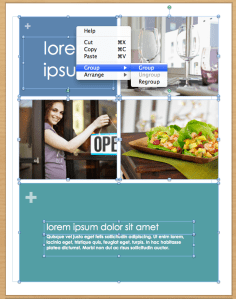
Adjusting the individual elements on each page can be tricky, so I recommend selecting one item on the page, using “ctrl + A”(PC) or “cmnd + A” (Mac) to select all, then right-clicking (or in some cases ctrl+click) on the mouse and selecting the option “Grouping>Group” to group the objects together. This allows you to move all of the page’s contents at once, so you don’t lose the integrity of your design. Be sure to reverse the process by right-clicking after the move and select “Grouping>Ungroup”, so you can once again modify the elements individually.

MAKING IT YOUR OWN:
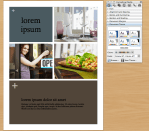
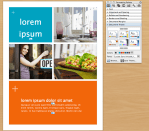
Microsoft does some pretty awesome things with their Word templates by establishing color and font palettes, for the more novice user, this means you can keep your fonts and colors consistent through the document, and for those feeling a bit more daring, you can actually customize the palettes to make the document more your own. Each template comes in a set of colors, and fonts, but you can mix and match these to suit your needs.

Below you will see the same template with a different color schema and font collection.

TURNING YOUR WORD DOCUMENT INTO A PDF:

Microsoft Word 2003: To export your Word 2003 document as a MagCloud PDF on a PC, first go into Tools > Options and select the Save tab. Ensure that the box next to Embed TrueType Fonts is checked, but the boxes next to its subcategories (“Embed characters in use only” and “Do not embed common system fonts”) are unchecked.

Then, in the “Save to PDF” dialog box, click the “Options” button and check the “ISO 19005-1 compliant” box, which should also automatically put a check in the “Bitmap text when fonts may not be embedded” box.

Click Okay, then go to File > Save As and select PDF from the file type drop-down menu to save your PDF.

Microsoft Word 2007 (PC): To export your Word 2007 document on a PC, click on the Microsoft Office Button in the upper left hand corner and choose “Word Options”. Select the Save tab on the left and make sure that the box for “Embed fonts in this file” is checked, but uncheck the boxes below it (“Embed only the characters used in the document” and “Do not embed common system fonts”).

Then, in the “Save to PDF (or XPS)” dialog box, click the “Options” button and check the “ISO 19005-1 compliant” box, which should automatically put a check in the “Bitmap text when fonts may not be embedded” box.

Microsoft Word (Mac): When exporting your PDF on a Mac, there is no option to embed fonts, so simply select File > Save As and choose PDF from the Format drop-down menu.

*This usually is only an issue if you have empty, hidden or transparent text frames in your document, or when a single character within a block of text uses a different font than the rest of the paragraph. If you have problems, you will either need to eliminate these, or embed the fonts in a different program before uploading to MagCloud. (see the help section)

DESIGNER TIPS AND TRICKS:

1. Establish a style/color palette before you start inputting your content.
2. Save versions of your document as you play with the design, colors and fonts–this way you can open them up and compare your options side by side.
3. Use the styles panel to make changes in Paragraph and Character styles rather than adjusting selections on the page… this way you keep your styling consistent throughout your document.

WANT MORE HELP WITH WORD AND TEMPLATES?

Microsoft Office Word Template Site

Mactopia (for Mac Word Help/How-to’s)

Journalists Test the Limits of Publishing With HP MagCloud

A great article appeared on HP’s corporate blog this week about how MagCloud publishers, like Longshot Magazine, are pushing the limits of publishing with collaboration.

An excerpt from the blog post:

With the publishing industry in a state of uncertainty, one trend is offering a glimmer of hope: collaborative publishing.

This past weekend, a group of editors (from publications like Wired and The Atlantic) challenged themselves once again to create a magazine in just two days, first by issuing a 24-hour call for content – essays, reporting, pictures, graphics, etc. – around a specific theme and then giving themselves 24 hours to collaborate, compile, and deliver the final product.  The theme (“Comeback”) was issued publicly Friday and the group met their deadline yesterday, resulting in Issue One of Longshot Magazine.

To read the entire article go to HP’s Corporate Blog.

Also check out other MagCloud publishers who are also pioneering this new wave of collaborative publishing: JPG Magazine, theviewfromhere, Onè Respe and Strange Light.

Publishers In Their Own Words: Bowery Lane Bikes

Bowery Lane Bikes
By Michael Salvatore, CEO

Bowery Lane Bikes, based in Manhattan, produces hand-crafted, American steel, vintage-inspired bicycles at a family owned factory in Queens, New York. While we do have a small showroom, we sell most of our bikes via our website or word of mouth. So I’m always looking for new ways to reach potential consumers. This means tapping into online communities and setting up at bicycling events; in short, it means connecting with people in any way I can.

I use MagCloud to put together a tasteful, professional catalog. I enlisted friends who work in photography and design, and the finished product looks like it was made by a company 10 times our size. I hand these to everyone I can – it sure beats giving out business cards with a web address on them, and yet it still drives people to our website. I also leave them with anyone who displays or sells our bikes for us — whether that’s a bike store, a hotel or a clothing store.

When running a small business, you’ve got to be creative. Our catalog has helped us get traction with clothing stores, boutique hotels, and press.

New Ways To Promote Your Magazines

Looking for ways to showcase your magazine on your blog, website or favorite social network?  Try out the new custom MagCloud Widgets! Select the size and colors you prefer for your magazine widget then simply copy and paste the code into any site that accepts HTML.
Want to attract more followers?  Try out our nifty new MagCloud badges to encourage more people to follow your magazine and show your MagCloud pride.

Interested in other ways to promote your magazines to the world at large? Then check out our new Promote Page.  Send an email or share a link with friends, co-workers, family and other like minded individuals letting them know about your latest magazine issue.

What are you waiting for?  Your magazine rocks so let the world in on it!

Publisher Profiles

A great way for publishers to share more information with their readers is via their MagCloud Profile Page.

Every MagClouder has a profile page and for publishers that’s a great place to promote your magazines and tell readers more about yourself, your publications and even which MagCloud magazines you are personally following. Each MagCloud profile also has a unique url “yourusername.magcloud.com” so you can easily share your profile with the world.

You can customize your profile from within your account settings.  Here you can upload a personal photo (separate from your magazine image), promote a link to your personal or business website and write a short bio. You can also click on your “public profile link” to see a preview of how your profile will appear to your readers.

Readers can access your public profile anytime they click your name when viewing your magazine or issue pages. It’s a great way for readers to learn more about their favorite magazine publishers and message you directly using the “contact link” on your profile page.

So let your magazine fans know more about you and update your profile today.

Liquid Comics on MagCloud

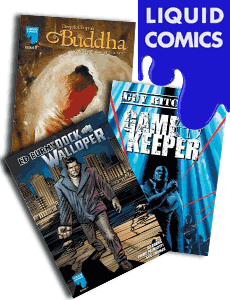
Just in time for Comic-Con, Liquid Comics are now available on MagCloud in print and iPad format.

Liquid has created graphic novels with acclaimed creators including John Woo, Shekhar Kapur, Deepak Chopra, Guy Ritchie, Dave Stewart, Jonathan Mostow, Edward Burns, Nicolas Cage, and others. Guy Ritchie’s Gamekeeper is currently being adapted for film by Warner Brothers.

And a special Comic-Con only offer – the first 1,000 copies of three special edition Liquid comics ordered from MagCloud are free!

MagCloud’s New Perfect Binding Option

One of the most requested features by publishers has been the option for perfect binding.  Perfect-bound magazines are square at the spine and use glue to hold the pages, like a paperback book. It gives your issues a more professional feel, and can accommodate a much higher page count – up to 384 pages.

Using MagCloud’s new perfect binding option is super easy:

perfectbinding1. To begin, sign in to MagCloud and go to your Publisher’s Desk.
2. Create a new magazine issue.
3. Upload your PDF or select your Flickr photo set.
4. Preview your issue. Look good? Keep going!
5. Now you get to choose a binding (saddle-stitched or perfect-bound) for your issue.
6. After you select perfect-bound you will see the “Add a spine” section, where you have a few options. You can choose to fill the spine with a solid color or upload your own design. To fill the spine with a color simply click the background color box and you will be given a chart from which you can select your spine color. If you prefer to “Design a Spine” you can download a template to create your custom design, then upload your design (JPG, PNG, or PDF format) and preview it on MagCloud. For issues over 80 pages you also have the option to create a spine with text directly from the MagCloud website.
7. Set your issue price, order a proof and you are done!  Note: because the binding process is more complex selecting the perfect-bound option does add $1.00 to your issue cost.

You can use the same PDF file or Flickr photo set for both saddle-stitched and perfect-bound magazines, but there will be some differences in the final product.  For a few tips on how to optimize your design for perfect-bound magazines or learn more about this great new feature visit our Help Section.

Enjoy this new feature and if you have any comments or questions please let us know.