Trick or Treat?

In case you missed it MagCloud has been having daily Halloween “flash sales” all week. They are impromptu sales that last only two hours. So you have to catch them while you can and we promise a 25% off production costs treat for all.

Follow MagCloud on Twitter or become a fan of our Facebook page to find out when the next “flash sale” will start. We will continue these sales through Oct 31st so no need to miss out.

Here’s a hint for when today’s “flash sale” will occur:

It will happen while vampires and werewolves are still at school in Forks, Washington (though some of them might be getting a little hungry).

Good luck and Happy Almost Halloween!

Creating Calendars Recap

In case you missed it we had two great blog posts this week filled with tips and tricks on how to create a 2011 calendar and easily publish it on MagCloud.

Microsoft Word users download our MagCloud ready calendar templates and get step by step instructions for creating your own 2011 calendar.

Apple Pages users we have some great templates for you too, with tips on how to customize them for your specific calendar needs.

If you are looking for some inspiration there are lots of great 2011 calendars already popping up on MagCloud here are a few samples:

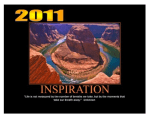
2011 Inspirations Calendar
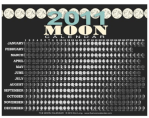
The Moon Calendar 2011
Whidbey Island 2011

Create a Calendar with iWork’s Pages

Today we are focusing is on creating a calendar with Apple iWork’s Pages.

Hey PC users: check out yesterday’s post about using Microsoft Word, or check back tomorrow to see  how to use MagCloud’s Flickr Uploadr to create a super cool calendar with just a few clicks of the mouse.

Let’s get started with Pages.

I’m a new fan of Pages, (Apple’s design tool that comes in their iWork productivity suite) and if you are Mac user looking to do some basic design without spending a ton (iWork retails for just $79 at store.apple.com) it’s an easy program to use, and is great for projects like a family calendar.

You can create a lot of great looking calendars using the exact same template, just by making a few changes to fonts, color and pictures.

Preview Wedding Photography Calendar Preview Parma Photography Calendar on MagCloud Preview my Family Calendar on MagCloud

GETTING STARTED:

The template is already set up with 28 pages, so making a few customizations and saving the file as a PDF should be quick and easy!

Download the basic calendar template that I designed here, or at the bottom of this post, you can preview and download some of the variations that I created using the same template, by making a few modifications to the style sheet.

MAKE IT YOUR OWN:
Because I designed this template for use with MagCloud, it’s already formatted to accomodate bleed and trim settings. This means you can just start modifying the style to fit your needs. Because this Pages template has a built-in Paragraph style sheet, it will be easy to keep a consistent style throughout your calendar.

Change view to “Facing pages”
This not only helps with visualizing layout, but also will help you keep the orientation of your photos straight when placing them in the document.

Styling your Calendar
Not making a family calendar? Then go through each page and make the necessary adjustments to layout and fonts. As I mentioned before, all of the above calendars use the exact same layout, with slight tweaks to the fonts and colors. It’s amazing how simple style changes can make a template your own. There are 3 styles in the template: “Title,” “Days of the Week” and “Numbers of the Month;” so changing these styles will transform the look of your calendar. Let’s get started!

Adjusting a Paragraph Style:

Show Font Window1. Expose the “Font Window” by selecting the “A” icon in the Toolbar (If for some reason you don’t see the toolbar at the top of your application frame, then Select VIEW >> Show Toolbar, then select the “A” icon)
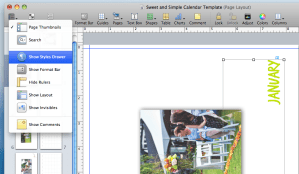
Show Styles Drawer

2. Select a block of text that you wish to modify

3. Make desired changes to font, size, weight and color using the “Font Window.” As you make selections, you should see the font change on the page.

4. Expose the “Styles Drawer”

Redefine Style from Selection

5. Select the block of text again–notice how it highlights the selected style in the “Styles Drawer.”

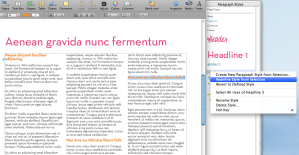
5. Update your paragraph style sheet so that all of the subsequent uses of this style reflect the style changes. You can do this by either “right-clicking” or “ctrl+ click” on the name of the font style in your “Styles Drawer”, then select “Redefine Style from Selection.”

Adding Special Dates to the Calendar:

Half the fun of making your own calendar, is including special dates that are important to you. So, whether you are creating a calendar for your child’s sports team, and you want to include their match dates; or if you are creating a calendar for your family, and you want to include Birthdays and Anniversaries; or if you want to create a calendar for your business and include special events and sales– it’s easy to do.

Because the numbers of the month are dependent on one another, typing directly in the square won’t work. Instead, follow the instructions below to add text boxes to your calendar. (Tip: You can also use these steps to add captions to your photos)

1. Select the Text Box Icon from the Toolbar (it looks like a “T” in a box)–
this will create a small box that you can move around the page

2. Type the information (ie. “Mom’s Birthday” or”Ladybugs vs. ‘Lil Giants”)

Grabbing the corners of the frame, adjust the size to 1.4 x1.03. Grabbing the corner of the text box, adjust the size of the box to 1.4 x 1.0 (this way you can see how it will fit in the day’s square)

4. Adjust the size if the text so that it fits well inside the box and select your desired color and font.

Create New Paragraph Style

5. Highlight the text again.

6. In the Styles Drawer, hold down the “+” at the bottom of the menu and select “Create New Paragraph Style from Selection” (You can also select FORMAT >> “Create New Paragraph Style from Selection” from the application menu bar)

7. Name your new style. This makes it possible fro you to use this style for other dates as you add them to your calendar.

Rotate the Text Box using the Metrics Tab in the Inspector toolkit8. With the text box selected, go to the “Metrics” tab in the Inspector window; use the rotation settings to rotate the text 90º.

9. Drag the box to the appropriate date on the calendar page.

Tip: Save yourself some extra steps by copying and pasting this text box throughout the document. (Select the text box and use “command+ C ” and “command+ V” to copy/paste) Then you can change the text, but it will maintain the style, size and rotation.

Save your file as a “Template” for future uses

If you plan to create another calendar, be sure to save your personalized document as a template. It’s easy to do, just select “File> Save as Template.” This puts a copy of your file into the Pages Template Chooser so you can find it easily next time you launch the application.

Tip: Because your using a template to create your calendar, and have the power of HP MagCloud’s digital printing, there’s no reason you can’t personalize your calendars… Perhaps change the cover image for Aunt Margaret’s calendar? Or make one with more photos of the kids for you In-Laws? Or create calendars that cater to your clients or program sponsors… it’s up to you!

TURNING YOUR DOCUMENT INTO A PDF:
You’re done designing? Yay!
This part couldn’t be easier! Simply select “FILE>> Export.”
Leave the default settings for PDF, and save your file.

WANT MORE INFORMATION ABOUT PAGES?

Apple’s Pages ’09 site

Apple Store: iWork $79

PREVIEW the modified templates:

Preview Wedding Photography CalendarPREVIEW Template modified for a wedding photographer on MagCloud
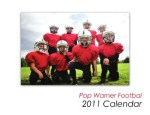


PREVIEW Template modified for the PopWarner Team on MagCloud



PREVIEW Template modified for a business (Venetian Glass Blowers) on MagCloud


Preview Parma Photography Calendar on MagCloudPREVIEW Template modified for Parma, Italy Calendar on MagCloud


Preview my Family Calendar on MagCloudPREVIEW Template modified for a family calendar on MagCloud



It’s Calendar Season!

The Holiday Season is just around the corner, so it’s no surprise that a number of calendars are popping up on MagCloud.

Whether you are looking for a gift idea for your family, a fundraiser for your children’s sports team, a new way to gain exposure for your art and photography or another way to build brand awareness for your small business– at $5.60 for a 28-page publication on MagCloud, creating a calendar is both easy and affordable.

Throughout the rest of this week we’ll explore designing calendars with Microsoft Word, iWork Pages, and using MagCloud’s Flickr Uploadr.

First up: Microsoft Word.

Getting Started
In past blogs we’ve discussed the number of resources for Microsoft Word templates. Whether you are visiting Microsoft’s Website, or the program’s built-in project gallery (available on a Mac), you can find various calendar templates to get you started.

In this particular exercise, I have created my own custom template by inserting a table into each page that is 6 columns and 7 rows. To avoid running into issues with rotating pages, when I export the final calendar, I have designed for the landscape appearance while working in a portrait setting. To do this, I have simply set the text orientation on it’s side.

To complete this calendar you will want to have a minimum of 15 images–preferably in a landscape format.

You can start with one of the basic templates, and follow along to make it your own. I’ve created two versions to get you started: a casual look with sans-serif fonts, and a more sophisticated look with a classic serif font. You can download them here:

Download the Formal Word Template
Download the Casual Word Template

Styling Your Calendar
The calendar template has built-in style sheets, so you can easily change the fonts and colors to fit your needs.

Select "FORMAT >> Style"

To make the necessary adjustments, you must first select a block of text that you wish to modify (for example to change the font style of the days of the week, you could select “Thursday”). Go to FORMAT >> Style; once in the “Format” dialog box, you can narrow the list of fonts to the ones of interest by selecting “User-defined Styles.”

Now you can choose to “Modify” each of these paragraph styles to change the look of your template.

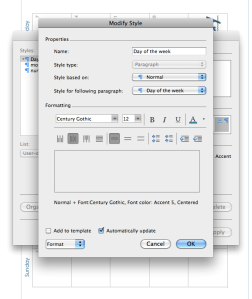
Modify Paragraph StyleWithin the “Modify Style” dialog box you can select different fonts, weights and colors for the “Day of the week” paragraph style.

**Be sure to check “Automatically update” so that when you save your changes, all uses of that style throughout the document are updated to the new look.

Repeat these steps to adjust the “month” and “number” styles to customize your calendar further.

Make it Personal with Photos
Now it’s time to insert photos into the blank pages of your calendar.

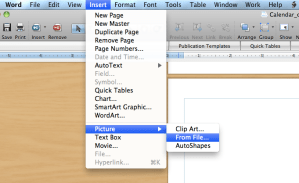
Insert Picture (from file)

To do so, select Insert >> Picture >>From File… Within the dialog box you can select saved photos to insert one at a time on the blank pages.

You will need to rotate each image -90º onto it’s side, (to the left or “counter-clockwise”) so that they will be oriented properly in the printed version.

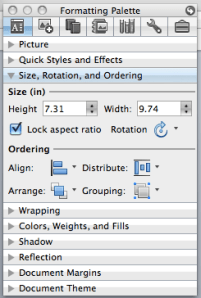
Lock image aspect ratio**Designer Tip: Be sure to adjust photos proportionately, so they maintain the same aspect ratio and don’t look stretched or distorted. On a Mac, you can select “Lock aspect ratio” in the “Formatting Palette,” to ensure that images look their best. You can also set this preference while you have an image selected, and then by going to the “Format” menu and selecting Picture >> Size >> “Lock aspect ratio”**

Save, then Export to a PDF
Microsoft Word 2003: To export your Word 2003 document as a MagCloud PDF on a PC, first go into Tools > Options and select the Save tab. Ensure that the box next to Embed TrueType Fonts is checked, but the boxes next to its subcategories (“Embed characters in use only” and “Do not embed common system fonts”) are unchecked.

Then, in the “Save to PDF” dialog box, click the “Options” button and check the “ISO 19005-1 compliant” box, which should also automatically put a check in the “Bitmap text when fonts may not be embedded” box.

Click Okay, then go to File > Save As and select PDF from the file type drop-down menu to save your PDF.

Microsoft Word 2007 (PC): To export your Word 2007 document on a PC, click on the Microsoft Office Button in the upper left hand corner and choose “Word Options”. Select the Save tab on the left and make sure that the box for “Embed fonts in this file” is checked, but uncheck the boxes below it (“Embed only the characters used in the document” and “Do not embed common system fonts”).

Then, in the “Save to PDF (or XPS)” dialog box, click the “Options” button and check the “ISO 19005-1 compliant” box, which should automatically put a check in the “Bitmap text when fonts may not be embedded” box.

Microsoft Word (Mac): When exporting your PDF on a Mac, there is no option to embed fonts, so simply select File > Save As and choose PDF from the Format drop-down menu.

*This usually is only an issue if you have empty, hidden or transparent text frames in your document, or when a single character within a block of text uses a different font than the rest of the paragraph. If you have problems, you will either need to eliminate these, or embed the fonts in a different program before uploading to MagCloud. (see the help section)

WANT MORE HELP WITH WORD AND TEMPLATES?

Microsoft Office Word Template Site

Mactopia (for Mac Word Help/How-to’s)

Check back with us tomorrow for more how-to’s and tips with calendars using iWork Pages, and again on Friday for a quick an easy calendar that you can make straight from your flickr account using MagCloud’s Flickr Uploadr!

Publisher Spotlight: Broadway Magazine

Jude Law as Hamlet. Catherine Zeta-Jones in A Little Night Music. Stephen Sondheim’s Sondheim on Sondheim. Or how about American Idol favorite Constantine Maroulis in the ’80s rock-and-roll tribute, Rock of Ages?

With a long and growing list of classic and new performances to choose from, the neon lights can become overwhelming bright to the more than 12 million theatre fans who flock to Broadway each season.

Luckily, theatre goers from the budding novice to the savvy and sophisticated can turn to the beautifully designed and informative pages of Broadway Magazine for guidance.

Launched by Carousel Brothers Communications in March 2007 and edited by actor Christopher Moore, Broadway Magazine began as New York City’s only free, hand-distributed tourist guide, recapping what’s playing where, who’s in the leading roles — along with in-depth interviews with the actors — what the shows are about, what the critics are saying and even including a theatre district map.

“We are to theatre lovers what Sports Illustrated is to sports fans,” Moore says. “We deliver the information and knowledge New York City residents and visitors alike need to help them pick the shows that they’re likely to enjoy most. It has been so exciting to see people walking around with and reading our magazine in Times Square.”

Popularity, however, doesn’t always result in profitability. Because Moore was using traditional printing and publishing methods, the costs associated with ordering, say, more than 100,000 copies at a time were becoming prohibitive. In fact, Moore and his team began focusing more of their efforts on the associated website, Broadway.tv, where visitors can read about the shows, watch video snippets and even buy tickets and make travel arrangements.

When Moore heard about MagCloud’s print on demand service, he felt a renewed excitement for the magazine. With print on demand, Moore no longer has to order a minimum number of copies — he can order as many or as few copies as he wants. In fact, anyone in the world can go to the MagCloud website and place orders — the magazine’s distribution can now reach far beyond Times Square.

“People love the website and it’s certainly a great way to get information out there quickly and inexpensively,” he says. “But there is no doubt in my mind that people will always want to experience an actual, tangible magazine in their hands, especially one as beautiful as ours. With access to print on demand, MagCloud has enabled us to return to what we hoped we would be — a comprehensive magazine that celebrates Broadway. While the magazine is no longer distributed for free, the cost is low and the quality of each issue is remarkable.”

Pricing for each issue is $5. President and First Lady Obama’s trip to Broadway is featured on the cover of the first MagCloud-produced issue, June 2009. Covers since then have featured Jude Law, Hugh Jackman and Daniel Craig, Catherine Zeta-Jones, Scarlett Johansson and Liev Schrieber, Stephen Sondheim and, most recently, Green Day.

“The great thing about Broadway is that we have access to great photography and interesting topics to cover with each show,” Moore says. “We also have wonderful access to the actors, so we’re able to run about 20 or so in-depth interviews and features on the website. We incorporate the best of those in our magazine. I couldn’t be happier with the issues. The paper quality, the photo reproduction — MagCloud offers the same high-quality that we experienced in traditional publishing.”

Moore publicizes the magazine on Broadway.tv, with links to MagCloud where readers can preview and purchase the issues online. MagCloud handles all the order processing and shipping.

He also promotes the magazine via Twitter. And he’s currently experimenting with newsstand sales.

“We’ve always wanted to sell our magazines in select newsstands for greater visibility — we just didn’t have a way to do that before because, initially, newsstand sales conflicted with our former free distribution model,” Moore says. “But with MagCloud, we can offer a quality product directly to the local market on the newsstands at a low price without having to commit to overwhelming print runs.

“I love that MagCloud has made us less reliant on ad sales and large circulation numbers. We’re taking this time to collect our online and newsstand sales numbers so that we can better prove to advertisers the true value of our magazine.”

In fact, says Moore, MagCloud has eliminated barriers for anyone interested in launching a magazine. “This is an amazing opportunity for anyone interested in publishing,” he notes. “All you need is the passion for a subject. For us, it’s the celebration of live theatre. I’m so impressed with what we can do with MagCloud. It’s such a great innovation.”

Check out the latest issue!

Create A Personal Photo Magazine

Photo enthusiasts who are short on time or not comfortable with design tools and creating PDF files may want to give Poyomi a try. Poyomi is a new web service that lets you take your desktop or online photos and easily lay them out in a personal magazine format and have them printed and shipped on-demand.

Poyomi connects to online photo sharing services such as Flickr, Picassa and SmugMug making it super fast to create your a personal photo magazine. Simply choose your photos or photo set and select one of the four themes to have your photos automatically put in a magazine format.


Poyomi uses MagCloud for order taking, printing and shipping offering both saddle stitched and perfect binding as well as exceptional print quality.

Poyomi is a third party service and currently does not offer their publications through the MagCloud magazine store.

To create a great looking personal photo magazines quickly give Poyomi a try today.

Designing a Magazine: A Publisher’s Perspective

MagCloud publisher Hacker Monthly recently wrote a great blog post about how they go about designing a magazine. They shared their experience as “non designers” and how they mastered using Adobe InDesign.

Here’s an excerpt of the post:

The questions I’ve got the most since I started Hacker Monthly are “How do you design the magazine?”, “What tools do you use?” and “What books/tutorials do you recommend?”. This post answers all of the questions (and possibly more).

As you might already know, I’m not a designer. My only design experience is drafting up the simplest looking website or user interface in Adobe Fireworks (I never really gotten my way around Photoshop). When I was starting up Hacker Monthly, I wanted to outsource the design since I have zero experience in print. This turns out pretty costly, so I decided to do it myself. Now, it’s the part of the job that I love the most.

To start, learn to use Adobe InDesign. The first version of Hacker Monthly was designed using Pages. It looked okay, but it just doesn’t have that magazine feel. So countless hours of tutorials and books later, I ended up using InDesign. It’s the best tool you can use. To save you the trouble, the only tutorial you need to see is Nigel French’s Designing a Magazine Layout Hands-on Workshop on Lynda.com. Nigel French is exceptionally good at guiding through the total newbie (umm…me) on both magazine design principles and using InDesign professionally.

To read the full post please visit the Hacker Monthly blog.

Easy Design with Templates in Apple’s [iWork] Pages

If you’ve been holding off on publishing through MagCloud because you didn’t have the design skills, couldn’t afford expensive design software and didn’t have a best friend who is a graphic designer, why not use a template in a more accessible application?

PC users, I apologize, as this post doesn’t apply to you, but Mac lovers: GET EXCITED.

With Apple’s iWork Pages it’s easy to make a MagCloud-ready PDF. Here in my second exploration of basic design software, I’ll dive into using Apple’s design tool that comes in their iWork productivity suite (retails for just $79 at store.apple.com) to create your MagCloud publication.

When you open Pages it will offer you a number of template options. Any designed to print full size on an 8.5”x 11” piece of paper are almost great starting points for creating MagCloud publications. A number of other sites also offer Pages templates, but for my example today, I’m going to use the standard “Program” template in the application’s “Template Chooser”.

The original Pages version is available here: Download original Pages Template and my MagCloud-ready version with a Southern California theme, is available here: Download Modified Template

GETTING STARTED:
To get started, you’ll want to find and open a template.

In this case I found mine in the “Template Chooser” within the Pages application. Because the template is designed for a US Letter sized paper (8.5” x 11”) it will be really easy modify for my own use.

CUSTOMIZING A TEMPLATE:
Apple’s Pages templates all come with built-in Paragraph and Character style templates which make it much easier to keep a consistent style throughout your publication.

Rather than start with a blank document, I always start with a template in Pages and modify it to suit my needs, this way I already have built-in paragraph and character styles.

*With this particular application, it’s my suggestion that you work on setting up your template before you start adding any of your content.

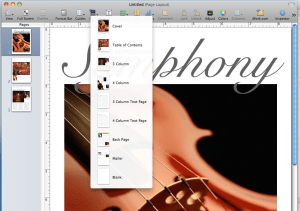
Add all pre-designed pages within the template
Within the template there are a number of layout styles available. In my example here there are eight (varying from a cover, table of contents, feature article and 4-column text page, etc).

The reason for doing this is that you want to see what’s available to you, and actually modify the “template” so that you can use it again and again, rather than having to copy and paste design elements repetitively throughout the design process.

Change view to “Facing pages”
This not only helps with visualizing layout, but also will help you decide which page styles are going to be right-hand pages and left-hand pages.

Add guides to pages and adjust layout for trim
Adding guides to the outside edges of each page will ensure that everything will fit inside the trim line). Because MagCloud trims its documents to 8.25” x 10.75” we are going to lose 0.125” inches off the top and bottom, and 0.25” off the outside edge. This means in order for our template to be centered on the printed page, we are going to have to adjust the content on the page. With your Rulers active and visible, you’ll want to drag guides into place (0.13 in from the top and bottom, 0.25 from the outside edges). Be sure when you are designing your templates that you are making a conscious decision as to which pages will be left-hand pages and which will be right-hand pages. It will help to name them as such when you “capture” the layouts in a later step.

Adjust style sheets to your needs
Not making a ‘Metropolitan Symphony Program?’ Then go through each page and make the necessary adjustments to layout and fonts. You’ll notice this is exactly the same layout, with different fonts and colors. Amazing how simple style changes can make a template your own.

Tip: After you have adjusted a font in the font menu, such as the headline, update your template style sheet so you can easily apply the same style again. You can do this by either “right-clicking” or “ctrl+ click” on the name of the font style in your “Styles Drawer”, then select “Redefine Style from Selection.”

“Capture Pages” for future use
Save yourself a lot of work in the future by establishing your own templates with your style/colors and fixed text. Once you have modified the provided pages in the template with your own fonts and colors, you can “Capture Pages” to use in your template over and over again. You can do this by “right-clicking” or “ctrl+ click” on the page thumbnails on the left margin or by selecting “FORMAT> Advanced> Capture Pages”


Tip: since you have adjusted your content for the trim settings, be sure to name pages accordingly, like “Left-Feature” or “Right-4 paragraph story”). To delete the old template pages, select “FORMAT> Advanced> Manage Pages.”

Commit to a page count and layout
Planning ahead will save you a lot of design time. You should come up with an outline for your publication before you start laying out pages or entering content. This is important because inserting one page at the front of your document will throw off the layout for all of the subsequent spreads. You should also take your layout into consideration when designing and capturing your template spreads, because certain content will be better suited for a right-hand or left-hand page layout.

Save your file as a “Template” for future issues
If you plan to have future issues with this same style, be sure to save your personalized document as a template. It’s easy to do, just select “File> Save as Template.” This puts a copy of your file into the Pages Template Chooser so you can find it easily next time you launch the application.

TURNING YOUR DOCUMENT INTO A PDF:
This part couldn’t be easier! Simply select “FILE> Export.” Leave the default settings for PDF, and save your file.

WANT MORE INFORMATION ABOUT PAGES?

Apple’s Pages ’09 site

Apple Store: iWork $79

PREVIEW THE TEMPLATES ON MAGCLOUD

Original Brochure Template

Original Brochure Template with minor changes

Transformed Brochure Template with Southern California theme

Publishers in Their Own Words: Dull Roar

Dull Roar
by Alexandra Tinsley

Dull Roar is my little design company, providing primarily accessory patterns for handknitters. The patterns are sold mainly online, in pdf form, but many people prefer the convenience of a printed hard copy that can be carried around and marked up as you go.

It’s difficult to provide quality printed copies to people all over the world without incurring huge upfront and shipping costs on my end, but MagCloud makes it possible for me to do just that. I can now offer hard copies of both individual patterns and my multi-pattern collection right alongside the pdf versions on my blog, and let MagCloud handle the details.

The finished patterns look gorgeous and professional, and I know other designers are getting excited about the possibilities too. Knitting patterns may not be exactly what MagCloud was created for, but that doesn’t stop it from working wonderfully.

Publishers in Their Own Words: Stranded

Stranded
by Andrew Losowsky, Editor/Publisher of Stranded

Like many thousands of others, I was stranded earlier this year due to the week-long closure of European airspace. A few days in, I was bored while trying not to spend any money in Dublin – a city I hadn’t intended to visit. It occurred to me that there must be many other people – writers, photographers, illustrators – in the same situation; I put out a call on my blog for contributors to a nonexistent publication, not knowing what response I would get. Within a day, more than 30 people had emailed me. I spent the rest of my unintended holiday in internet cafes, sending out commissions. Over the last five months, Matt McArthur – a Scottish art director whom I’ve never met, and who was stranded in New York during that week – and I have spent our spare time compiling the remarkable work we received.

Stranded magazine is the result, a unique souvenir of a time when the skies were clear for a few unexpected days. We’re rather proud of it, and we hope you like it too. Oh and $5 (that is, all proceeds) from every purchase go to The International Rescue Committee. Some people are stranded in a more permanent way, and we shouldn’t forget their plight.