Magazine Cover Design Inspiration

At MagCloud, we’ve seen a lot of magazine covers and know that the cover can significantly influence the popularity of an issue. Today, we’re sharing a few online resources that can provide more “food for thought” when you’re sitting down to design the cover of your next issue.

We know our customers’ design experience and expertise ranges significantly so no matter where on the spectrum you fall, it’s best to stay updated on the latest design software and trends available to you.

Let’s dive right in. Layers Magazine is an invaluable resource for designers of all sorts. Whether you’re looking to build a better portfolio or want to know how to make your magazine cover stand out among the rest, the website offers a variety of sections with tips and tricks for getting the most out of Adobe’s design tools.

Typography arguably plays an important role for your cover. Even if your magazine is image-driven, there is still a need to spend time researching trends and case studies before thoughtfully selecting a font. Don’t know where to start? Typophile’s Typography 101 will have you weighing the pros and cons of Venetian vs. Garalde types in no time. If you get stuck or have a question about using a specific font, head on over to the forum section and ask the experts!

For help designing graphics to insert into your magazine layout, check out Abduzeedo, which has a section devoted to daily inspirations for designers. Their interview section features established photographers, graphic artists, illustrators and others that can also provide real inspiration when you’ve hit a wall with your issue. Finally, Designmoo and 365psd let you download free graphic design files and collaborate with a community of designers.

It’s also essential to stay on top of today’s trends in print design. Visit Colourlovers for the latest in color trends and Trendland for trends across all mediums. It’s truly a go-to site for every designer.

Have a favorite site, blog or resource that we didn’t mention? Share it in the comments below! And, don’t forget to share this article. Your friends and followers will thank you!

How-to-Guides Make Publishing on MagCloud a Snap!

We’ve just released a series of step-by-step guides to help our publishers create PDFs that are MagCloud publish-ready.

There are guides for a wide variety of design, desktop publishing and word processing applications including Adobe InDesign, QuarkXpress, Apple Pages, Microsoft Publisher and Microsoft Word.

The How-to-Guides walk you through document settings, trim and bleed tips, image sizing, color spacing, designing for perfect binding, PDF exporting and more.

All guides are available for free digital download or you can order a print copy at MagCloud of course :).

If you are looking for inspiration check out some of our existing design templates for brochures, cookbooks and calendars.

Happy Publishing!

Sending Your Holiday Newsletter Just Got Easier

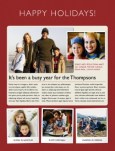
There’s no ignoring that the holidays are creeping closer. It’s time to take that family portrait, write those greeting cards and send our annual updates and well-wishes on their way to our loved-ones.

But if you’re like me, the idea of hand addressing 100+ cards to family and friends, and stuffing envelopes seems like madness.

But for just 60¢ each (when you order in bulk), sending a 4-page glossy family newsletter is much more fun and affordable and you can you can save the wasted hours and annoying paper cuts from stuffing envelopes.

We’ve created six holiday newsletter templates to get you started so you can spend more time enjoying a cup of hot cocoa and playing with the kids.

How it Works
A 4-page publication costs just 80¢ when ordered individually and drops to 60¢ when you order in bulk of 20 or more copies. So you can create a 4-page newsletter and ship them anywhere in the US for about $1.70. Better yet you don’t have to brave the crowds at the post office or lick a single stamp.

Using MagCloud’s “Ship to Group” Feature
The “Ship to Group” feature lets you mail publications to multiple recipients with a single order. That means you can design your newsletter, upload it to MagCloud, and let MagCloud handle distributing copies to everyone on your list.

Shipping each copy costs more than a USPS stamp, (it’s about $1.09 domestic) but when you consider each copy only costs you $0.60 (when you order 20 or more copies)–spending less than $1.70 for 4-full-color pages, delivered to your loved ones with just a few clicks of the mouse–is easily worth it!

If you need help working with Adobe InDesign, Microsoft Word, or Apple iWork Pages check out previous posts on working with each application in our  ‘tips and tricks’ section.

For a basic template that maximizes your space for a family newsletter, and gives you the ease of “Ship to Group,” check these out:

Preview the InDesign (Ship to Group) Newsletter Template

DOWNLOAD the InDesign CS4 or newer (Ship to Group) Newsletter Template

Preview the Word (Ship to Group) Newsletter Template

DOWNLOAD the Word (Ship to Group) Newsletter Template

Preview the Pages (Ship to Group) Newsletter Template

DOWNLOAD the Pages (Ship to Group) Newsletter Template

Ship it Yourself:
If you prefer to put a little extra love into your mailing, want to sign your name, add a sticker or simply put a personal note in a few of your messages, then use one of the  “Fold and Ship” Holiday templates. These have an address area for you to adhere address labels and a stamp, and are intended to be folded to a 8.25″ x 5.375″ size and sealed so that they can be mailed with a 44¢ 1st-class stamp.

This template style requires that you order a bulk order to be shipped to youself, and then you handle folding them in half and mailing. While this process can save you a bit of money–these averages about $1.35 per letter–(depending on stickers, address labels and postage) it’s more time consuming.

Preview  the InDesign (Fold and Mail) Newsletter Template

DOWNLOAD the InDesign CS4 or newer (Fold and Mail) Newsletter Template

Preview the Word (Fold and Mail) Newsletter Template

DOWNLOAD the Word (Fold and Mail) Newsletter Template

Preview the Pages (Fold and Mail) Newsletter Template

DOWNLOAD the Pages (Fold and Mail) Newsletter Template

FREQUENTLY ASKED QUESTIONS:

How Do I Create a Group Order?

Simply create an address group in your MagCloud address book (Account>Address book>Add New Group). Name your group — clients, friends, family, vendors etc — and select group members from existing recipients in your address book.

Once your recipients and group are ready, add the newsletter to your cart. Set the quantity to the number intended for each recipient, not the total for all recipients. For example, if you are sending 1 copy to 20 recipients you should set the quantity to 1.

When you get to the shipping page, click “Select from Address Book »”, choose your address group and complete checkout. That’s it! Costs will be displayed for the total order including all recipients.

Can I upload my own mailing list to my MagCloud address book?

Not currently, but that is a feature we hope to offer in a future site update.

Have more questions about Shipping or Publishing through MagCloud?

Check out our Help Section and Shipping FAQ.

Easy Custom Cookbooks with Microsoft Word

The holidays are creeping closer, so we’re back today, with another template to transform your family’s favorite recipes into a colorful, beautifully-published recipe book that you can give to your friends and loved-ones this holiday season.

Yesterday I shared a template for using an Adobe InDesign template, which you can read more about here. Today we’re looking at using Microsoft Word to create a quick and easy recipe book.

GETTING STARTED:
To get you started with publishing your own recipe book, you can follow along with the one I created for this demo.

DOWNLOAD the MagCloud-ready Word Template.

CUSTOMIZING YOUR TEMPLATE:

Editing Master Pages:
To edit the page number styles and the logo on the right-hand pages, you will need to acces the document’s master pages–these can sometimes be tricky to find, so be sure you are in “Publishing Layout” which you can select by going to VIEW >> Publishing Layout.

Then, in the lower right-hand corner of the application window, you can toggle from the document content to the master page layouts.

(Tip: be sure to toggle back to the content pages once you have made your changes.)

Making it your own:
Changing the paragraph styles of the document makes it easy to change the overall look of your cookbook with minimal effort.

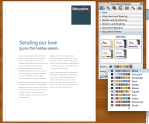
For a quick transformation you can start by changing the “Document Theme” within the Formatting Palette. This transforms both the fonts and color palette quickly and then you can make more minor adjustments using the techniques below.

Change the Text and Accent Colors:
Much like you can change the theme, you can also simply adjust the colors used within the template using the “Colors” Options within the “Document Theme” section of the Formatting Palette.

By selecting this fly out menu you can select different color palettes, and see how picking them, transforms the look of your recipe book.

Change the Font Style Sheets:
1. With the Styles Segment of the Formatting Palette open, select the text that you would like to modify on the page.
2. You should see the current style become highlighted in the toolbox panel.
3. Click on the fly-out window to the right of the highlighted style name and select “Modify Style…”
4. Within the dialog box, you can adjust the font, color, sizing and other properties of the associated style.
5. Select “Ok” to save your changes.

Swapping-in and Adding Your Own Photos:
1. Select the image you want to replace.
2. Within the Picture Segment of the Formatting Palette, click on the “Replace…” button
3. Select the image you would like using the dialog box.

(Tip: If you want to add more photos to the template:
Simply go to INSERT >> Picture >> From File… )

Inserting More Recipe Pages:
1. Within the navigation panel, select a page and “right-click” or “ctrl + click” on the mini preview of the page you would like to duplicated.
2.  Select “Duplicate Page”
3. Drag the new mini page that has been added to the Navigation Panel to the desired location in the order of the document.
(Tip: You can also select a page and go to INSERT >> Duplicate Page)

SAVE AND EXPORT A PDF

A quick note about export settings:
Because this template has been designed with elements that bleed off the page (like the cover which has color that goes edge-to-edge), you will need to set your document so that it will export as such.

To do this:
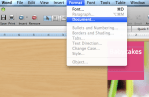
1. Go to FORMAT >> Document…
2. In the dialogue box, confirm that your settings match the ones pictured in this screen shot. (Top: 0.13″, Bottom: 0.13″, Inside: 0″,  Outside: 0.25″, Gutter: 0.25″, mirror margins is checked)
3. Select “Page Setup”
4. Under paper size, if you don’t already have “MagCloud” selected, Select Paper Size >> Manage Custom Sizes…
5. Create a new paper size that is 8.5″ x 11″ with a User-defined non-printable area that is 0″ al the way around.

Microsoft Word 2003: To export your Word 2003 document as a MagCloud PDF on a PC, first go into Tools > Options and select the Save tab. Ensure that the box next to Embed TrueType Fonts is checked, but the boxes next to its subcategories (“Embed characters in use only” and “Do not embed common system fonts”) are unchecked.

Then, in the “Save to PDF” dialog box, click the “Options” button and check the “ISO 19005-1 compliant” box, which should also automatically put a check in the “Bitmap text when fonts may not be embedded” box.

Click Okay, then go to FILE > Save As and select PDF from the file type drop-down menu to save your PDF.

Microsoft Word 2007 (PC): To export your Word 2007 document on a PC, click on the Microsoft Office Button in the upper left hand corner and choose “Word Options”. Select the Save tab on the left and make sure that the box for “Embed fonts in this file” is checked, but uncheck the boxes below it (“Embed only the characters used in the document” and “Do not embed common system fonts”).

Then, in the “Save to PDF (or XPS)” dialog box, click the “Options” button and check the “ISO 19005-1 compliant” box, which should automatically put a check in the “Bitmap text when fonts may not be embedded” box.

Microsoft Word (Mac): When exporting your PDF on a Mac, there is no option to embed fonts, so simply select File > Save As and choose PDF from the Format drop-down menu.

*This usually is only an issue if you have empty, hidden or transparent text frames in your document, or when a single character within a block of text uses a different font than the rest of the paragraph. If you have problems, you will either need to eliminate these, or embed the fonts in a different program before uploading to MagCloud. (see the help section)

WANT MORE HELP WITH WORD AND TEMPLATES?

Microsoft Office Word Template Site

Mactopia (for Mac Word Help/How-to’s)

Create a Calendar with iWork’s Pages

Today we are focusing is on creating a calendar with Apple iWork’s Pages.

Hey PC users: check out yesterday’s post about using Microsoft Word, or check back tomorrow to see  how to use MagCloud’s Flickr Uploadr to create a super cool calendar with just a few clicks of the mouse.

Let’s get started with Pages.

I’m a new fan of Pages, (Apple’s design tool that comes in their iWork productivity suite) and if you are Mac user looking to do some basic design without spending a ton (iWork retails for just $79 at store.apple.com) it’s an easy program to use, and is great for projects like a family calendar.

You can create a lot of great looking calendars using the exact same template, just by making a few changes to fonts, color and pictures.

Preview Wedding Photography Calendar Preview Parma Photography Calendar on MagCloud Preview my Family Calendar on MagCloud

GETTING STARTED:

The template is already set up with 28 pages, so making a few customizations and saving the file as a PDF should be quick and easy!

Download the basic calendar template that I designed here, or at the bottom of this post, you can preview and download some of the variations that I created using the same template, by making a few modifications to the style sheet.

MAKE IT YOUR OWN:
Because I designed this template for use with MagCloud, it’s already formatted to accomodate bleed and trim settings. This means you can just start modifying the style to fit your needs. Because this Pages template has a built-in Paragraph style sheet, it will be easy to keep a consistent style throughout your calendar.

Change view to “Facing pages”
This not only helps with visualizing layout, but also will help you keep the orientation of your photos straight when placing them in the document.

Styling your Calendar
Not making a family calendar? Then go through each page and make the necessary adjustments to layout and fonts. As I mentioned before, all of the above calendars use the exact same layout, with slight tweaks to the fonts and colors. It’s amazing how simple style changes can make a template your own. There are 3 styles in the template: “Title,” “Days of the Week” and “Numbers of the Month;” so changing these styles will transform the look of your calendar. Let’s get started!

Adjusting a Paragraph Style:

Show Font Window1. Expose the “Font Window” by selecting the “A” icon in the Toolbar (If for some reason you don’t see the toolbar at the top of your application frame, then Select VIEW >> Show Toolbar, then select the “A” icon)
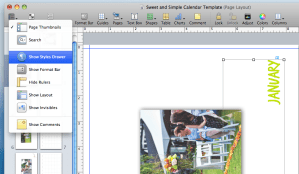
Show Styles Drawer

2. Select a block of text that you wish to modify

3. Make desired changes to font, size, weight and color using the “Font Window.” As you make selections, you should see the font change on the page.

4. Expose the “Styles Drawer”

Redefine Style from Selection

5. Select the block of text again–notice how it highlights the selected style in the “Styles Drawer.”

5. Update your paragraph style sheet so that all of the subsequent uses of this style reflect the style changes. You can do this by either “right-clicking” or “ctrl+ click” on the name of the font style in your “Styles Drawer”, then select “Redefine Style from Selection.”

Adding Special Dates to the Calendar:

Half the fun of making your own calendar, is including special dates that are important to you. So, whether you are creating a calendar for your child’s sports team, and you want to include their match dates; or if you are creating a calendar for your family, and you want to include Birthdays and Anniversaries; or if you want to create a calendar for your business and include special events and sales– it’s easy to do.

Because the numbers of the month are dependent on one another, typing directly in the square won’t work. Instead, follow the instructions below to add text boxes to your calendar. (Tip: You can also use these steps to add captions to your photos)

1. Select the Text Box Icon from the Toolbar (it looks like a “T” in a box)–
this will create a small box that you can move around the page

2. Type the information (ie. “Mom’s Birthday” or”Ladybugs vs. ‘Lil Giants”)

Grabbing the corners of the frame, adjust the size to 1.4 x1.03. Grabbing the corner of the text box, adjust the size of the box to 1.4 x 1.0 (this way you can see how it will fit in the day’s square)

4. Adjust the size if the text so that it fits well inside the box and select your desired color and font.

Create New Paragraph Style

5. Highlight the text again.

6. In the Styles Drawer, hold down the “+” at the bottom of the menu and select “Create New Paragraph Style from Selection” (You can also select FORMAT >> “Create New Paragraph Style from Selection” from the application menu bar)

7. Name your new style. This makes it possible fro you to use this style for other dates as you add them to your calendar.

Rotate the Text Box using the Metrics Tab in the Inspector toolkit8. With the text box selected, go to the “Metrics” tab in the Inspector window; use the rotation settings to rotate the text 90º.

9. Drag the box to the appropriate date on the calendar page.

Tip: Save yourself some extra steps by copying and pasting this text box throughout the document. (Select the text box and use “command+ C ” and “command+ V” to copy/paste) Then you can change the text, but it will maintain the style, size and rotation.

Save your file as a “Template” for future uses

If you plan to create another calendar, be sure to save your personalized document as a template. It’s easy to do, just select “File> Save as Template.” This puts a copy of your file into the Pages Template Chooser so you can find it easily next time you launch the application.

Tip: Because your using a template to create your calendar, and have the power of HP MagCloud’s digital printing, there’s no reason you can’t personalize your calendars… Perhaps change the cover image for Aunt Margaret’s calendar? Or make one with more photos of the kids for you In-Laws? Or create calendars that cater to your clients or program sponsors… it’s up to you!

TURNING YOUR DOCUMENT INTO A PDF:
You’re done designing? Yay!
This part couldn’t be easier! Simply select “FILE>> Export.”
Leave the default settings for PDF, and save your file.

WANT MORE INFORMATION ABOUT PAGES?

Apple’s Pages ’09 site

Apple Store: iWork $79

PREVIEW the modified templates:

Preview Wedding Photography CalendarPREVIEW Template modified for a wedding photographer on MagCloud
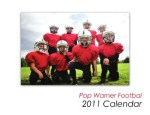


PREVIEW Template modified for the PopWarner Team on MagCloud



PREVIEW Template modified for a business (Venetian Glass Blowers) on MagCloud


Preview Parma Photography Calendar on MagCloudPREVIEW Template modified for Parma, Italy Calendar on MagCloud


Preview my Family Calendar on MagCloudPREVIEW Template modified for a family calendar on MagCloud



Designing a Magazine: A Publisher’s Perspective

MagCloud publisher Hacker Monthly recently wrote a great blog post about how they go about designing a magazine. They shared their experience as “non designers” and how they mastered using Adobe InDesign.

Here’s an excerpt of the post:

The questions I’ve got the most since I started Hacker Monthly are “How do you design the magazine?”, “What tools do you use?” and “What books/tutorials do you recommend?”. This post answers all of the questions (and possibly more).

As you might already know, I’m not a designer. My only design experience is drafting up the simplest looking website or user interface in Adobe Fireworks (I never really gotten my way around Photoshop). When I was starting up Hacker Monthly, I wanted to outsource the design since I have zero experience in print. This turns out pretty costly, so I decided to do it myself. Now, it’s the part of the job that I love the most.

To start, learn to use Adobe InDesign. The first version of Hacker Monthly was designed using Pages. It looked okay, but it just doesn’t have that magazine feel. So countless hours of tutorials and books later, I ended up using InDesign. It’s the best tool you can use. To save you the trouble, the only tutorial you need to see is Nigel French’s Designing a Magazine Layout Hands-on Workshop on Lynda.com. Nigel French is exceptionally good at guiding through the total newbie (umm…me) on both magazine design principles and using InDesign professionally.

To read the full post please visit the Hacker Monthly blog.