To Serif or Sans Serif? Typefaces Make A Difference

Typography is the cornerstone of graphic design. It’s what brings character to your magazine, catalog, brochure or newsletter. It should never be overlooked or left to the end of your project. Typography should be considered during initial design phases and should be allowed to impact your layout and image choices. Why is it so important? Because the typography you choose sets the tone for your readers. It helps you tell your story in a way that an image (or even your copy) can’t.

Being fans of infographics, we came across this little gem recently which has generated quite a bit of conversation in the office. It’s sort of an ABC guide to typography which has also sparked interest on our Facebook and Twitter channels. The MagCloud community is clamoring for typography tips so we thought we reiterate these 4 professional tips from the Noodlor infographic:

1. Limit yourself to a maximum of 3 well contrasting typefaces.

2. 95% of graphic design is typography. Treat it well!

3. First, start off on paper, then move on to your computer!

4. When you’re stuck…discard old ideas and start fresh!

Still need convincing? Check out this video from typographer and graphic designer Erik Spiekermann. He breaks down the elements of typography and explains what makes it such a key part of any design.

Erik Spiekermann – Putting Back the Face into Typeface from Gestalten on Vimeo.

Also check out our recent blog post on Typeface Do’s and Don’ts for additional insight in how best to use typefaces in your next portfolio, magazine, brochure or other print project.

Share your thoughts on the art of typography as a comment below. Is it something you spend a lot of time on when designing your MagCloud publication?

Design Blog Series Recap

For the past six weeks we’ve been offering a series of design tips and tricks to help MagCloud users create publications that will capture the attention and imagination of their readers.

From dealing with trim and bleeds, to color selection and typeface dos and don’ts, we’ve tried to offer up ideas on how to deal with the most challenging design elements.

The complete list of design topics included:

Trim, Bleed and All That Jazz

The Importance of Layouts and Templates

Get The Most Out Of Your Images

The Space Between

Working With Color

6 Typeface dos and don’ts

Designing For Perfect Binding

Trends and Resources For Great Looking Business Collateral

PDF 101: Ten Common PDF Problems

We know that great design and great content are the all-star combination that can make your publication standout above the fray and keep your audience coming back for more.

Great design is also one of the things we look for when selecting publications to feature on our home page and our Put MagCloud to Work page.  Those selections are what some sites would call “staff picks” and are chosen by the MagCloud team based on rich content that spans our diverse set of categories, will appeal to the broadest segment of MagCloud’s eclectic reader base and of course adhere to all the design principals we’ve referenced in our recent blogs posts. So yeah we take this design stuff pretty serious :).

We also try and share design inspiration examples and other best practices as we find them, such as this post on magazine cover design.

Let us know what you thought of the design blog series, if there are other topics you would like us to cover or if you have design tips and inspirations you would like to share in the comments section below.

Trends and Resources For Great Looking Business Collateral

How you tell your business story can be the difference between turning a lead into a new customer or just a lost opportunity.

Eye catching and compelling business collateral plays an important role in buying decisions.  According to Eccolo Media’s “2010 B2B Technology Collateral Survey Report,” 83% of B2B technology purchasers say they had used brochures within the previous six months to evaluate a prospective purchase, 76% referred to white papers, followed by 67% who used case studies.

And great collateral isn’t just for big business, heavy investment in marketing collateral is also a key 2011 trend for Small Business as well.

So how do you create business collateral that stands out and gets your audience engaged?

1. Tell A Story.  Stories intrigue, keep our interest and help us convey information in an engaging way.  Conveying your brand promise or promoting your new product or service as a narrative helps your audience understand the possibility and gives them a call to action to learn more.  Chris Brogan, president of Human Business Works, offers some great insight into storytelling for business.

2. Bring Your Story To Life.  A story is more than words. You can use pictures, graphs, tables, screen shots, pull quotes from customers etc. − anything that will help visually convey your story, and underscore your viewpoint and competitive advantage.  There is a plethora of free tools to make creating charts and diagrams super easy.  If you want to push your story to a new visual level consider designing and incorporating infographics.  Infographics have been heavily used by B2C and B2B companies in the past few years to help convey complex information and trends.  Check out the Cool Infographics Blog, Weloveinfographics or Datavis for some infographic inspiration.

3. Invest in Design.  You don’t have to break your business piggy bank to design great looking collateral.  There are lots of desktop publishing applications that make brochure, newsletter, program and catalog design easy. Depending on your skill level and budget there is a spectrum of solutions including Microsoft Publisher, QuarkXPress, Apple Pages and Adobe InDesign.  Most of these programs also include templates or you can check out some of MagCloud’s free business templates as well.

4. Ask for Help.  If you are having trouble getting started there are lots of tutorials and resources to put you on the right path.  Microsoft for example offers a suite of tutorials for Publisher, there are forums for Adobe InDesign or head on over to Lynda.com for an array of business and software online courses. Or you can always consider outsourcing your business collateral design to a third-party or agency such as MagCloud partners HP Logoworks or Madison Ave. Collective.

5. Leverage the Web.  Printing and updating your business collateral no longer needs to be complex, time-consuming and expensive.  Thanks to new print on demand services like MagCloud you can upload a PDF of your collateral and have it printed and delivered to your customers without ever leaving your desk.  Need to change a product spec in your brochure or add a new offering to your catalog? No problem, simply upload a new version of your PDF.  The web also offers you the flexibility to take the same PDF you use for print and make it available digitally for reading on a PC or mobile device giving your audience choice.  Once you have your printed or digital publication ready, it’s easy to build an online marketing plan around it.  Make your content readily accessible and easy to share not only via your website but wherever your audience would be most receptive to your message–social networks, forums, blogs etc.  You spent all that time and effort creating it so don’t forget to make it easy to find.

We’ve had the pleasure of seeing some great looking brochures, newsletters, event programs and catalogs published on MagCloud, so we thought we would share a few of our favorites to help inspire you.

Axses Travel Platform

Cubic Machinery

High Points Promotional

Natural Homes

Overland Sourcebook

Toobydoo

Share any great resources or tips you’ve found useful in creating your business collateral in the comments section below.

Designing For Perfect Binding

After you upload your PDF to MagCloud, if it is over 24 pages you will have the option to select perfect binding for your print version. Although MagCloud uses the same PDF for saddle stitch and perfect bound publications, if you plan to choose perfect binding there are a few things that are good to keep in mind while you are designing your PDF.

Content Near The Spine
Saddle stitch binding allows your printed copy to lay flat when it is opened, allowing all content up to the inside edge of your PDF to be visible in the final print copy. Perfect bound publication are glued at the spine which results in approximately a quarter inch of the inside edge of your pages to be less visible because a perfect bound print cannot lie flat without breaking the spine. Therefore, it is good to account for an extra 0.25 inches of margin on the inside edge of your publication when placing text and images on the page, keeping in mind that anything within this 0.25 inches, also referred to as the gutter, may be lost into the spine in the final print.

Images Across Two-Page Spreads
The gutter can be troublesome when you want to place an image across the center spine of your publication. When an image covers two pages, the inside 0.25 inches on both pages will be obscured, which amounts to a half of an inch in the center of the image. This is enough to cause a full person to disappear in a larger group photo, or obscure a subject’s nose in a centered portrait. The best way to account for this is to shift the image outward on both pages so that it is duplicated inside the gutter (shown within the pink lines in the diagram below). Doing so will create the appearance of a continuous image across both pages in spite of the binding.

It’s also a good rule of thumb to avoid centering the focus of your image directly on or near the spine in a perfect bound publication. This disappearing act will be much less obvious if your eye isn’t drawn to it, as shown in the layout on the right versus the one on the left below.

Designing a Spine
Another design aspect to think about with perfect bound publications is the spine. After you upload your PDF to the MagCloud site and select perfect binding, you’ll have the option to pick a color for your spine or upload your own design. In either case, it’s a good idea to pick colors and designs for your spine that are the same or very close to the front and back covers of your publication. Just as the trim of your print copy can vary slightly, so can the placement of the spine, and this will be far more obvious if you have selected a white spine with a dark cover. Choosing a spine color that closely matches your cover or continuing an image from the front or back covers will ensure that your printed publication has a professional appearance every time.

Do you have a good-looking perfect bound publication design that you’d like to show off, or any tips of your own to share? Tell us about it in the comments below!

It’s All About the Wordplay: 6 Typeface dos and don’ts

We’ve all seen over-designed documents that at times make us cringe.

Most often the offending design element is an extreme font choice, or font overload with too many fonts used throughout the document. Poor typeface choices can make a document hard to read or unprofessional looking. So, if you are looking to keep a professional look, without compromising personality, it’s important to select the right fonts for your publication. And while there aren’t any hard/fast rules for selecting fonts, here are a few guidelines that we think may help you on your way.

1. Follow the Rule of 3
The only quantitative rule for design is the “Rule of 3.” When you start tweaking the fonts of your document, be sure to apply no more than three typefaces per design (or page). That’s not to say that you can’t use multiple styles within a font family (i.e. Neutra Bold for headlines and Neutra Thin for photo credits), just be mindful of not mixing too many typefaces and styles–fight the temptation to blend Impact, Courier, Lucinda and Trebuchet in the same document. While there might be a few exceptions to this rule, it’s a good sanity check, to ensure that you don’t go overboard and over-complicate your design. And as a good rule of thumb, you should probably just avoid Papyrus and Comic Sans. Always. Just take our word for it.

2. Choose a fitting font for your audience.
Be sure to choose a font that matches the tone and audience of your document. For example, Matt Mattus’ Plant Society a gardening blogazine has a different readership and “feel” than this corporate report. Both of these documents are well tailored to their target audience. Something like a gardening magazine might use a more fun and light serif font, whereas the business would find it more appropriate to use a more structured sans-serif font.

If all of this is sounding French to you, that’s because it is! In typography, serifs are the sometimes curly details (they look a bit like feet) on the ends of the strokes that make up letters and symbols. A typeface with serifs is called a serif typeface and a typeface without serifs is called sans-serif, from the French word sans, meaning “without.”

But enough with the French lesson, let’s take a look at some examples:

3. Avoid hard to read fonts.
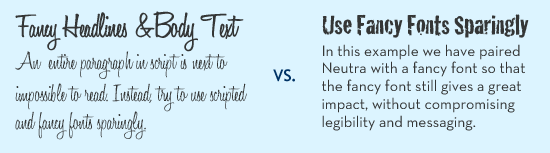
Some decorative fonts are designed to only be used for headlines or even just drop caps. Be sure when you select a fancy or script font, that you use it sparingly, and that you can still read it. If you can’t read the type, you can be sure your audience won’t bother to try. Also avoid WordArt, which while fun to play with, is very difficult to read.

4. Use contrasting text for headlines and body text.
It’s important to define the segments of your document, breaking it up into bite-sized pieces so your reader is inclined to read it in its entirety. One way that you can do this is by clearly identifying headlines from your body paragraphs. For example, you might use a bold sans-serif heading font with a plain serif body text font. You generally don’t want to mix two similar typefaces as they won’t provide enough contrast.

5. Eliminate excessive emphasis in your text.
You should be able to emphasize the words without excessive use of bold, italic or underlines. As you are designing, zoom out and look at the page from a distance. If your text is littered with tons of bold segments, italics and underlines, you might want to rethink what you’re doing.

6. Be consistent.
Consistency is key to building a brand style, or just having a stronger, more professional-appearing message. If your headings are set in a particular font, size and color, don’t switch it midway through a document, unless you have a good reason for it. The best way to maintain consistency through a multipage document, or from document to document, is to set style sheets.

Each software program handles style sheets differently, so if you aren’t sure how to use them you may want to visit your software developer’s help section for a tutorial. Time spent learning how to use style sheets will be a great investment for your future designs.

Just remember to keep it simple.
When all is said and done, the important thing to remember is to keep it simple. And simple doesn’t have to mean boring, but instead discerning–keeping an editor’s eye on your design and font selections, so that your message doesn’t get lost in your design.

Do you have more typography suggestions? Share them below in the comments!

Working With Color

In the world of traditional printing, getting the right color in the right place on the page is something of an art form, done by overlapping layers of ink in just the right quantities using carefully positioned aluminum plates. In a digital world of backlit screens, color is a more technical process, using the spectrum of visible light to produce the desired color output. When these two worlds collide for digital printing, colors must undergo a transition from how they are displayed on screen to what gets printed on the page.

To help you design your MagCloud PDF so that this transition is as accurate as possible, first let’s get back to basics.

RGB vs CMYK
A lot of acronyms get thrown around when you start talking about color, the most common being RGB and CMYK.

RGB stands for Red-Green-Blue, and is an additive color model based on combining red, green and blue light, as shown in the color chart on the left below. RGB is the color model used by most digital devices, including your computer screen and the images produced by your digital camera.

RGB vs CMYK

CMYK stands for Cyan-Magenta-Yellow-Key (ie, black), and is a subtractive color model based on layering cyan, magenta, yellow and black ink to selectively subtract the amount of light reflected off the page, as shown in the color chart above right. CMYK is also commonly referred to as 4-color process, and is the color model used for color printing both on traditional presses and on the HP Indigo digital presses used to print MagCloud publications.


From An RGB Monitor To A CMYK Print Copy

When your MagCloud PDF is sent to an HP Indigo digital press for printing, the press will convert any non-CMYK content to CMYK prior to printing. The press does this conversion automatically based on the color profiles that have been embedded in your file. If there are no color profiles embedded in your file, this conversion will be based on the default color settings of the press, which could result in a color output that is different from what you see on screen.

Therefore, to ensure you get the best output possible, we encourage you to follow these color guidelines when creating and inserting content in your MagCloud PDF:

• Images you place into your document, whether from a digital camera or stock photography website, should be left in their original color space (sRGB, Adobe RGB, etc) with the corresponding color profiles embedded in the final PDF.*

• Text and other vector components (ie, backgrounds, blocks of color, etc) that you create in the document should be CMYK, with black text set to 100% K (CMYK = 0, 0, 0, 100).

*For specific information about embedding color profiles in your design program of choice, be sure to check out our Getting Started page.

Have any other color tips to share from your MagCloud publishing experience? Let us know in the comments below!

The Space Between

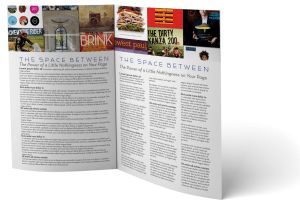
No matter what sort of document you’re planning to publish through MagCloud, it’s important to understand the role that white space plays in your design’s aesthetics.

White space, also known as negative space, is the unused space between text and graphic elements within a publication. It gives the eye a place to land and rest, and implies significance to the content you place on a page.  Some would argue that this empty space is as important as the text and graphic images of a page and that it can make, or break a design. So let’s explore why it’s so important.

Balance and Harmony in Print Design
White space is an integral element of design, as it enables a state of balance to exist between the design objects. It also plays an active role in the effectiveness of a layout; it can highlight important elements and support the overall hierarchy, leading the viewer around the page as the designer intended. The empty space on a page can be every bit as important as the space occupied by graphic elements, and thoughtful use of white space can give a page a timeless, tasteful, and professional appearance.

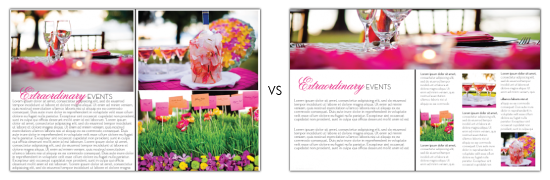
Check out this example below of a Small Business Brochure that has been reworked to better showcase their photography while still including valuable messaging.

Balance and Harmony in Print Design
Give your photos room to breathe. Highlighting photography doesn’t mean you have to fill a page edge-to-edge with your image. Leaving empty space near an image leaves room for the consumer to pause and use their imagination beyond the frame. The second layout has the same written content, and even had room for a 3rd photo.
 

De-clutter Your Page to Get Your Message Across
Clutter on a page is a lot like clutter in a room–it’s distracting and can overwhelm you, or in this case can overwhelm your reader. But when space is at a premium, white space is often abandoned in order to get as much information on the page as possible. It’s important to keep in mind that a page crammed full of text or graphics with very little white space runs the risk of seeming busy, cluttered and in turn difficult to read. It can also cheapen the overall image you are trying to portray.

Large blocks of text, with little breathing room, tire the eyes much more quickly than those that are adequately spaced with healthy kerning (spacing between characters) and leading (spacing between lines of text). A crowded layout runs the risk of being overlooked by readers simply because it puts strain on their eyes, and in turn, their patience.

With that in mind, when you are designing your next publication, keep in mind a goal of making the end viewing experience as easy and pleasant for your readers as possible. Just like you would tidy your house for guests, de-clutter your pages to make them inviting for your readers, helping them feel more relaxed and encouraging them to spend time lingering over your content.

Use White Space to Convey Your Message
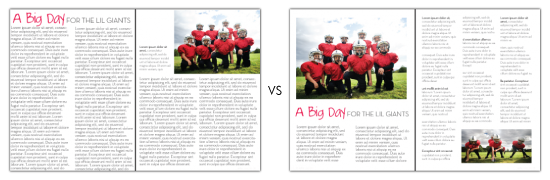
Step away from the edge. Asymmetry and putting content on the margin, when done deliberately, can have a powerful effect on the reader, but when overdone, it can leave the reader feeling on edge. Text that gets too close to the edge of a page can leave the reader feeling like they are going to fall off the page. What’s worse? If you play it too close, content could get trimmed off during the binding process. In this example above, we re-worked the layout and narrowed the columns to make it easier to read.
 

Focus on the Negative, Just This Once
There aren’t many situations in life where focusing on the negative is a good thing, but when it comes to print design, you’ll find it can lead to positive results. Take a look through your favorite magazines to see which designs strike a chord with you more frequently. Chances are, you’ll notice a theme. You may start to notice that highlighting and separating text and graphics with white space imparts more value to content.

After you’ve explored other print designs with this focus on the negative space, be sure to revisit some of your own designs, we’re sure you’ll find ways to tidy up and balance your content with a little more breathing room.

Focus on the Negative
Which would you rather read? When dealing with text-heavy content, you don’t need to fill the page from margin to margin with tiny, single-column text. Take a step back and look at the page from afar. Does the content look digestible? Ask yourself “Would I want to read that?” Narrower columns are easier to read than wide ones that span an entire page. 
 

Get Inspired by Other MagCloud Publishers
For more great examples, check out these MagCloud publishers who really know how to use white space to their advantage:

Hacker Monthly
Snapixel Magazine
Stumble

Think you have an exemplary use of white space in your MagCloud publication?
Share it in the comments section below!

Get The Most Out Of Your Images

They say a picture is worth a thousand words, but if that picture is grainy or squished, it’s not going to be saying anything good. To help you include images that speak volumes in your next MagCloud publication, this installment of our Design Blog Series includes a short list of image DOs and DON’Ts:

DON’T use images copied off a website
Aside from the potential copyright issues associated with taking images off of websites, photos used on the web are almost always screen resolution, or 72 pixels per inch (ppi, or more commonly, dpi). This is roughly a quarter of the 300 pixels per inch that is the recommended resolution for printing. If you use an image less than 300 dpi in your MagCloud publication, you run the risk of getting a noticeably pixelated, or ‘fuzzy-looking’ image in the print copy.  The lower the resolution of your image, the more noticeable the pixelation will be, so a 72 dpi image off the internet will look very ‘fuzzy’ in print.

DO use images from your camera or stock photography websites
Images taken with a personal camera or purchased from a stock photography website like iStockphoto will generally be high enough resolution for printing.

An easy way to check if your images are high enough resolution for printing is to open your final PDF and zoom in to 350% on-screen. If an image still looks clear at 350% zoom, like the 300 dpi image on the below left, then this image will look great in your printed copy. If an image looks pixelated at 350%, like the 72 dpi image shown below right, then it will likely look pixelated in your print copy too.

300 dpi vs 72 dpi at 350% zoom

It’s also good to keep in mind that if you double the size of an image, the number of pixels per inch will drop by half. This is because doubling the size of an image doesn’t change the number of pixels in the image, it just increases the number of inches that the pixels have to fill. For example, if you have a 1” x 1” 300 dpi image, which is 300 pixels by 300 pixels, doubling it in size to 2” x 2” means that there are now 300 pixels for every 2 inches, making it a 150 dpi image.

DON’T squish or stretch your images
You have a rectangular photo, let’s say 4” x 6”, but you want it to be square in your MagCloud publication. Sound familiar? One solution would be to just squish or stretch the rectangular image into the square size you want, but here is the inevitable result:

Stretched/Squished Example

DO scale and crop your images
To avoid squishing and stretching the subjects of your photos, the better option is to use scaling and cropping to resize your images. Scaling your images maintains their aspect ratio (the ratio between the width and height of the image), keeping a rectangular image as a rectangle, then the image can be cropped (i.e trimmed) down to the size you want, like so:

Scale/Crop Example

In Adobe InDesign, QuarkXpress, Microsoft Publisher and Apple Pages, you can crop images by creating an image placeholder in the size you want, and then placing your image into the placeholder. These programs allow you to adjust the image independently of the placeholder, and the placeholder will “crop” the image in your final publication. In Microsoft Word and Microsoft Publisher, you can use the Crop Picture feature to manually crop the image itself down to the size that you want. Both methods will help you avoid stretching or squishing your subjects.

DON’T use images that are really dark with low contrast

Your computer screen is brightly back-lit, but unfortunately print publications are not. As a result, details that are dark or low contrast on screen may not be as visible in your printed copy. Overall, you can expect the print you receive to appear darker than what you see on screen, so it’s best to avoid using darker images or those with very low contrast to begin with. If you want to try lightening or increasing the contrast in your images in a photo editing software like Photoshop, check out these photo retouching tips and tricks.

DO embed your color profiles

To get the closest representation in your print copy as compared to what you see on screen, make sure that you embed the original color profiles of your images in the final PDF. We’ll dive more into detail on this next week in a post on color, but in the meantime check out our Getting Started page for downloadable instructions on how to do this in your design program of choice.

We would love to hear your favorite tricks for getting your images to standout. Please post them in the comments section below.

The Importance of Layouts and Templates

Whether you’re a design newbie, or a seasoned veteran, sitting down to create a new publication can be a daunting task. There’s nothing more frustrating than staring at a blank page, feeling stuck, and unsure of where to begin. It’s often easier to change things that don’t work for you, than to completely start from scratch, which is why we suggest starting with an existing document. It can be the design of a similar publication, or a simple template that has preloaded margins, column guides and style sheets, that you can quickly adjust for a head start. The advantage of dong this, it that the basics of the page are already in place so you can focus on your content and styling.

Why use a template?

Whether you are creating a 12-page or 120-page publication, if you plan to create a series with the same style, you’ll definitely want to invest the time to develop style sheets, and come up with a few layouts that you can repurpose each time you publish. This will help you keep a visual consistency not only throughout each publication, but also from publication to publication over time.

Some of our publishers have done a great job of this, and you can see how it helps reinforce their brand to have consistent styling throughout each publication.  Check out a few issues of Hacker Monthly or Livestrong, or portfolios by professional photographer David Livingston and you will see what we mean. Each of these publishers have developed a consistent style using templates that is unmistakably and identifiably their own.
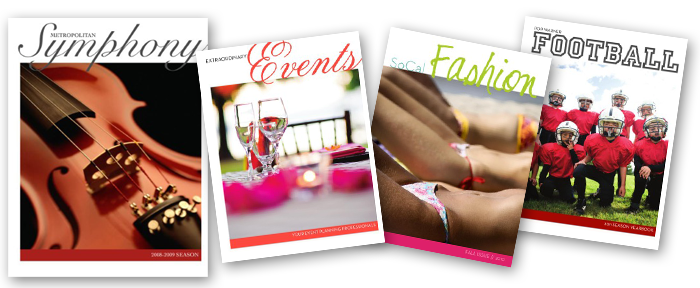
Not an expert at design? No problem. Using a professional-looking template can increase your credibility, and make any publisher look like a pro. Find a template that has a style that resonates with you and use it as a springboard to get yourself started. You can see some great examples of this in our blog post Easy Design with Templates in Apple’s [iWork] Pages, where we turned a basic Symphony Program into a business services guide for an event planning company, a sports team yearbook, and a fashion magazine, with just a few changes in font, colors and photography.

Finding Templates
Where to look and what to look for…

Some software comes equipped with built-in templates, and you can also find great free and paid templates online at the companies’ websites, like Microsoft has for Word and Publisher here, or Adobe has for InDesign at Adobe.com

Still can’t find what you need? Other resources exist where you can buy specific designs for your needs and many of these sites make their templates available for a variety of design programs like Inkd and Stocklayouts.com.

When picking your templates, there are a number of things to consider for your publication:

1. Is this template for an 8.5″ x 11″ document? If it’s designed as a 17″ x 11″ spread, do I know how to adjust it to the right size?

2. What sort of page-layouts are included in the template?

3. Does the template have the right ratio of graphics to text for my needs?

4. Are there hidden layouts that I don’t see? * Hint: if you are using iWorks Pages, there probably are!

5. Does the style suit the audience I am trying to reach? If not, is it easily changed with a few font/color tweaks?

6. Don’t feel restricted by the stock photography or color palette used in a template. Keep in mind our example of the Symphony Program being transformed into a fashion magazine or an event planner’s business collateral

7. Ask yourself, “This template isn’t designed for my specific use-case, but does the overall layout and feel fit my purpose? Could I transform it into something that works?”

Ready to customize your template?
A few tips for making any template fit your needs.

– Unless you get a template directly from our blog, you will likely have to alter some of their settings to accommodate MagCloud’s printing requirements. Before you start making any edits to your template, be sure the document settings match those in the MagCloud Help Section.

– When you make changes to fonts and colors, always do this by editing the font or paragraph style sheets. This way, if you don’t like a change that you have made, it will be easy to adjust and will change that style use on all of the pages of the template.

– Always start with the original file and make 2 or 3 versions, each with different fonts or colors. Then save each as it’s own template so that you can compare them and easily decide which one you like best.

Ready, Set, Start Publishing!

Now that you have your template selected, it’s up to you to make it your own. Need a bit of extra help? Check out our other Tips & Tricks blog posts, or visit the help sections of your software’s site. Many of them have great how-to resources and videos to help you on your way.

Adobe InDesign

Microsoft Office

iWorks Pages

Vacationing with MagCloud

Memorial Day is a welcome beacon that summer is around the corner. As you finalize your plans for summer, MagCloud wants to provide you with a way to capture all of those special memories and experiences – whether it’s a staycation near home, a road trip to the national park or a getaway to an exotic locale.

How are you chronicling this precious time? Some of us may remember those family gatherings in front of the carousel slide projector or the bulky albums our parents put together after every trip. Now with MagCloud, you can create a personal memento in magazine format to easily share your memories with family and friends in print and digitally.

Here are a few tips and tools to assist you through the process:

  • If you’re creating a simple photo magazine, below are a few tips and resources to “prep” your images before publishing.
    • To produce a quality publication, make sure all images have a resolution of at least 300 pixels per inch.
    • If you’re looking for photo editing tools but don’t have access to Photoshop, check out GIMP (free software that features most of the capabilities that Photoshop offers) or any of these additional photo editing tools.
    • Short on time or not comfortable with design tools? Give Poyomi and turn the photo sets into a magazine without using a design program.
    • Need inspiration? Browse through some of our travel and vacation magazines.

Have you ever used MagCloud to create a magazine of memories? It’s even a great way to commemorate a school year, a birth, a wedding and more. With MagCloud’s digital publishing and print-on-demand capabilities, it’s never been easier or more budget-friendly to capture the special moments in life.