Site Update Tonight

Magcloud.com will be down for a bit starting at 11 pm PST tonight.

The team will be working hard on rolling out some exciting new features, making the site a bit more zippy and adding some other cool new things. The site should be back up within a few hours. We look forward to hearing what you think about all the new stuff when it’s live.

Check back here tomorrow morning to learn about what we rolled out.

2011 MagCloud Wish List

The MagCloud team is really excited about 2011 and has lots of great features we are considering. We believe this should be the year of choice…more ways to publish and sell, and more ways to discover and enjoy great content.

Some of the things we are considering at MagCloud Central are:

–Expanded digital distribution, offering publishers more ways to sell and distribute their magazines, and readers more ways to buy and read them.

–An easier and smarter publishing process; including faster and more forgiving PDF uploading, auto-fixing to catch and help resolve the most common PDF upload problems, as well as a simpler overall publishing process.  All of this to give publishers more time to spend creating, and less time fiddling with PDFs and uploading to the site.

–Additional print formats to offer publishers new ways to have their content stand out.

–Reader ratings and reviews, and making it easier to share magazine favorites and recommendations with the rest of the MagCloud community.

–Enhancements to the MagCloud platform to make it easier for third party developers to build their own websites and applications on top of MagCloud, and that can link directly to MagCloud’s publishing and distribution capabilities.  So no need to recreate all the heavy lifting we’ve already spent the last 2 years building.

These are just a few of the things we have in mind (some of them already work in progress!), but would love to hear which features top your 2011 MagCloud wish list.  Please let us know.

The Fiscal Times Launches Inaugural Print Edition Through HP MagCloud

Originally posted on the HP Corporate Blog

In the midst of a surge of news publications moving from print distribution to online-only, today The Fiscal Times became one of the first digital news publications to do the opposite: offer print editions after starting from an online-only model.

Through HP MagCloud, the revolutionary self-publishing web service developed in HP Labs, a commercial-quality print edition of TFT is available to consumers on demand for the first time.

“We chose MagCloud for its ease of use, good production value and  quick turnaround time,” said Jacqueline Leo, editor-in-chief of The Fiscal Times.

The inaugural print edition, which was hand-delivered to each member of Congress last week, offers critical analysis of last year’s fiscal and political upheaval, a preview of the fiscal agenda in 2011, as well as a back-page essay from former President Bill Clinton.

Priced at $9 an issue, TFT can be purchased here on MagCloud.

Our Favorite Features of 2010


As we are kicking off a new year here at MagCloud Central we thought we would look back at our favorite new features of 2010.

Ship to Group lets you mail magazines to multiple recipients with a single order.

Improved Sales Stats gives publishers more insight into how their magazines are performing—page views, sales per day, number of followers, locations to where issues are shipped, and of course, your profit!

Upload from Flickr lets you easily turn your Flickr photo sets into a magazine without the need to use a design program or upload a PDF file.

MagCloud Messages is a way for members to ask publishers questions, give props to their favorite magazines and get updates on new issues.

Profile Pictures lets you give your MagCloud profile some personality. Simply click on “Account” at the top of the page (you must be logged in) and edit your profile to upload or change your profile picture.

Perfect Binding, one of our most requested features: gives magazines a more professional look with a square spine and uses glue to hold the pages, like a paperback book.  They can also accommodate a much higher page count – up to 384 pages.

The Follow Feature is a way to give a publisher a little bit of encouragement. If you follow a magazine, the publisher will be able to send you messages about submissions, new issues, and other magazine news.

Promote Page makes it easier for publishers to get the word out about their magazine.  From MagCloud widgets for showcasing your magazine on your blog or website, to MagCloud badges which help attract new followers, to email and Facebook and Twitter share functions, the Promote Page helps you tell the world how great your magazine is.

Expanded International Shipping opens up MagCloud to the rest of the world, with worldwide shipping for multiple issues up to 300 pages.

These are some of our favorites; feel free to tell us which are yours.

And next week come back and find out what we have in store for you in 2011!

QUICK TRICK: PDF Export Presets for Adobe InDesign

Exporting to a PDF seems like it should be the easiest part of the design process, but one little checked-box can throw off your PDF settings, and cause a lot of frustration.

To solve the problem I have created a PDF preset file for InDesign that you can quickly download and use every time you want to publish to MagCloud.

The process is very simple, and it works for a Mac or PC.
Just follow these four steps.

SAVE AND EXPORT A PDF FROM INDESIGN:

1. DOWNLOAD the MagCloud PDF Export Job Options file (note you may need to ctrl+click or right click and save this file)

2. Install the Preset:
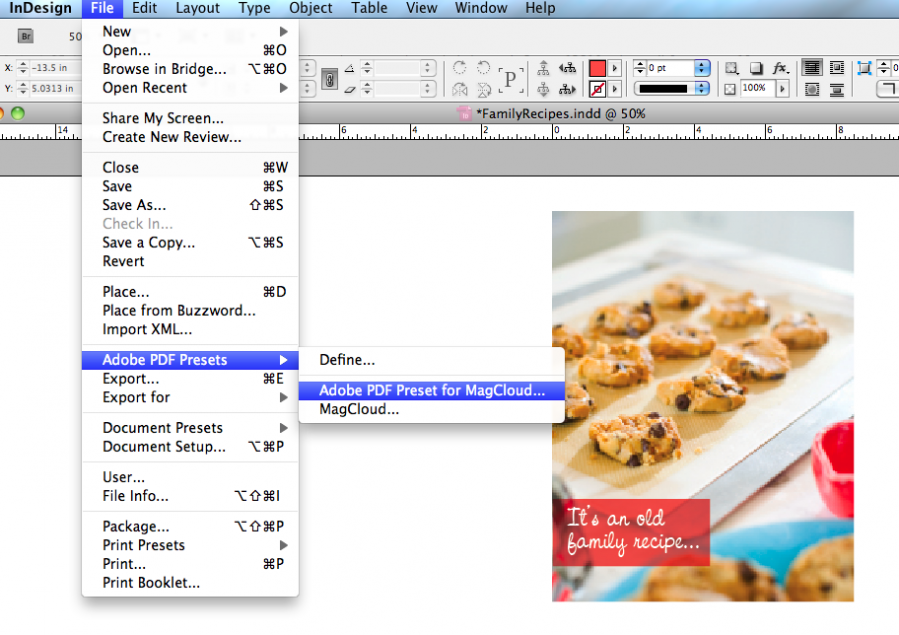
Within InDesign, go to FILE>> Adobe PDF Presets>> Define >> “Load” >> Find and Select the file you downloaded called “MagCloud_PDF_Export” >> Click “Done.”

3. To use these imported settings, with your file open in InDesign, Select FILE >> PDF Presets >> “Adobe PDF Preset for MagCloud”

4. Name and Save your PDF and you are ready to publish!

*Note, the preset will only work properly if you have set your document up perfectly from the start. To be sure you have your document settings adjusted properly, go to the InDesign Help Section on MagCloud.

Magazines Offer A Holiday Helping Hand

The holiday season is in full swing which means time to decorate the house, bake some cookies, figure out what to buy Aunt Nan, take Cooper and Lucas to see Santa, pick out an outfit for the office party and find a new doggie plush toy that will have Kai jumping for joy.

The good news is that MagCloud publishers have put together lots of great magazines to help you with these and many more holiday activities. The best part is that many of these magazines are on sale through Dec. 31st.

Here are just a few of our favorite holiday magazine gems:

Home Decorating and Cooking:

Sweet Paul Magazine’s holiday issue is filled with easy and tasty recipes, great craft projects and holiday shopping ideas.

Creating Vintage Charm features Artist, Abi Monroe ~ White Christmas at Sandy Foster’s Studio ~ Create your own Sugar-Plum Christmas with Debi Huntsman and much more.

Chocolate Book is a collection of 135 delicious chocolate dessert recipes from the culinary cooks of 100 years ago.

Gift Guides:

Silver Spoon Magazine, a children’s luxury magazine, features John Galliano, Ralph Lauren, Janie & Jack, Gymboree, Matilda Jane, Hula Mula, Knuckleheads, Shirin NYC in this issue and offers a variety of gift ideas for children.

Inside Look’s holiday issue offers an ecco gift guide and ways to simplify the season with a Green Christmas.

My Petz Magazine offers gift ideas for pets.

Regional Shopping and Holiday Event Guides:

Brink Magazine offers a fresh approach to Florida lifestyle, with over 50 gift ideas and suggestions for things to do and wear in Orlando this holiday season.

Mi Local Perks Magazine is a gift guide for Michigan shoppers offering great tips and deals.

–The good folks at Style Sample Magazine have put together the Dress for Success Style Tour shopping guide in Cincinnati.

Asheboro Events Magazine provides lots of choices for holiday shopping, including festivals and stores in the Asheboro, North Carolina area.

Black Twin Cities Magazine shares health and menu ideas for this holiday season.

Holiday Fashion Trends and Tips:

E’LON Couture Magazine highlights the season’s prettiest After-Five party dresses, and offers beautiful holiday hair ideas, and makeup looks.

MAMi Magazine premiers an offbeat holiday issue and gift guide.

Style Sample Magazine offers tips for shopping your closet, see the most stylish ways to add some sparkle to your holiday look, and impress your friends with a dope holiday party playlist.

Hush Chicago Magazine is celebrating the upcoming Party Season in a unique and fashionable way! They have 3 unique fashion editorials, At The Party, Party Girl and Getting Ready for The Party.

There are a wide variety of other magazines (with new ones added regularly) to make this season both fun and functional including holiday literary and art collections in the latest issue of Dream Chaser Magazine as well as do-it-yourself children’s holiday outfit ideas from Sew WOW.

Enjoy the tips and have a happy and fun holiday season!

Sending Your Holiday Newsletter Just Got Easier

There’s no ignoring that the holidays are creeping closer. It’s time to take that family portrait, write those greeting cards and send our annual updates and well-wishes on their way to our loved-ones.

But if you’re like me, the idea of hand addressing 100+ cards to family and friends, and stuffing envelopes seems like madness.

But for just 60¢ each (when you order in bulk), sending a 4-page glossy family newsletter is much more fun and affordable and you can you can save the wasted hours and annoying paper cuts from stuffing envelopes.

We’ve created six holiday newsletter templates to get you started so you can spend more time enjoying a cup of hot cocoa and playing with the kids.

How it Works
A 4-page publication costs just 80¢ when ordered individually and drops to 60¢ when you order in bulk of 20 or more copies. So you can create a 4-page newsletter and ship them anywhere in the US for about $1.70. Better yet you don’t have to brave the crowds at the post office or lick a single stamp.

Using MagCloud’s “Ship to Group” Feature
The “Ship to Group” feature lets you mail publications to multiple recipients with a single order. That means you can design your newsletter, upload it to MagCloud, and let MagCloud handle distributing copies to everyone on your list.

Shipping each copy costs more than a USPS stamp, (it’s about $1.09 domestic) but when you consider each copy only costs you $0.60 (when you order 20 or more copies)–spending less than $1.70 for 4-full-color pages, delivered to your loved ones with just a few clicks of the mouse–is easily worth it!

If you need help working with Adobe InDesign, Microsoft Word, or Apple iWork Pages check out previous posts on working with each application in our  ‘tips and tricks’ section.

For a basic template that maximizes your space for a family newsletter, and gives you the ease of “Ship to Group,” check these out:

Preview the InDesign (Ship to Group) Newsletter Template

DOWNLOAD the InDesign CS4 or newer (Ship to Group) Newsletter Template

Preview the Word (Ship to Group) Newsletter Template

DOWNLOAD the Word (Ship to Group) Newsletter Template

Preview the Pages (Ship to Group) Newsletter Template

DOWNLOAD the Pages (Ship to Group) Newsletter Template

Ship it Yourself:
If you prefer to put a little extra love into your mailing, want to sign your name, add a sticker or simply put a personal note in a few of your messages, then use one of the  “Fold and Ship” Holiday templates. These have an address area for you to adhere address labels and a stamp, and are intended to be folded to a 8.25″ x 5.375″ size and sealed so that they can be mailed with a 44¢ 1st-class stamp.

This template style requires that you order a bulk order to be shipped to youself, and then you handle folding them in half and mailing. While this process can save you a bit of money–these averages about $1.35 per letter–(depending on stickers, address labels and postage) it’s more time consuming.

Preview  the InDesign (Fold and Mail) Newsletter Template

DOWNLOAD the InDesign CS4 or newer (Fold and Mail) Newsletter Template

Preview the Word (Fold and Mail) Newsletter Template

DOWNLOAD the Word (Fold and Mail) Newsletter Template

Preview the Pages (Fold and Mail) Newsletter Template

DOWNLOAD the Pages (Fold and Mail) Newsletter Template

FREQUENTLY ASKED QUESTIONS:

How Do I Create a Group Order?

Simply create an address group in your MagCloud address book (Account>Address book>Add New Group). Name your group — clients, friends, family, vendors etc — and select group members from existing recipients in your address book.

Once your recipients and group are ready, add the newsletter to your cart. Set the quantity to the number intended for each recipient, not the total for all recipients. For example, if you are sending 1 copy to 20 recipients you should set the quantity to 1.

When you get to the shipping page, click “Select from Address Book »”, choose your address group and complete checkout. That’s it! Costs will be displayed for the total order including all recipients.

Can I upload my own mailing list to my MagCloud address book?

Not currently, but that is a feature we hope to offer in a future site update.

Have more questions about Shipping or Publishing through MagCloud?

Check out our Help Section and Shipping FAQ.

Easy Custom Cookbooks with Microsoft Word

The holidays are creeping closer, so we’re back today, with another template to transform your family’s favorite recipes into a colorful, beautifully-published recipe book that you can give to your friends and loved-ones this holiday season.

Yesterday I shared a template for using an Adobe InDesign template, which you can read more about here. Today we’re looking at using Microsoft Word to create a quick and easy recipe book.

GETTING STARTED:
To get you started with publishing your own recipe book, you can follow along with the one I created for this demo.

DOWNLOAD the MagCloud-ready Word Template.

CUSTOMIZING YOUR TEMPLATE:

Editing Master Pages:
To edit the page number styles and the logo on the right-hand pages, you will need to acces the document’s master pages–these can sometimes be tricky to find, so be sure you are in “Publishing Layout” which you can select by going to VIEW >> Publishing Layout.

Then, in the lower right-hand corner of the application window, you can toggle from the document content to the master page layouts.

(Tip: be sure to toggle back to the content pages once you have made your changes.)

Making it your own:
Changing the paragraph styles of the document makes it easy to change the overall look of your cookbook with minimal effort.

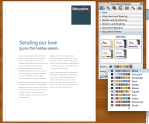
For a quick transformation you can start by changing the “Document Theme” within the Formatting Palette. This transforms both the fonts and color palette quickly and then you can make more minor adjustments using the techniques below.
Change the Text and Accent Colors:
Much like you can change the theme, you can also simply adjust the colors used within the template using the “Colors” Options within the “Document Theme” section of the Formatting Palette.

By selecting this fly out menu you can select different color palettes, and see how picking them, transforms the look of your recipe book.

Change the Font Style Sheets:
1. With the Styles Segment of the Formatting Palette open, select the text that you would like to modify on the page.
2. You should see the current style become highlighted in the toolbox panel.
3. Click on the fly-out window to the right of the highlighted style name and select “Modify Style…”
4. Within the dialog box, you can adjust the font, color, sizing and other properties of the associated style.
5. Select “Ok” to save your changes.

Swapping-in and Adding Your Own Photos:
1. Select the image you want to replace.
2. Within the Picture Segment of the Formatting Palette, click on the “Replace…” button
3. Select the image you would like using the dialog box.

(Tip: If you want to add more photos to the template:
Simply go to INSERT >> Picture >> From File… )

Inserting More Recipe Pages:
1. Within the navigation panel, select a page and “right-click” or “ctrl + click” on the mini preview of the page you would like to duplicated.
2.  Select “Duplicate Page”
3. Drag the new mini page that has been added to the Navigation Panel to the desired location in the order of the document.
(Tip: You can also select a page and go to INSERT >> Duplicate Page)

SAVE AND EXPORT A PDF
A quick note about export settings:
Because this template has been designed with elements that bleed off the page (like the cover which has color that goes edge-to-edge), you will need to set your document so that it will export as such.

To do this:
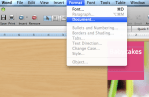
1. Go to FORMAT >> Document…
2. In the dialogue box, confirm that your settings match the ones pictured in this screen shot. (Top: 0.13″, Bottom: 0.13″, Inside: 0″,  Outside: 0.25″, Gutter: 0.25″, mirror margins is checked)
3. Select “Page Setup”
4. Under paper size, if you don’t already have “MagCloud” selected, Select Paper Size >> Manage Custom Sizes…
5. Create a new paper size that is 8.5″ x 11″ with a User-defined non-printable area that is 0″ al the way around.

Microsoft Word 2003: To export your Word 2003 document as a MagCloud PDF on a PC, first go into Tools > Options and select the Save tab. Ensure that the box next to Embed TrueType Fonts is checked, but the boxes next to its subcategories (“Embed characters in use only” and “Do not embed common system fonts”) are unchecked.

Then, in the “Save to PDF” dialog box, click the “Options” button and check the “ISO 19005-1 compliant” box, which should also automatically put a check in the “Bitmap text when fonts may not be embedded” box.

Click Okay, then go to FILE > Save As and select PDF from the file type drop-down menu to save your PDF.

Microsoft Word 2007 (PC): To export your Word 2007 document on a PC, click on the Microsoft Office Button in the upper left hand corner and choose “Word Options”. Select the Save tab on the left and make sure that the box for “Embed fonts in this file” is checked, but uncheck the boxes below it (“Embed only the characters used in the document” and “Do not embed common system fonts”).

Then, in the “Save to PDF (or XPS)” dialog box, click the “Options” button and check the “ISO 19005-1 compliant” box, which should automatically put a check in the “Bitmap text when fonts may not be embedded” box.

Microsoft Word (Mac): When exporting your PDF on a Mac, there is no option to embed fonts, so simply select File > Save As and choose PDF from the Format drop-down menu.

*This usually is only an issue if you have empty, hidden or transparent text frames in your document, or when a single character within a block of text uses a different font than the rest of the paragraph. If you have problems, you will either need to eliminate these, or embed the fonts in a different program before uploading to MagCloud. (see the help section)

WANT MORE HELP WITH WORD AND TEMPLATES?

Microsoft Office Word Template Site

Mactopia (for Mac Word Help/How-to’s)

Publishers In Their Own Words: Shinn Photography

The Summer Camera Camp manual is a guidebook I put together for my first Summer Camera Camp photography workshop.  It’s all about falling in love with your camera.  The subject is photography, but it approaches photo from a very camera-centric perspective.

As a photographer, authoring a book-type document is something new for me.  I used Adobe InDesign for the layout, and (of course) included example photos.  I was thrilled that MagCloud made InDesign templates available to help me past some of the complexities of formatting a magazine.

The manual isn’t meant to stand alone – it’s accompanied by a PDF document that I used as an instructional slide show.  I left some space for taking notes so that my workshop attendees had a tangible take-home piece to study after the workshop.

Thanks for MagCloud for helping me take my instructional presentation to a much more classy and useful level!

To find out more visit our website.