Using Photoshop to Create a Vacation Photobook

Following up on last week’s blog post about using the new Book Module in Adobe Lightroom 4 to create Square MagCloud publications, today we are looking at an easy way you can use Adobe Photoshop to create a vacation photobook with MagCloud’s landscape-oriented Standard and Digest products. We’ve also added new Software-Specific Instruction Packets for Photoshop to our Getting Started page for all of our product sizes. These downloadable folders contain MagCloud-specific templates and instructions for Photoshop CS4 and newer, as well as step-by-step instructions to help you create your publication from scratch using any version of Photoshop.

1. Pick Your Photos

To get started with your photobook, the first thing you need are photos. For the photobook we’ll be creating today, all the images will be full-bleed and extend to the edge of the landscape-oriented pages. As a result, landscape-oriented images will work best for this type of book. If you wanted to use both portrait and landscape-oriented photos, then one of our Square products might be a better fit. You can find instructions for using Photoshop to create an 8″ x 8″ or 12″ x 12″ Square publication on the Getting Started page on the MagCloud website.

In addition to the orientation of your photos, the resolution is also important. We recommend using images that are 300 pixels per inch. Therefore, if you want to create a small Digest size photobook, you should use images that are at least 2550 pixels wide by 1650 pixels tall, or roughly the largest image size available from a 4 megapixel digital camera. If you want to create a larger Standard size photobook, your images will need to be higher resolution – at least 3300 pixels wide by 2550 pixels tall, or roughly the largest image size available from an 8 megapixel digital camera. If you are using high quality images from at least an 8 megapixel digital camera then your images should be fine for either size, however you can check the manual for your camera to be sure, or check the dimensions of your images in the file information on your computer.

2. Create Pages in Photoshop
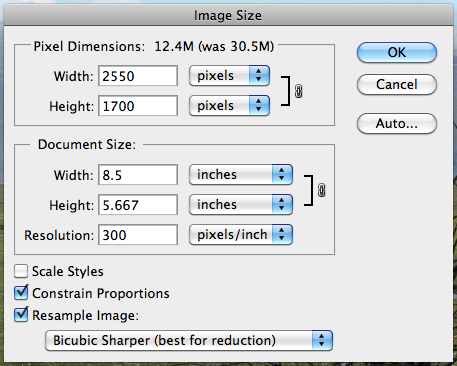
To create each page in your photobook, including the front and back covers, open the image you want to use in Photoshop and go to Image > Image Size. Make sure that the boxes are checked next to “Constrain Proportions” and “Resample Image”, select “Bicubic Sharper” from the dropdown menu, and set the Resolution to 300 pixels/inch. If you are creating a Digest size publication, set the width to 8.5 inches. If this causes the height to drop to less than 5.5 inches, then set the height to be 5.5 inches. Note that this will cause the width to be greater than 8.5 inches, but the image will be cropped to compensate for this in the next step. Similarly, if you are creating a Standard size publication, set the width to 11 inches. If doing so causes the height to drop to less than 8.5 inches, then set the height to 8.5 inches and allow the width to go above 11 inches. When you are finished, click OK.
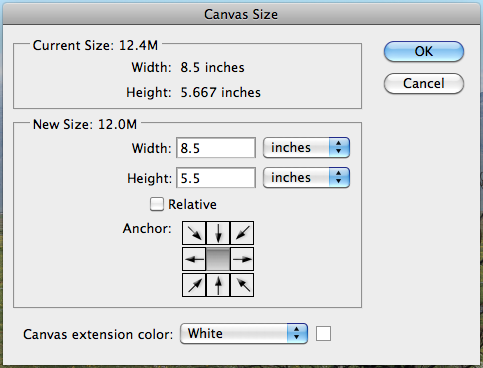
Next, go to Image > Canvas Size. Select “inches” from the dropdown menu, if it’s not selected already. If you are creating a Digest size publication, set the Width to 8.5 inches and the Height to 5.5 inches. If you are creating a Standard size publication, set the Width to 11 inches and the Height to 8.5 inches. Click OK, and when you are warned that some clipping will occur, click the button to Proceed.
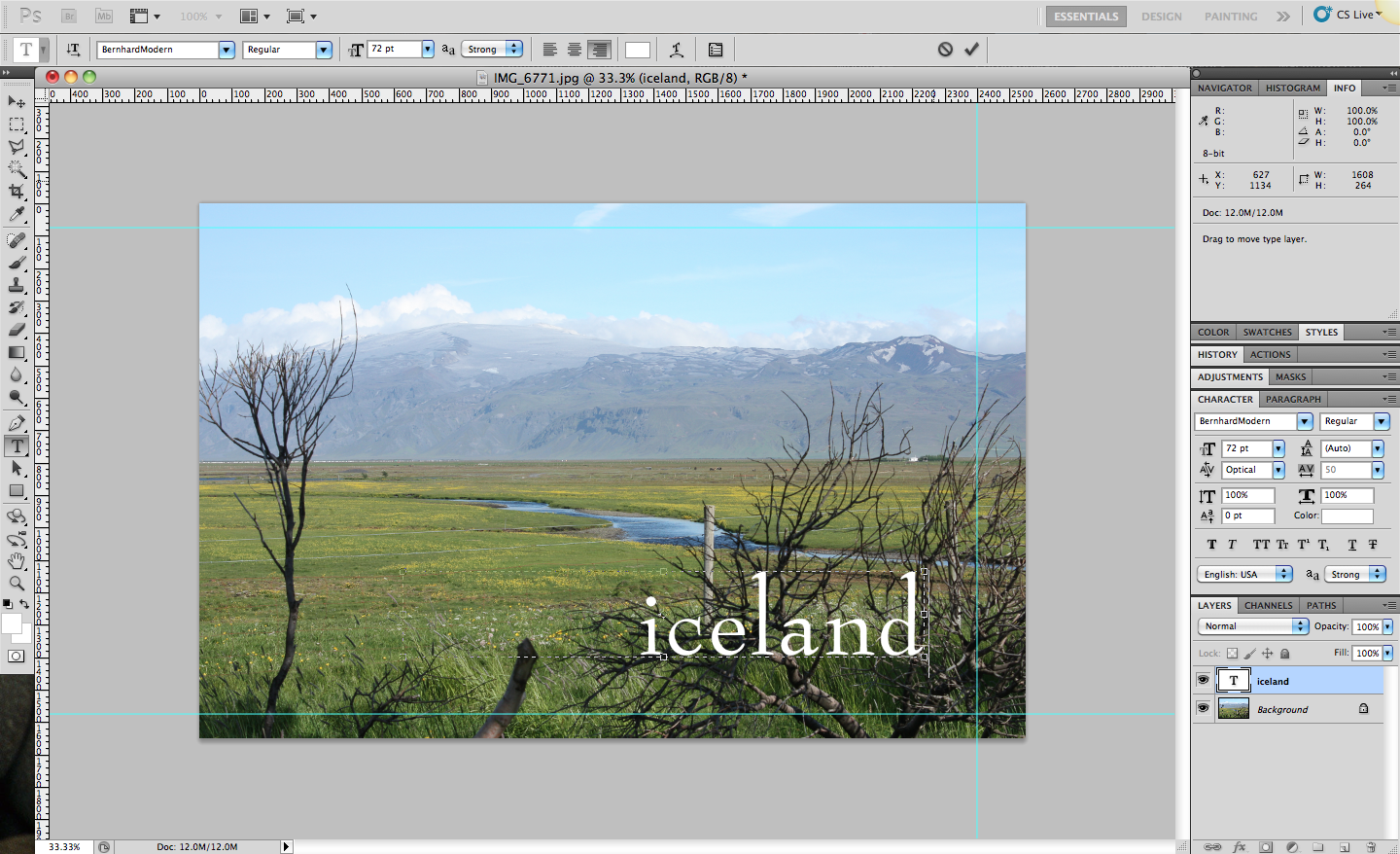
If you would like to add any text over your full-page image, like a title on the cover page, you can do so now using the text tool. Keep in mind that Digest publications will have 0.125″ trimmed off the top and bottom edges, and 0.25″ trimmed off the outside edge (the right, in the case of the cover), and since the trim can vary slightly in either direction, it’s best to keep any text at least 0.25″ inside of this trim line. Similarly, landscape-oriented Standard publications are trimmed 0.125″ on all sides, and also have holes punched on the inside edge for the Wire-O binding (the left, in the case of the cover). Therefore, if you are creating a Standard size photobook, it’s a good idea to keep text 0.25″ inside the trim line on the top, bottom and outside edge and 0.5″ inside the trim line on the inside edge for this size of publication. If you will be adding a lot of content, it may be helpful to add guides to remind yourself where the trim will occur.

When you are happy with the look of your page, go to File > Save As. Select “JPEG” from the Format dropdown menu and make sure that the box next to “Embed Color Profile” is checked. Your color profile may be something other than the sRGB profile shown in the screenshot at right, but embedding your color profile will help ensure that our Indigo presses are able to reproduce your images with the best color possible no matter what color profile they use. Select a name for your file and choose where you want it to be saved on your computer, then click Save. I recommend saving all your page files to a new folder and naming your files numerically, with the cover as Page001.jpg, the inside front cover Page002.jpg, and so on, as this will make it easier to create your final PDF. In the JPEG Options window that appears next, select “Maximum” from the Quality dropdown menu and select the radio button next to “Baseline (Standard)” under Format Options, then click OK.

Repeat these steps for each of the pages in your photobook, resizing and cropping one image for each page. If you want to include pages in your book that don’t include an image, as I did on the inside front and back covers in my publications, take a look at the templates and instructions in the downloadable Instruction Packets on the our Getting Started page. These instructions and templates start with a blank document in Photoshop, rather than modifying an existing image file.

3. Combine Pages into a MagCloud-Ready PDF
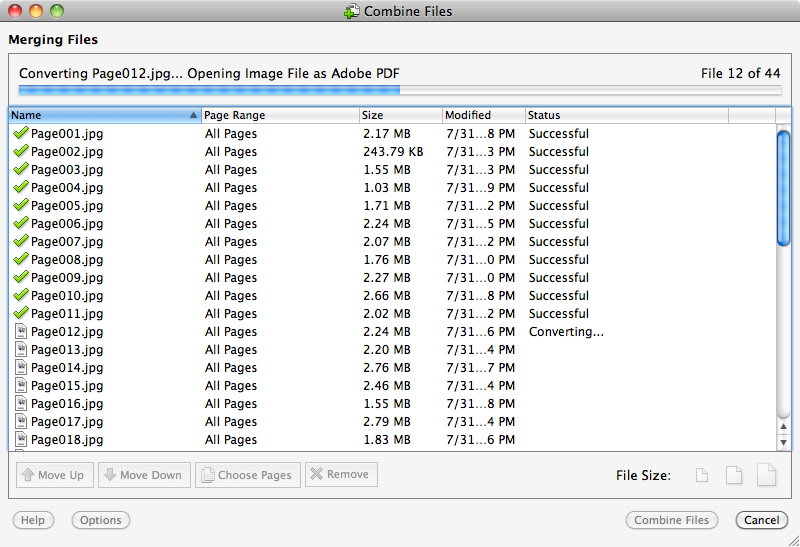
Once you’ve created all of the pages for your photobook, it’s time to combine these pages into a single multipage PDF using Adobe Acrobat Pro. Open Acrobat and go to File > Create File > Merge Files into a Single PDF. Click the button to Add Files and select all the page JPEGs you just created. Sort the files alphabetically by name to put the pages in numerical order, or use the Move Up/Move Down buttons to rearrange the order of the files. When you are happy with the order, select the largest file icon on the far right where it says File Size and click Combine Files. When prompted, choose a name for your final PDF and click Save. Your PDF is now ready to upload to MagCloud!

If you don’t have Adobe Acrobat Pro, an alternative method is to use Adobe’s subscription-based CreatePDF service either online or within Adobe Reader to convert your JPEG files to PDFs and combine them. The other option is to save your pages as PDF files out of Photoshop instead of JPEGs, and then combine these single page PDFs into one multipage PDF using a PDF viewer like Apple’s Preview. You can find instructions to do this in the Instruction Packets on the Getting Started page. The downside to this method is that it will result in a PDF that is much larger than the method using JPEG files, and you may be in danger of going over MagCloud’s 300MB file upload limit.

[UPDATE 1: Adobe Bridge is also another good option for combining your Photoshop files into a single multipage PDF. After you’ve created your pages, open Bridge and select all the page files. Click on the Adobe Bridge “Output” workspace and choose the PDF output option and the relevant page size for the product you are creating. Set the Layout to 1 column and 1 row, and make all margins 0″, then click Save. This will export a PDF that is ready to upload to MagCloud. Thanks to our reader Chane for this tip!]

[UPDATE 2: CreatePDF converts JPEG files to 72 dpi PDF files, which results in PDFs that are roughly 4x the dimensions they should be. Therefore, if you will be using CreatePDF to create your multipage PDF, it would be best to export your page files from Photoshop as PDF files. Note that CreatePDF only allows you to combine 10 files at a time, so you will need to combine your PDFs in groups of 10 and then recombine those. Thanks to our reader Jeffrey for these tips!]

You can see the photobooks I created in Photoshop and Acrobat Pro using these instructions on the MagCloud website: Digest and Standard

How to Create a MagCloud-Ready PDF in Lightroom 4

Adobe’s recent update to Lightroom added a Book module. Currently, the module is limited to a set selection of sizes, however it does allow users to export the books they create as a PDF. Until Lightroom allows you to create books in custom sizes, books created with the Small Square and Large Square sizes can be exported as PDFs and used to create 8″ x 8″ Square, 8″ x 8″ Pamphlet, 8″ x 8″ Flyer, and the new 12″ x 12″ Square MagCloud publications. In today’s post we’ll be sharing the settings you can use to do this along with some design tips, and we’re also launching Information Packets for Lightroom 4 that can be downloaded on our Getting Started page for all of our 8″ x 8″ and 12″x 12″ products.

Creating Your Book

To get started, the first thing we suggest is that you create a collection in Lightroom of the photos you will want to include in your book. Once you’ve created your collection, select the “Book” module from the menu in the top right-hand corner of your screen.

For an 8″ x 8″ MagCloud publication, select your Book Settings to match those shown to the right. Specifically:

  • Select “PDF” next to Book
  • Select “Small Square” as the Size
  • Select “Softcover” as the Cover
  • Set the JPEG Quality to 80
  • Select “sRGB” as the Color Profile
  • Set the File Resolution to 360 ppi
  • Check the box next to Sharpening and set to “Standard”
  • Select “Glossy” as the Media Type

For a 12″ x 12″ MagCloud publication, select your settings to match those shown to the right. Specifically:
  • Select “PDF” next to Book
  • Select “Large Square” as the Size
  • Select “Hardcover Image Wrap” as the Cover
  • Set the JPEG Quality to 80
  • Select “sRGB” as the Color Profile
  • Set the File Resolution to 310 ppi
  • Check the box next to Sharpening and set to “Standard”
  • Select “Glossy” as the Media Type

Once your settings are taken care of, the next step is to lay out the pages of your book. When designing for MagCloud, you can disregard the Front and Back Covers in the Lightroom layout. Instead, treat page 1 as the cover of your publication, page 2 as the inside front cover, and so on. Keep in mind that if you are creating an 8″ x 8″ Flyer, your publication will only be 2 pages long: page 1 will be the front of your Flyer and page 2 will be the back of your Flyer. If you are creating an 8″ x 8″ Pamphlet, your publication will only be 4 pages long: page 1 will be the front of your Pamphlet, page 2 will be your left inside page, page 3 will be your right inside page, and page 4 will be the back of your Pamphlet.

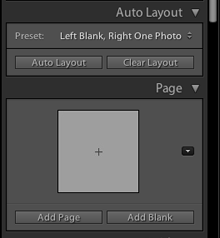
One option for adding pages is to choose a Preset under the Auto Layout section, and click the Auto Layout button. This will automatically add pages to your book and layout all the photos from the collection you have selected based on the Preset you specified. This is a great way to get a book laid out very quickly, but all of your page layouts will be the same. If you want to change any of your page layouts after using the Auto Layout function, you can always do so by selecting the page and choosing a different layout from the Page section.

Your other option is to add pages one at a time, specifying unique layouts and picking photos as you go. To do this, pick a layout in the Page section, then click the Add Page button. Once the page has been added, you can drag images from the Filmstrip at the bottom of the window and drop them on the gray image placeholders to add them to the layout. If the layout you selected includes text, you can also click on the text box and start typing. This is convenient if you want a more custom book, but it will take longer than using the Auto Layout option.

When you have finished laying out your content, click the Export Book to PDF button in the bottom right-hand corner of your screen. Select a name for your PDF, and choose where you want it to be saved on your computer. After you click the Save button, you can track the progress of your PDF in the upper left-hand corner of the screen. Lightroom will export two PDFs: one that is a single page and has “Cover” added to the filename and another that is a multi-page PDF. For creating a MagCloud publication, you can disregard the cover PDF, and just upload the multi-page PDF to the MagCloud website.

After your file finishes uploading, you’ll see a message that the PDF is the wrong size. This is because Lightroom exports files that are 6.875″ x 6.875″ and 11.875″ x 12″, while MagCloud uses PDFs that are 8.25″ x 8.25″ and 12.25″ x 12.25″, respectively. By clicking “Proceed with this PDF” MagCloud will automatically resize the PDF to fit our specifications, resulting in a PDF where all the images are the MagCloud-recommended resolution of 300 dpi. From there, you can continue with the rest of the MagCloud Publish process as usual, previewing your publication and setting your binding, pricing and distribution options.

Picking Layouts for MagCloud Publications

When selecting your layouts and choosing images, it’s good to keep in mind how your PDF will be trimmed by MagCloud. The Lightroom layouts all have a pretty good margin around them, so there shouldn’t be an issue with keeping content inside the MagCloud-recommended safe zone. 12″ x 12″ Square publications and 8″ x 8″ Flyers are trimmed equally on all sides by MagCloud, so the only thing you need to consider is that the outside 1/8 inch or so of any full-page images will be trimmed off. On the other hand, 8″ x 8″ Square and 8″ x 8″ Pamphlet publications are trimmed more on the outside than the inside, so layouts with centered content may appear off-center in your final MagCloud publication. In print, perfect bound publications won’t be as noticeable, because the binding will take up some of the extra space on the inside edge, but saddle stitch bound publications and Pamphlets will be more obvious. For these publications, asymmetrical layouts and layouts with full-page images will generally look better.

Cover Design Tricks in Lightroom

Since the first and last numerical pages of your publication will be the covers, rather than the Front and Back Covers specified by Lightroom, you won’t be able to use the specific cover layouts that Lightroom provides. One of the benefits of this is that you can mix and match your front and back covers, as compared with the Lightroom options where the front and back cover layouts are paired together. Many of the cover templates are also available as page templates, but one layout that is used frequently in the cover templates and is not available in the page templates is text on top of a full-page image. Even though there isn’t a specific page template for this layout, you can get the same effect by using the full page text layout, and then adding a background image to the page.

If you are searching for a layout to use on your cover that includes both text and images, don’t limit your searching just to the “Text Pages” layout menu. There are a number of layouts hidden within the photo-centric layout menus that also include text. Many of these will likely be better for creating an interesting cover, since the images are given at least equal, if not more, focus than the text. Another way to expand your options for both your cover and interior pages is to use a different program to design a layout, and then import it as an image into Lightroom and place it on a page using one of the preset layouts. For example, you could design your cover and place it in the 1 photo full-page image layout on page 1. Doing so offers you more creative freedom in designing your layout than Lightroom allows.

Overall, Lightroom is a great option if you want to create a simple, photo-centric 8″ x 8″ or 12″ x 12″ MagCloud publication. Whether you are creating a proof book, portfolio, or even a catalog, the preset layouts and easy interface help simplify the process of creating your PDF. We hope to be able to provide instructions in the future for creating our other product sizes through the Lightroom Book Module, but in the meantime, check back here on the blog over the next few weeks as we highlight other photo tools you can use to create your MagCloud product, no matter what size you want it to be.

For more general information about using Lightroom 4, please see the Adobe website.

Product Spotlight: Tabloid, Large Square, Standard Landscape, and Posters

Introducing a batch of additional products on the MagCloud website. Our 11″ x 14″ and 14″ x 11″ Small Tabloid size, 17″ x 11″ Large Tabloid size, 12″ x 12″ Square size and 10.75″ x 8.25″ landscape-oriented Standard size all use our Wire-O Binding type. This binding method consists of a double-loop wire binding and pages that are all printed on our thicker 80# cover stock. Not only does the heavier paper stock offer a more substantial feel to these publications, but the wire binding allows them to lay flat and makes it so the pages of the publication can be rotated 360 degrees around the binding and is more durable.

Our Poster format is available in 12″ x 18″ and 18″ x 12″ sizes, and printed on the same 80# cover stock used for Flyers and Pamphlets. MagCloud Posters can be printed on both sides with the same high quality, full color digital printing used with all MagCloud products, and are made more durable with a UV coating on both sides at no extra cost. The best part is that all of this costs just $2.00 per printed Poster, or $1.50 per piece if you order 20 or more.

For inspiration, here are a few ideas for how these products can be used:

Calendars

The Wire-O Binding on the 12″ x 12″ Square and 11″ x 14″ Tabloid make these products great for calendars. Just rotate your content 90 degrees prior to uploading your PDF so that the binding will be on the top edge of your calendar. If you want to use fewer pages in your publication, the larger page size of the 17″ x 11″ Tabloid allows enough space for all the content for a single month to fit on a single page, making a tall and narrow calendar. A 12 month calendar with one page per month, plus two extra pages for the front and back covers will cost you just $7.04.

Catalogs

The larger format of all of these products offer an even greater opportunity to show off your products and services in a catalog format. Furthermore, both the unique shape of the 12″ x 12″ Square and the oversize dimensions of our 17″ x 11″ Large Tabloid will let your catalog stand out from the competition. In all cases, the thicker paper these products are printed on has a more substantial and expensive feel to help you leave a lasting impression on potential customers.

Portfolios

The landscape orientation of the 10.75″ x 8.35″ Standard, 14″ x 11″ Small Tabloid and 17″ x 11″ Large Tabloid offer a great canvas for displaying architectural renderings, fashion designs and large format photography as part of a portfolio. And with the same high quality digital printing you expect from MagCloud, you know you’ll be able to put your best foot forward when displaying your work.

Training Manuals

The ability for the pages of the Tabloid publications to rotate completely around the binding and lay flat makes them great for training manuals. As the trainee moves through their training, the wire binding will allow them to flip to the section they want to view and keep it displayed as the top page in the publication. This eliminates the need to hold open a book with one hand and also alleviates any concerns of losing one’s place.

Proof Books

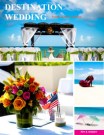
We’ve discussed a number of ways wedding photographers can use MagCloud for their business, and our larger formats open up even more opportunities. What better way to encourage your clients to order larger format prints then to display their proofs in a large format book? Also, if you offer the option for professionally designed and hardbound photobooks to your clients, these larger formats offer an affordable way to show off how the book might look in print before investing in the expensive final copy.

Cookbooks

Similar to training manuals, the lay flat feature of the Tabloid products is also a benefit for cookbooks. It allows the cook to open the book to the recipe they want to make, so they won’t need to be flipping pages to find their place when they are in the midst of a recipe. The heavier paper stock is also a benefit for the durability of cookbooks, as the thicker pages aren’t as likely to rip if they should get stuck together over the years.

Brand Identity Guidelines

We’ve seen a number of brand identity guides published through MagCloud, detailing the appropriate colors, fonts and imagery that should be used for a particular brand. These guides are generally kept close by as a quick reference for designers, and as such can benefit greatly from the lay flat capabilities of these products. In addition, the larger page sizes of the Tabloid products offers twice as much space on a single page as our Standard products, allowing for more examples and detailed information within a given page of the publication. For example, instead of having fonts spread over multiple pages, they can be consolidated into a single page, making it easier for a designer to see all their options at once rather than having to flip through pages.

Media Kits

Show off the best of your business to the media in a large format they won’t soon forget. The professional feel of the heavier paper, combined with the high quality of MagCloud’s digital printing will make you look like a multimillion dollar company, without requiring a multimillion dollar budget.

Event Posters

Even with options like email newsletters, online ads, and direct mail, sometimes posters are the best way to get the word out about an event to a local audience. Whether you are advertising a concert, fundraising event, theater production or sports league sign ups, you can be sure to make a good impression with MagCloud’s full-color posters, printed in quantities of as few or as many as you need. And since no minimum order is required, you can order copies of your poster as you need them, and come back to order more when you run out.

Large Format Photography Prints

Similarly, the lack of a minimum order makes it possible to order just a single printed Poster if you’d like. This offers a great opportunity for professional and amateur photographers alike to order large prints of their photos for framing.

In-House Advertising Posters

In addition to advertising events out in the community, our Poster format can also be used in-house to highlight products and features in a high quality printed format. You can order a single copy if you only have one location, or if you have multiple locations, use our Ship to Group feature to ship one poster to each of your physical storefronts for a consistent display at an affordable cost.

Art Prints

Combining the Poster format with the MagCloud storefront offers a great opportunity for graphic designers and artists to sell their work. Content producers can add a markup beyond the $2 print cost, and for every print they sell, MagCloud will print and ship a copy to the customer directly and pay back the markup to the publisher at the start of each month.

We’re sure that there are many more ideas for how to use these products beyond what we’ve highlighted here, whether it’s using the Poster product to display the seating chart for your wedding or creating motivational posters for your classroom. If you have an idea that wasn’t mentioned, let us know in the comments below!

Travel Photo Tricks and Tips

Vacationing this summer? Whether you’re flying internationally or driving just a few hours away, we want to help make every moment of your trip a little more memorable.

As promised in our Summer Fun with MagCloud blog post, we’ve got some great tricks and tips to help you capture your summer memories through photography.

Hitting the Beach

As fun as they are, beaches can prove to be tricky for photo opps! Some points to remember when capturing your fun in the sun:

  • Try shooting closer to sundown: Not only will there be less people there, but the sun will be at an angle that produces great shadows and colors.
  • Try black and white: This can completely change the mood and feel of a shot. It’s great for overcast or dull days, too.

For more beach tips, check out this helpful blog post!

Picnic-Perfect Pics

Family picnics make fantastic photos! When hanging out at the park and snapping shots between bites of potato salad, remember a couple of basic things:

  • Location, location, location: Picking a spot in the sun or the shade will make for a beautiful lighting situation!
  • Useful props: Place wax paper or white shower curtain between the sun and your subjects. This will diffuse the light and soften the shadows.

Check out even more ways to make your family picnic memorable by reading the full post from Olympus cameras here.

Making Vacation Last, Digitally

Shooting perfect shots of vacation can take some talent, even with your new digital camera! Bad vacation photographs get thrown away, while great shots can create a lifetime of memories. Remember these tips:

  • Power up: Nothing is worse than wanting to snap that perfect picture, and realizing your battery is dead!
  • Don’t be afraid to crop: Cropping a photo can change an average photo into a dramatic one, especially if you crop “off center.”
  • Rule of thirds: When you are lining up that beautiful church, amazing sunset or one-of a kid safari shot keep in mind composition and the rule of thirds dividing your photo into thirds both vertically and horizontally with the key subject at the intersection point.  Newer smartphones make this particularly easy to do with their Grid settings.
  • Put your own spin on landmarks and well-known sites: Rather than take the usual straight on shot of the Eiffel Tower consider taking it from underneath looking straight up, take a lush jungle shot in the rain, or shoot the crowd below from the top of the Empire State Building.  Don’t be afraid to take unique shots or see things as the locales do.
  • Go for contrast and color: Boat sales against a blue sky, a garden of wildflowers, colorful mailboxes on a cobblestone street all make for interesting travel shots with pops of color.

Here’s a few other tips to get you inspired.

We’re curious about your best vacation photos – what are some tricks and tips you’ve learned along the way? Please share with us in the comments below!

Delicious Ideas for Your Wedding Catering Business

No matter how professional a staff you may have hired or how special the foods you prepare may be, your catering business will always need appealing promotional pieces to attract new customers. In most cases your menu or brochure is a customer’s first opportunity to meet you. MagCloud makes it easy to publish a variety of publications for your catering business, and with low-minimum print runs (in most cases as few as 1), digital distribution options and direct mailing features, it doesn’t matter if you’ve catered 2 events or 200, you’ll wow your clients with beautiful publications that leave their mouths watering.

So why not try some of these delicious ideas to promote your business:

Flyers to Promote Your Brand

Our double-sided, single sheet Flyer product is ideal for brief messages or content that changes often such as sales promotions, or seasonal offerings. It’s available in four size options: 8 x 8”, 5.5 x 8.5”, 8.5 x 5.5″ or 8.5 x 11” so you can be sure to pick something that really makes your brand shine.

Glossy Brochures to Highlight Your Services, Team & Experience

A brochure will help you showcase your catering business and help the customer get a detailed account of your company. Our 4-page Pamphlet product is the perfect way to quickly capture your audience’s attention and whether you use a standard 8.5 x 11″, a unique square 8 x 8″ size or a pocket-sized 5.5 x 8.5″ you can rest assured that it will be affordable and beautifully-printed. With an easy one-click option to opt-in for digital distribution, you can also offer your brochure as a free digital-download for potential clients to peruse on their PC or mobile device.

Print and Digital Price Sheets

Once a client is interested in booking you, you’ll want to make it as easy for them as possible. Price sheets that double as order forms make for a tidy way to create a menu together. With MagCloud’s combo of high-quality print-on-demand and easy-to-use digital distribution options, you can make your price sheets available as print copies that you keep on hand as well as digital versions so potential clients can view them on any PC or mobile device.

Sample Menus

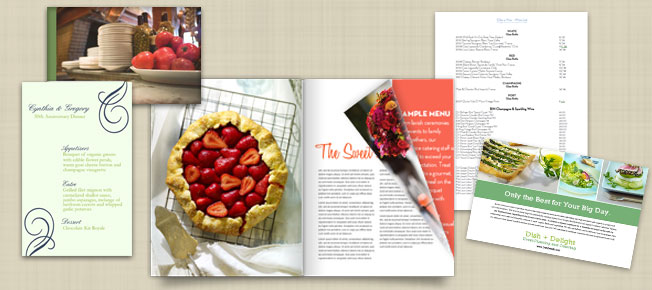
MagCloud’s new flyer sizes are perfect for reprinting menus from past events to give your customers an idea of how a beautifully planned menu comes together. You could even go so far as to create a proposed menu for their event and present it to them at their tasting.

Wine Lists

With distributor prices and product availability constantly changing, MagCloud makes it easy to have an up-to-date wine list and still look professional. Whenever you need to change a price or add a new wine to your list, simply upload a new PDF and order as few or as many copies as you need.

Special & Seasonal Menus

If you offer a variety of cuisines, or even if you want to break up your menus by season or meal-type, you can easily create a standard menu template that you can change up to create more specialized menus.

Full-Service Catalogs

Many catering businesses are full service, and can provide chairs, tables, china, glassware, silverware, tents and umbrellas, and even arrange centerpieces, place cards, and party favors. If your business offers a wide range of services like this, be sure to present them to your client in your brochure, and offer more in-depth information through a specialized catalog.

Partner Publications

Partnering with venue coordinators, event planners and other service professionals like wedding photographers is a great way to get your brand out there to more clients. Try collaborating with the other pros working with you on events and see if you can work out a way to help promote one another with unique pieces that highlight both of your services. For example a collaboration with a photographer could result in mouth-watering photos of your food and presentation that you can use to promote your business, and referrals for future events.

A One-Stop Shop for Your Business

With publisher pages that can be personalized, and the ability to group similar publications into tidy categories, MagCloud is a great platform to keep all of your business materials in one place and make them easily accessible in both print and digital formats. It’s easy to direct your customers to your personalized and branded page where they can find your menus, catalogs and wine lists all in one place, making them handy to select and download.

Have you used MagCloud to promote your catering or event business? Have another great idea that we missed? Share it below in the comments section!

Publishers in Their Own Words: Mike Lesnick Photography

My name is Mike Lesnick, I am the owner and photographer of Mike Lesnick Photography. I use MagCloud to make my brochure/portfolio available to all past and future clients. It’s a great way for me to have my information readily available to everyone.

I created my brochure so that anyone could see a sample of my work, pricing and little snippets about myself and the weddings I have photographed. With my brochure I have made an impact on brides and grooms with my neatly presented work, pictures and lay out. My latest brochure was updated to include all pictures from this past wedding season (2011) as well as full-page spreads of previous weddings I have photographed.

MagCloud has provided me with the most cost-effective way to  distribute and manage my brochures; as well as providing the print quality that as a wedding photographer I expect and need to present my work in a manner that I feel is professional. Thanks so much MagCloud, keep up the good work!

Mike Lesnick, Owner/Photographer, Mike Lesnick Photography

Visit Mike’s website to learn more about his work or preview his work on MagCloud.

April’s Monthly Giveaway is Here

A new month means a new giveaway! Starting today, we’re launching our monthly giveaway for three $25 PayPal MagCloud gift cards. You can enter to win by answering the question below in the blog comments section, or tweeting @MagCloud your answer using the #MagCloudQ hashtag. The questions and prizes will change each month so if you don’t win this round, check back in May for another chance.

Photographers! This month’s question is for you. As you may have noticed, we here at MagCloud love photography.  From advancements in camera technology, to the explosion in photo apps across devices, to the astonishing growth in social photo sharing  (uh hello Facebook’s recent purchase of Instagram or the Pinterest phenomenon), photography is top of mind with both professional photographers and consumers alike.  So this month we would love to know, from DSLRs to point and shoots to smartphones, what’s your go-to camera when you want to capture that perfect shot?

The details:

  • Post your answer to the above question in the comments section below or tweet @MagCloud with the #MagCloudQ hashtag
  • Responses must be posted by Monday, April 30, 2012 at 5:00pm PST
  • Winners will be announced via Twitter, Facebook, and our blog on Thursday, May 3, 2012 by 12:00pm PST
  • Questions? Post in the comments below or tweet us @MagCloud
  • And don’t forget to follow @MagCloud on Twitter and/or ‘Like’ us on Facebook for the latest MagCloud news and future contest details

The contest opens at 12:00 pm PST on Friday, April 13, 2012. Entries must be submitted by 5:00 p.m. PST, Monday, April 30, 2012 and the winner will be announced via Twitter, Facebook, and our blog on Wednesday, May 3, 2012. The prize will be one $25 MagCloud gift card. Three unique winners will be selected at random. All entrants agree to be contacted by Hewlett Packard for prize fulfillment. The drawings are open to MagCloud blog readers, Twitter followers and Facebook fans that reside in the United States and are at least 18 years of age at time of entry. No purchase necessary to enter or win. Limit two entries (one on Twitter and one blog comment) per person, per month. Anyone found to be in violation of any of our rules or third party networks will be ineligible. Entries in this contest will not be carried over into subsequent giveaways or drawings.

Publishers In Their Own Words: Merritt Design Photo

I love when January comes and I can take a moment to dream up new strategies for my small business in the coming year.  For 2012, I made a decision to crank things up a notch with a new creative marketing strategy for my wedding photography business, which had previously been promoted solely “word of mouth.”  I had used MagCloud before and knew that it offered an excellent solution to get started with a custom-designed, high impact product that I could print affordably enough to leave after meetings with wedding coordinators, and even send to begin a dialogue and make a lasting impression with potential clients.

For my first Weddings issue, MagCloud’s format, quality and great price-point give me ample space to share insights into my personal approach to wedding photography; what clients can expect from the experience of working together; some information about packages; and finally, plenty of space for rich color photographs to jump off the pages. Because I can design the whole issue myself, it is the perfect product to give a sense of my personality and style — hopefully enough to inspire people to want to learn more!

I am proud to share this gorgeous, stand-out marketing piece with potential clients; in the first few showings alone, the response has been overwhelming! I’m so excited to be working with MagCloud and I already can’t wait to create my next magazines!

Jennifer Koskinen, Owner/Photographer, Merritt Design Photo

Visit Jennifer’s website to learn more about here work or preview her work on MagCloud.

MagCloud for the Wedding Photographer

Whether you are a professional wedding photographer with a studio space and a team of five, or you’re flying solo, it’s important to present your business in the most professional and appealing way possible to your clients. MagCloud is an easy and affordable way to publish lookbooks, promotional tools and affordable products that that you can sell as a part of your business’s offerings. With easy publisher settings you can offer any, or all of your publications in both print and digital formats.

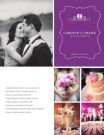
A number of photographers have already discovered the value of MagCloud for their business. They are using the service to promote themselves at trade events with a brochure or glossy catalog, provide lookbooks to potential clients, print proof books for existing clients; and even as a sales tool intended to up-sell clients to an entire gallery of prints rather than just one or two.

Let’s explore some of the options available for your wedding photography business:

Portfolio and Catalog:

At just 20¢ a page for Standard size or 16¢ for Digest size, MagCloud offers full-color, full-bleed printing on HP’s beautiful Indigo presses–a true advantage for today’s professional photographers.

For example, if you want to create a full-color soft-bound book to highlight your photography and present your services, you could do so in a 28-page Standard-sized perfect-bound publication for just $6.60 a copy. Yep, you read that right, $6.60 a copy. And you don’t have to buy 100 to get that pricing, you could order them one at a time if you like, or drop-ship them to an address list of potential clients who have seen your work online and are interested in learning more.

**Want to create one of your own? If you use Microsoft Publisher, we’ve already got a great basic 4-page catalog template to get you started. Don’t use Publisher? Feel free to use the design as inspiration for your own services catalog.

Lookbook:

If you’d prefer to woo your customers before revealing all of your pricing, or would just prefer to have something less time-sensitive for showing off your work, we suggest creating a lookbook. Lookbooks are a great way to express your style, showcase your best work, and really tell your potential customers who you are.

Some publishers have started to use our ultra-portable Digest Landscape format to create a marketing piece that shows off their best work in a portable format that doesn’t break the bank.

What’s great about this idea is that the Digest Landscape’s compact 8.25″ x 5.25″ size makes it easy to keep on hand. Should you meet someone who is interested in hiring you, you can easily hand off the book to a potential client and not cringe at what it costs to replace. And with a max page count of 384, you could create a lookbook that includes hundreds of images, worthy of your coffee table. At just 16¢ a page for our Digest Landscape publications (plus $1 for perfect binding), you can create an impressive 60-page lookbook for just $10.60.

Album for family and friends:

Waiting for that big beautiful album can sometimes take weeks, or months, so while your bride is still excited about the wedding and singing your praises, why not surprise her with a mini photobook, or cool glossy magazine of photos from her big day? She’ll be thrilled to show off your work to her friends and family, and with our 3-day print turn around time, you could surprise the happy couple before they get home from their honeymoon.

You could also create a similar album as a product for your newlyweds to give as a thank you gift to extended family, bridesmaids and groomsmen.

Sales tool:

If you sell more than just digital packages, you know how hard it can be to sell prints–especially large prints (like the elusive 20″ x 30″ canvas) or collections of images, intended to be displayed as galleries. Most clients can’t envision what a gallery of their images could look like–”How would they arrange them? Where would it go?” That’s why some photographers have created booklets to help their clients place their orders. Diagrams and examples can help customers to envision a gallery in their home so they can select prints that work well together. If you went so far as to create this publication and save it as a template, you could drop a few of the customer’s images into the gallery diagrams creating a customized booklet to really seal the deal.

Proof Book:

It seems just about everyone has made the switch to online galleries for proofing, but there is something to be said about proofing photos in print, especially when you are planning to buy them in print.

So why not put together a proof book for your client to accompany that online gallery? This way your bride can have something in hand when she talks to her parents or grandparents about that 20”x 30” canvas. You could even go so far as to include your print pricing, packages or gallery inspiration guide into a custom publication to help encourage larger sales.

Showcase for Vendors:

If you’ve been in the business for awhile, you probably have already had a number of referrals come not just from happy brides, but also from vendors. You know that impressing a location rep means your images might get highlighted when they tour brides-to-be around their venue. Event planners love to show off your beautiful photos of their meticulously-planned soirées, so why not give them access to your photos in a way that not only highlights their work, but at the same time shows you off? We’ve seen photographers partner with venues and service professionals to create custom showcase publications for their specific businesses, but imagine how popular you’d be with everyone down to the makeup artist if you created a showcase book for each wedding and shared it them for their own promotional uses? Every time they show off that booklet, their client will see your brand.

Annual Retrospective for past clients:

If you do more than wedding photography, it makes sense to remind your clients of this. Then, as your wedding clients become growing families, they can make you their photographer for life – there to document their pregnancy, baby photos, family portraits and even high-school seniors.

Creating an annual retrospective photography magazine to highlight favorite sessions from the previous year is a great way to remind customers that you do other types of photography. Similar to a portfolio, this sort of publication can really highlight events, press-opportunities and sessions that occurred during the past year. Clients highlighted in the publication would surely love a copy to show off to their friends, and it keeps you top-of-mind for their next photo-worthy occasion.

Client Gifts:

A number of wedding photographers send gifts to their couples at their anniversary, or around the holidays, so why not create a calendar template that you can customize for each couple?

Swap in photos from their big day, add their anniversary to the calendar, and voilà! You’ll have a product that costs you $5.60 + shipping (a 28-page Standard publication) and reminds your bride how fabulous you are every day of the year.

Print or Digital? Why Choose?

There is a constant debate about print vs. digital, arguing why one is better than the other. Here at MagCloud, our motto is “Why choose?” What’s great about all of these ideas is that if you like, any one of them could also be enjoyed and shown off on the iPad or as a digital download to any PC or tablet device. With just a few clicks you can use one PDF for both print and digital purposes, just opt-in for digital distribution when you select your print pricing and finishing options.

More:

Along with all of these great ideas, you can also use MagCloud to print professionally bound Contracts, Employee Handbooks, Style Guides, Posing Guides, Workbooks, and Lighting How-to’s for workshops. Want more inspiration? Browse more wedding photography publications on the MagCloud website.

Have you used MagCloud as a promotional piece or product for your wedding photography business, or have you been inspired to create something from this post? Share your ideas in the comments section below.

Product Spotlight: Flyer for Business

One of the new product types we recently announced is the Flyer. The Flyer product is a single sheet of paper printed on both sides in full color with a full bleed, available in quantities of 10 copies or more. You can create a Flyer by uploading a one or two-page 8.5” x 11” PDF to MagCloud. Keep in mind that all Flyers must be two pages long, to encompass both the front and back sides of the printed sheet, so if you do upload a 1 page PDF we will automatically add a second blank page to the end of the PDF for you. Like our Standard product, the cost for a printed Flyer is 20 cents per MagCloud page, or $0.40 for each double-sided piece. As always, orders of 20 copies or more receive a bulk discount of 25%, dropping the price to just $0.30 per Flyer.

We feel like this shorter page limit opens up a number of new options for our publishers, and have listed a few ideas below for how you might be able to use the Flyer product for your business:

< Inserts
Update previously printed collateral to be more timely and customized by adding a single sheet insert. Adding a single sheet insert to a previously printed piece like this can provide more relevant information targeted to a specific recipient, or offer an update to existing collateral. For example, if you’re passing out a catalog, you might include an insert about your upcoming product line or summer sale. Similarly, if you are sending previous donors a copy of your non-profit’s annual prospectus, you might include a more personal thank you letter as an insert.

Conference and Tradeshow Handouts >
Whether they are included in the conference materials or handed out at a tradeshow booth, providing printed handouts to attendees to highlight the features of your product or service will help potential customers remember who you are when they get home.

< Datasheets
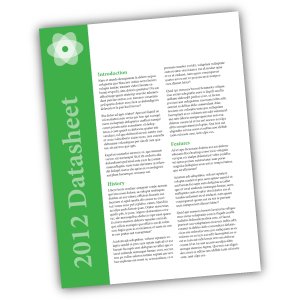
The Flyer product is a great option for creating single sheets of technical specs on your product or service. The high quality of the digital printing provides a more professional appearance than desktop printing, while the single letter-sized sheet is a format that can easily be included in a packet with other materials, or left behind at a sales meeting.

Real Estate Sales Sheets >
If you’re an Australian real estate agent, why not use the Flyer product to create sales sheets for your newly listed homes. The full color printing will allow you to include photos along with background information about the listing, that can be offered up as a way to entice potential buyers. Since MagCloud allows for shorter print runs, you can order fewer copies initially and print more on demand as they are needed, saving on storage and paper waste.

< Headshots and Resumes
Get your job interview or audition off on the right foot with a professionally printed resume or double-sided headshot.

Newsletters >
Use the Flyer product type to communicate with your clients or members by creating a single-sheet newsletter. With MagCloud’s digital options, you can offer your audience the same newsletter in both print and digital with a single PDF upload.

< Menus
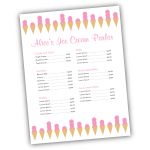
A single 8.5″ x 11″ sheet is the great size for menus, and MagCloud’s print-on-demand model provides a cost-effective and easy way to order additional copies or make updates to the menu as needed. If you’re a caterer, you can take advantage of MagCloud’s shorter print runs to create Flyer-sized menus tailored to each event you cater, whether it’s an intimate dinner party or a large buffet.

Price Sheets >
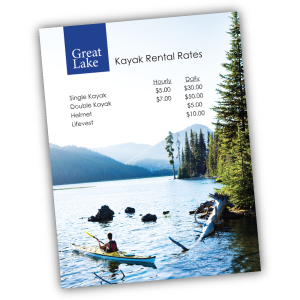
Are you a photographer offering senior portrait packages? How about a sporting goods store offering bikes, kayaks, and skis for rent? Or a spa owner with a list of services you need to publicize? Whether you are a makeup artist, landscaper, tutor, or dog walker, let your potential customers know the rates for your services with a professionally printed price sheet that can incorporate full-color images of your prior work and personal branding.

< Flyers for Sales and Events
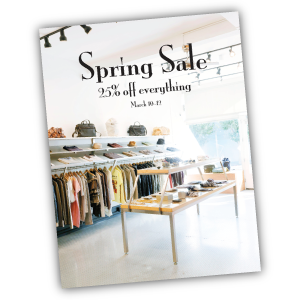
Use the Flyer product for what it was named after: flyers! Print and pass out single sheet flyers for your next retail sale, store opening, or company event. Whether you are hosting a signing in your book store, a concert in your coffee shop, or a spring sale in your clothing boutique, make sure your potential attendees and customers not only know about it but remember it with a printed flyer.

Looking for more inspiration, or wondering where to get started with your Flyer design? Templates that fit the 8.5″ x 11″ Flyer product type can be found around the internet, and even on your own computer. The Microsoft Office Suite, as well as Apple’s iWorks Pages come preloaded with a number of letter-sized templates that can be used for creating Flyer publications. In addition, sites like Inkd and Stock Layouts offer a range of different letter-sized templates in their Datasheet and Flyer sections that you can download for a price and edit to fit your needs before uploading to the MagCloud site for printing and distribution.

Have you already created something for your business with the new Flyer product? Let us know in the comments below!