Let’s Get Creative

While portfolios and business brochures are relatively common publication types on MagCloud these days, there are a number of other unique use cases we see where publishers take advantage of MagCloud’s high quality print and digital distribution to serve their business needs. Today we’d like to share a few of these with you, and hopefully spark your creativity for your own MagCloud publication.

Calendars
As discussed in our post earlier this week, we usually see an uptick in the number of calendars published on the site around this time of year. These calendars show off everything from family portraits to product imagery, and with the MagCloud storefront and print on demand capability we’ve seen some successful calendar fundraising efforts. Plus, now that we have our smaller digest format, MagCloud calendars can be ultra-portable or even expanded into daily planners. If you’ve been looking for a place to get started on your own calendar, check out our 2012 calendar templates.

Annual Reports
Another timely publication type we see on the MagCloud site is the annual report. These run the gamut from smaller startups who just want to print up a handful of copies for investors to larger companies that want an easy way to make their report available online with both print and digital options. Our standard-sized perfect bound publication is particularly well-suited to this use case, since its heavier cover stock and square binding offers a more professional look and feel.

Holiday Greetings
MagCloud also offers a great way to get in the holiday spirit with a pro-quality print and digital family newsletter that gets published and distributed just in time for the holidays. Combine your Holiday Newsletter publication with our Ship to Group feature making it easy to send one copy of your publication to a group of addresses. If you’re looking for tips to make your own holiday greetings through MagCloud, check our blog post from last year for templates and instructions.

Cookbooks
Recipe collections are another popular MagCloud publication type, serving the purpose of business promotions, community fundraisers, and wedding favors. With options for ordering print copies and downloading onto mobile devices like the iPad, MagCloud cookbooks are easy to keep close at hand in the kitchen. To help you get started on your own cookbook, check out our prior blog posts with templates and instructions for Adobe InDesign, iWork Pages, and Microsoft Word.

Workbooks, Manuals, and Guides
A number of publishers have used MagCloud to print field guides, camp workbooks, how-to guides, training manuals, educational workbooks, and operations manuals to complement a variety of business needs. In some cases these are printed ahead of time for use during a workshop or class, while other times they are simply made available online for attendees to purchase as supplementary or stand-alone training materials.

Programs
We see programs of all kinds published on the MagCloud site for events like weddings, plays, memorial services, conferences and music festivals. Our new digest product is particularly well-suited for this use case, since its smaller size is less obtrusive and fits more easily into bags and purses.

Menus
Another great business use case for MagCloud is a menu. Our full color printing helps show off vibrant food photography, while the on-demand printing makes it easy to order copies in small batches as they are needed and make changes between print runs.

Knitting Patterns
There are a number of publishers on MagCloud creating knitting pattern publications. We’ve seen patterns for hats, mittens, scarves, leg warmers, sweaters, and even a wine bottle cozy.  Get a first hand account from MagCloud publisher Alexandra Tinsley.

Real Estate Materials
We’ve also had real estate brokers printing 4-page factsheets for their listed homes through MagCloud, as well as more extensive photo pamphlets for both homes and yachts.  We also included a more extensive listing catalog as one of our templates for Microsoft Publisher.

Blog-Based Publications
A number of publishers on MagCloud are bloggers who use MagCloud to publish their content in an alternate way. Sometimes these are published as collections of posts that might fit a theme, or were voted on by the community, or are simply from a period of time. In other instances, these publications contain additional information that expands upon what was originally posted on the blog, such as fresh content about a profiled individual or the backstory of an image.

These are just a sampling of the diverse publication types that we’ve seen published to the site, with more being uploaded everyday. What have you created through MagCloud? Have you been inspired to create any of the publications types listed above? Tell us in the comments below!
It’s that time of year again…

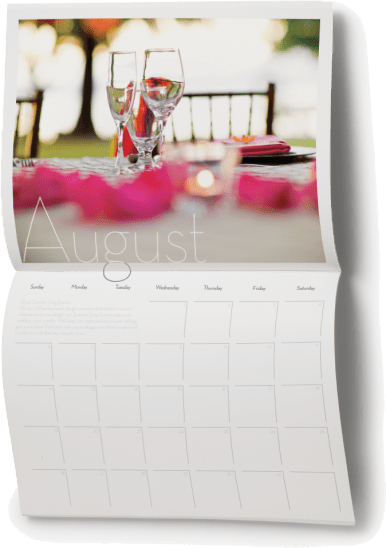
Every year around this time, we see a bevy of calendars popping up on MagCloud. But surprisingly, they are not all what you would think… Sure, there are plenty of family calendars published, undoubtedly intended for distribution to cousins, aunts and grandma, but we think the more interesting use-case are the those being put together by professionals to promote their businesses. And what better way to stay top of mind with your clients, than to be pinned to their wall, where they will see you everyday?

Whether you’re an event planner wanting to showcase your aesthetic, a photographer promoting your work, a non-profit raising awareness or a small business trying to keep your team top of mind with your audience–calendars are a great way to keep your name in front of your client all year long.

Assembling a calendar can be time consuming, so this week we did the heavy lifting for you. Below you will find calendar templates for 3 of the most-frequently used software programs on MagCloud:

Adobe InDesign (CS3 and newer) (zipped version is HERE)

Apple’s iWork Pages

Microsoft Word

You can use these as a starting point for creating your own professional or personal calendar. We won’t spend a ton of time going into the technicalities of how to use these templates because we’ve covered that for Word and Pages last year.

BONUS: if you are using InDesign, there are 3 styles of calendar hidden within the master pages that you can easily apply by changing the master pages for each spread.

Get inspired by some of the great 2011 and 2012 calendars already on MagCloud:


Have you created or found a great calendar on MagCloud? Share the link below in the comments section!

New Brochure Template for Adobe InDesign

Need a little help getting started creating your next brochure?  We have added a new brochure template to our free template collection.

This four page template is for Adobe InDesign users and is perfect for product or service brochures.  We’ve created a sample publication using this template to show you how easy it is to make a great looking brochure that is MagCloud-ready.

If you are new to using Adobe InDesign to create MagCloud-ready publications make sure to download our Adobe InDesign Getting Started Guide for tips on settings for trim, bleeds, image resolution and more.

Let us know what you think of the new template in our comments section below.

A Helping Hand

Need help creating or marketing your next publication?

Our Help section now includes a directory of templates, photography, design, advertising resources and more.  You can also find the the most popular design tips from our blog and latest How to Guides.

Still can’t find what you are looking for then visit the Ask MagCloud section to browse frequently asked questions about publishing, printing and shipping with MagCloud.

Our support team is also happy to answer any questions you can’t find answers for on our website.  Simply contact us so we can help you get the information you are looking for.

Know of a great resource that would help the MagCloud community?  Please drop us a line, we would love to hear about them.

Trends and Resources For Great Looking Business Collateral

How you tell your business story can be the difference between turning a lead into a new customer or just a lost opportunity.

Eye catching and compelling business collateral plays an important role in buying decisions.  According to Eccolo Media’s “2010 B2B Technology Collateral Survey Report,” 83% of B2B technology purchasers say they had used brochures within the previous six months to evaluate a prospective purchase, 76% referred to white papers, followed by 67% who used case studies.

And great collateral isn’t just for big business, heavy investment in marketing collateral is also a key 2011 trend for Small Business as well.

So how do you create business collateral that stands out and gets your audience engaged?

1. Tell A Story.  Stories intrigue, keep our interest and help us convey information in an engaging way.  Conveying your brand promise or promoting your new product or service as a narrative helps your audience understand the possibility and gives them a call to action to learn more.  Chris Brogan, president of Human Business Works, offers some great insight into storytelling for business.

2. Bring Your Story To Life.  A story is more than words. You can use pictures, graphs, tables, screen shots, pull quotes from customers etc. − anything that will help visually convey your story, and underscore your viewpoint and competitive advantage.  There is a plethora of free tools to make creating charts and diagrams super easy.  If you want to push your story to a new visual level consider designing and incorporating infographics.  Infographics have been heavily used by B2C and B2B companies in the past few years to help convey complex information and trends.  Check out the Cool Infographics Blog, Weloveinfographics or Datavis for some infographic inspiration.

3. Invest in Design.  You don’t have to break your business piggy bank to design great looking collateral.  There are lots of desktop publishing applications that make brochure, newsletter, program and catalog design easy. Depending on your skill level and budget there is a spectrum of solutions including Microsoft Publisher, QuarkXPress, Apple Pages and Adobe InDesign.  Most of these programs also include templates or you can check out some of MagCloud’s free business templates as well.

4. Ask for Help.  If you are having trouble getting started there are lots of tutorials and resources to put you on the right path.  Microsoft for example offers a suite of tutorials for Publisher, there are forums for Adobe InDesign or head on over to Lynda.com for an array of business and software online courses. Or you can always consider outsourcing your business collateral design to a third-party or agency such as MagCloud partners HP Logoworks or Madison Ave. Collective.

5. Leverage the Web.  Printing and updating your business collateral no longer needs to be complex, time-consuming and expensive.  Thanks to new print on demand services like MagCloud you can upload a PDF of your collateral and have it printed and delivered to your customers without ever leaving your desk.  Need to change a product spec in your brochure or add a new offering to your catalog? No problem, simply upload a new version of your PDF.  The web also offers you the flexibility to take the same PDF you use for print and make it available digitally for reading on a PC or mobile device giving your audience choice.  Once you have your printed or digital publication ready, it’s easy to build an online marketing plan around it.  Make your content readily accessible and easy to share not only via your website but wherever your audience would be most receptive to your message–social networks, forums, blogs etc.  You spent all that time and effort creating it so don’t forget to make it easy to find.

We’ve had the pleasure of seeing some great looking brochures, newsletters, event programs and catalogs published on MagCloud, so we thought we would share a few of our favorites to help inspire you.

Axses Travel Platform

Cubic Machinery

High Points Promotional

Natural Homes

Overland Sourcebook

Toobydoo

Share any great resources or tips you’ve found useful in creating your business collateral in the comments section below.

Give Your Microsoft Publisher Documents the Pro Treatment

Take your Microsoft Publisher documents to a new level with professional quality print and digital distribution.

Create professional looking print and digital publications you can send to clients, colleagues, friends and family with Microsoft Publisher and HP MagCloud.

Order 1 or 1000 copies and we will print and ship them anywhere in the world. You can even make your publication available in digital format for easy viewing on any computer or mobile device.

Simply export your Microsoft Publisher file to PDF, upload it to MagCloud and we’ll take care of printing, distribution and shipping so you can focus on the important stuff…creating great content.

Need a little help creating your publication and getting it ready for professional printing?  We offer step-by-step instructions and templates specifically for Microsoft Publisher users to get you started.

Brochure Template 1
Brochure Template 2
Brochure Template 3
Brochure Template 4
Catalog/Portfolio Template 1
Catalog/Portfolio Template 2
Catalog/Portfolio Template 3

So whether you are creating a business portfolio, company brochure, customer newsletter or product catalog, Microsoft Publisher and HP MagCloud will take your publication from concept to printed publication with just a few clicks of the mouse.

Let us know in the comments section how you are using Microsoft Publisher and MagCloud.

The Importance of Layouts and Templates

Whether you’re a design newbie, or a seasoned veteran, sitting down to create a new publication can be a daunting task. There’s nothing more frustrating than staring at a blank page, feeling stuck, and unsure of where to begin. It’s often easier to change things that don’t work for you, than to completely start from scratch, which is why we suggest starting with an existing document. It can be the design of a similar publication, or a simple template that has preloaded margins, column guides and style sheets, that you can quickly adjust for a head start. The advantage of dong this, it that the basics of the page are already in place so you can focus on your content and styling.

Why use a template?

Whether you are creating a 12-page or 120-page publication, if you plan to create a series with the same style, you’ll definitely want to invest the time to develop style sheets, and come up with a few layouts that you can repurpose each time you publish. This will help you keep a visual consistency not only throughout each publication, but also from publication to publication over time.

Some of our publishers have done a great job of this, and you can see how it helps reinforce their brand to have consistent styling throughout each publication.  Check out a few issues of Hacker Monthly or Livestrong, or portfolios by professional photographer David Livingston and you will see what we mean. Each of these publishers have developed a consistent style using templates that is unmistakably and identifiably their own.

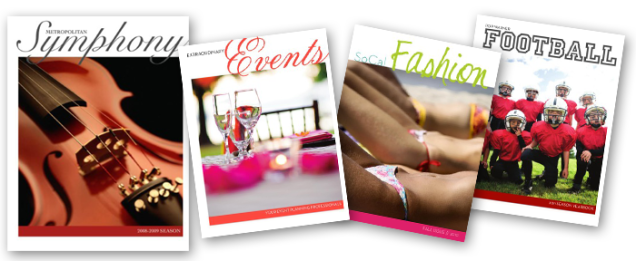
Not an expert at design? No problem. Using a professional-looking template can increase your credibility, and make any publisher look like a pro. Find a template that has a style that resonates with you and use it as a springboard to get yourself started. You can see some great examples of this in our blog post Easy Design with Templates in Apple’s [iWork] Pages, where we turned a basic Symphony Program into a business services guide for an event planning company, a sports team yearbook, and a fashion magazine, with just a few changes in font, colors and photography.

Finding Templates
Where to look and what to look for…

Some software comes equipped with built-in templates, and you can also find great free and paid templates online at the companies’ websites, like Microsoft has for Word and Publisher here, or Adobe has for InDesign at Adobe.com

Still can’t find what you need? Other resources exist where you can buy specific designs for your needs and many of these sites make their templates available for a variety of design programs like Inkd and Stocklayouts.com.

When picking your templates, there are a number of things to consider for your publication:

1. Is this template for an 8.5″ x 11″ document? If it’s designed as a 17″ x 11″ spread, do I know how to adjust it to the right size?

2. What sort of page-layouts are included in the template?

3. Does the template have the right ratio of graphics to text for my needs?

4. Are there hidden layouts that I don’t see? * Hint: if you are using iWorks Pages, there probably are!

5. Does the style suit the audience I am trying to reach? If not, is it easily changed with a few font/color tweaks?

6. Don’t feel restricted by the stock photography or color palette used in a template. Keep in mind our example of the Symphony Program being transformed into a fashion magazine or an event planner’s business collateral

7. Ask yourself, “This template isn’t designed for my specific use-case, but does the overall layout and feel fit my purpose? Could I transform it into something that works?”

Ready to customize your template?
A few tips for making any template fit your needs.

– Unless you get a template directly from our blog, you will likely have to alter some of their settings to accommodate MagCloud’s printing requirements. Before you start making any edits to your template, be sure the document settings match those in the MagCloud Help Section.

– When you make changes to fonts and colors, always do this by editing the font or paragraph style sheets. This way, if you don’t like a change that you have made, it will be easy to adjust and will change that style use on all of the pages of the template.

– Always start with the original file and make 2 or 3 versions, each with different fonts or colors. Then save each as it’s own template so that you can compare them and easily decide which one you like best.

Ready, Set, Start Publishing!

Now that you have your template selected, it’s up to you to make it your own. Need a bit of extra help? Check out our other Tips & Tricks blog posts, or visit the help sections of your software’s site. Many of them have great how-to resources and videos to help you on your way.

Adobe InDesign

Microsoft Office

iWorks Pages

Vacationing with MagCloud

Memorial Day is a welcome beacon that summer is around the corner. As you finalize your plans for summer, MagCloud wants to provide you with a way to capture all of those special memories and experiences – whether it’s a staycation near home, a road trip to the national park or a getaway to an exotic locale.

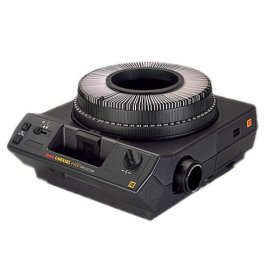
How are you chronicling this precious time? Some of us may remember those family gatherings in front of the carousel slide projector or the bulky albums our parents put together after every trip. Now with MagCloud, you can create a personal memento in magazine format to easily share your memories with family and friends in print and digitally.

Here are a few tips and tools to assist you through the process:

  • If you’re creating a simple photo magazine, below are a few tips and resources to “prep” your images before publishing.
    • To produce a quality publication, make sure all images have a resolution of at least 300 pixels per inch.
    • If you’re looking for photo editing tools but don’t have access to Photoshop, check out GIMP (free software that features most of the capabilities that Photoshop offers) or any of these additional photo editing tools.
    • Short on time or not comfortable with design tools? Give Poyomi and turn the photo sets into a magazine without using a design program.
    • Need inspiration? Browse through some of our travel and vacation magazines.

Have you ever used MagCloud to create a magazine of memories? It’s even a great way to commemorate a school year, a birth, a wedding and more. With MagCloud’s digital publishing and print-on-demand capabilities, it’s never been easier or more budget-friendly to capture the special moments in life.

Sending Your Holiday Newsletter Just Got Easier

There’s no ignoring that the holidays are creeping closer. It’s time to take that family portrait, write those greeting cards and send our annual updates and well-wishes on their way to our loved-ones.

But if you’re like me, the idea of hand addressing 100+ cards to family and friends, and stuffing envelopes seems like madness.

But for just 60¢ each (when you order in bulk), sending a 4-page glossy family newsletter is much more fun and affordable and you can you can save the wasted hours and annoying paper cuts from stuffing envelopes.

We’ve created six holiday newsletter templates to get you started so you can spend more time enjoying a cup of hot cocoa and playing with the kids.

How it Works
A 4-page publication costs just 80¢ when ordered individually and drops to 60¢ when you order in bulk of 20 or more copies. So you can create a 4-page newsletter and ship them anywhere in the US for about $1.70. Better yet you don’t have to brave the crowds at the post office or lick a single stamp.

Using MagCloud’s “Ship to Group” Feature
The “Ship to Group” feature lets you mail publications to multiple recipients with a single order. That means you can design your newsletter, upload it to MagCloud, and let MagCloud handle distributing copies to everyone on your list.

Shipping each copy costs more than a USPS stamp, (it’s about $1.09 domestic) but when you consider each copy only costs you $0.60 (when you order 20 or more copies)–spending less than $1.70 for 4-full-color pages, delivered to your loved ones with just a few clicks of the mouse–is easily worth it!

If you need help working with Adobe InDesign, Microsoft Word, or Apple iWork Pages check out previous posts on working with each application in our  ‘tips and tricks’ section.

For a basic template that maximizes your space for a family newsletter, and gives you the ease of “Ship to Group,” check these out:

Preview the InDesign (Ship to Group) Newsletter Template

DOWNLOAD the InDesign CS4 or newer (Ship to Group) Newsletter Template

Preview the Word (Ship to Group) Newsletter Template

DOWNLOAD the Word (Ship to Group) Newsletter Template

Preview the Pages (Ship to Group) Newsletter Template

DOWNLOAD the Pages (Ship to Group) Newsletter Template

Ship it Yourself:
If you prefer to put a little extra love into your mailing, want to sign your name, add a sticker or simply put a personal note in a few of your messages, then use one of the  “Fold and Ship” Holiday templates. These have an address area for you to adhere address labels and a stamp, and are intended to be folded to a 8.25″ x 5.375″ size and sealed so that they can be mailed with a 44¢ 1st-class stamp.

This template style requires that you order a bulk order to be shipped to youself, and then you handle folding them in half and mailing. While this process can save you a bit of money–these averages about $1.35 per letter–(depending on stickers, address labels and postage) it’s more time consuming.

Preview  the InDesign (Fold and Mail) Newsletter Template

DOWNLOAD the InDesign CS4 or newer (Fold and Mail) Newsletter Template

Preview the Word (Fold and Mail) Newsletter Template

DOWNLOAD the Word (Fold and Mail) Newsletter Template

Preview the Pages (Fold and Mail) Newsletter Template

DOWNLOAD the Pages (Fold and Mail) Newsletter Template

FREQUENTLY ASKED QUESTIONS:

How Do I Create a Group Order?

Simply create an address group in your MagCloud address book (Account>Address book>Add New Group). Name your group — clients, friends, family, vendors etc — and select group members from existing recipients in your address book.

Once your recipients and group are ready, add the newsletter to your cart. Set the quantity to the number intended for each recipient, not the total for all recipients. For example, if you are sending 1 copy to 20 recipients you should set the quantity to 1.

When you get to the shipping page, click “Select from Address Book »”, choose your address group and complete checkout. That’s it! Costs will be displayed for the total order including all recipients.

Can I upload my own mailing list to my MagCloud address book?

Not currently, but that is a feature we hope to offer in a future site update.

Have more questions about Shipping or Publishing through MagCloud?

Check out our Help Section and Shipping FAQ.

Easy Custom Cookbooks with Microsoft Word

The holidays are creeping closer, so we’re back today, with another template to transform your family’s favorite recipes into a colorful, beautifully-published recipe book that you can give to your friends and loved-ones this holiday season.

Yesterday I shared a template for using an Adobe InDesign template, which you can read more about here. Today we’re looking at using Microsoft Word to create a quick and easy recipe book.

GETTING STARTED:
To get you started with publishing your own recipe book, you can follow along with the one I created for this demo.

DOWNLOAD the MagCloud-ready Word Template.

CUSTOMIZING YOUR TEMPLATE:

Editing Master Pages:
To edit the page number styles and the logo on the right-hand pages, you will need to acces the document’s master pages–these can sometimes be tricky to find, so be sure you are in “Publishing Layout” which you can select by going to VIEW >> Publishing Layout.

Then, in the lower right-hand corner of the application window, you can toggle from the document content to the master page layouts.

(Tip: be sure to toggle back to the content pages once you have made your changes.)

Making it your own:
Changing the paragraph styles of the document makes it easy to change the overall look of your cookbook with minimal effort.

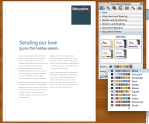
For a quick transformation you can start by changing the “Document Theme” within the Formatting Palette. This transforms both the fonts and color palette quickly and then you can make more minor adjustments using the techniques below.

Change the Text and Accent Colors:
Much like you can change the theme, you can also simply adjust the colors used within the template using the “Colors” Options within the “Document Theme” section of the Formatting Palette.

By selecting this fly out menu you can select different color palettes, and see how picking them, transforms the look of your recipe book.

Change the Font Style Sheets:
1. With the Styles Segment of the Formatting Palette open, select the text that you would like to modify on the page.
2. You should see the current style become highlighted in the toolbox panel.
3. Click on the fly-out window to the right of the highlighted style name and select “Modify Style…”
4. Within the dialog box, you can adjust the font, color, sizing and other properties of the associated style.
5. Select “Ok” to save your changes.

Swapping-in and Adding Your Own Photos:
1. Select the image you want to replace.
2. Within the Picture Segment of the Formatting Palette, click on the “Replace…” button
3. Select the image you would like using the dialog box.

(Tip: If you want to add more photos to the template:
Simply go to INSERT >> Picture >> From File… )

Inserting More Recipe Pages:
1. Within the navigation panel, select a page and “right-click” or “ctrl + click” on the mini preview of the page you would like to duplicated.
2.  Select “Duplicate Page”
3. Drag the new mini page that has been added to the Navigation Panel to the desired location in the order of the document.
(Tip: You can also select a page and go to INSERT >> Duplicate Page)

SAVE AND EXPORT A PDF

A quick note about export settings:
Because this template has been designed with elements that bleed off the page (like the cover which has color that goes edge-to-edge), you will need to set your document so that it will export as such.

To do this:
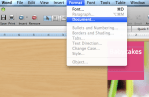
1. Go to FORMAT >> Document…
2. In the dialogue box, confirm that your settings match the ones pictured in this screen shot. (Top: 0.13″, Bottom: 0.13″, Inside: 0″,  Outside: 0.25″, Gutter: 0.25″, mirror margins is checked)
3. Select “Page Setup”
4. Under paper size, if you don’t already have “MagCloud” selected, Select Paper Size >> Manage Custom Sizes…
5. Create a new paper size that is 8.5″ x 11″ with a User-defined non-printable area that is 0″ al the way around.

Microsoft Word 2003: To export your Word 2003 document as a MagCloud PDF on a PC, first go into Tools > Options and select the Save tab. Ensure that the box next to Embed TrueType Fonts is checked, but the boxes next to its subcategories (“Embed characters in use only” and “Do not embed common system fonts”) are unchecked.

Then, in the “Save to PDF” dialog box, click the “Options” button and check the “ISO 19005-1 compliant” box, which should also automatically put a check in the “Bitmap text when fonts may not be embedded” box.

Click Okay, then go to FILE > Save As and select PDF from the file type drop-down menu to save your PDF.

Microsoft Word 2007 (PC): To export your Word 2007 document on a PC, click on the Microsoft Office Button in the upper left hand corner and choose “Word Options”. Select the Save tab on the left and make sure that the box for “Embed fonts in this file” is checked, but uncheck the boxes below it (“Embed only the characters used in the document” and “Do not embed common system fonts”).

Then, in the “Save to PDF (or XPS)” dialog box, click the “Options” button and check the “ISO 19005-1 compliant” box, which should automatically put a check in the “Bitmap text when fonts may not be embedded” box.

Microsoft Word (Mac): When exporting your PDF on a Mac, there is no option to embed fonts, so simply select File > Save As and choose PDF from the Format drop-down menu.

*This usually is only an issue if you have empty, hidden or transparent text frames in your document, or when a single character within a block of text uses a different font than the rest of the paragraph. If you have problems, you will either need to eliminate these, or embed the fonts in a different program before uploading to MagCloud. (see the help section)

WANT MORE HELP WITH WORD AND TEMPLATES?

Microsoft Office Word Template Site

Mactopia (for Mac Word Help/How-to’s)