2012 Holiday Shipping Schedule

During the holidays the MagCloud printing elves tend to be extra busy so please order as early as possible and allow extra time for delivery. Below are our estimated time frames for December 24th delivery.  We also recommend you consider using our FedEx shipping options this time of year so you’ll have the added piece of mind of being able to track your order from our holiday headquarters to your doorstep.

MagCloud's Shipping Schedule

For the latest on any delays USPS and FedEx maybe experiencing due to holiday traffic or weather conditions please check their websites.

USPS Mail Service Updates

FedEX Service Delays

Improved Discovery and Sharing

MagCloud just got a bit more social with our expanded sharing functionality.  You can now like, tweet, pin, and share your favorite print and digital publications from our website or within the web-based viewer. We’ve also given our storefront a pretty little facelift making it easier to discover, read and buy MagCloud publications.

New Sharing Features

Our enhanced features allow you to share a link from the publication details page or the publication itself with most popular social networks or via email.  You can also like, tweet, +1 or comment on a page or publication.

Share publications directly from our web-based viewer and the latest version of our iPad app.  While reading from with in the web viewer you can share a publication to your favorite social network, send via email, or  grab a link and/or embeddable widget to include on your website or blog.

On the iPad you can choose to share a page or the cover and send via Twitter, Facebook or email directly to friends and colleagues.

Improved Storefront

We’ve also made it easier to browse and discover the tens of thousands of publications available publicly in the MagCloud storefront.

The redesigned storefront makes it easy to find and read free and purchased  digital publications directly from the website.  You can browse both print and digital publications by popularity, recommendation, category or search.

Let us know what you think of the new sharing functionality and improved storefront in the comments section below.

View MagCloud Publications in Your Web Browser

Today we are excited to announce a new web-based viewer that enables publishers to bring stunning versions of their publications to life in any modern web browser on both desktop and mobile computers.

Now publishers can upload a single PDF file and immediately distribute as a free or paid digital publication, in print, in a web browser or as a PDF download.

The web viewer delivers an immersive reading experience for users. Simply click the “read now” button and the publication launches within the web viewer. Readers can page forward and back, rotate, zoom in and out, and enter full-screen mode. Pages can be viewed individually or as a spread, and are easily navigated with thumbnail and all-pages views. Additionally, users can buy a printed copy, download a PDF version or add to their Digital Library for viewing later.

The web viewer supports all HP MagCloud publications, regardless of format, on any desktop or notebook computer running a modern web browser.

The web viewer technology also offers hyperlink support, benefiting publishers and users by allowing you to link from your catalog of products back to an ecommerce site, link directly to advertisers’ web pages, allow customers to draft emails to an address listed in your brochure just by clicking on it or provide information about the author.

Publishers can also monitor how well their readers engage with their online publications via the Stats section in their account.  You can see important web viewer reading information including the number of total readers, how often your publication was read, pageviews, shares, hyperlinks clicked, click through rates etc. for all your collections or a single publication.

Publishers and readers can promote their favorite publications by sharing publications they like with friends and colleagues via email or social media channels or embedding a badge or link that launches  the web viewer directly from their own website or blog.

All publishers who currently have digital distribution turned on for their publications will automatically have web viewer versions available on the MagCloud website. To turn digital distribution on simply select Sell Online (after uploading your PDF and selecting your binding). This is where you will add any markup to your print version, and will have the option to opt-in to digital distribution.  Opting-in to digital distribution is a one time setting that instantly gives readers digital access via the web viewer and PDF download.

What do you think of the new MagCloud web viewer?  Let us know in the comments section below.

Turn Your Summer Pics into a Photo Book with Apple Aperture

Looking for something to do with all those great photos you’ve taken this summer of trips, pool parties, nature hikes and more?  Why not create a photo book keepsake to share with friends and family so you can relive the great memories for years to come.

Apple Aperture is a great tool for keeping photos organized, polishing them up and even creating MagCloud-ready photo books.  We’ve added new Software-Specific Instruction Packets for Aperture to our Getting Started page for all of our product sizes. These downloadable folders contain MagCloud-specific templates and instructions for Aperture 3.0 and newer.

Below are a few tips to get you started.

Organize Your Photos

The first step is selecting the photos you want to use for your book.  Aperture makes it easy to weed through the large volume of photos you’ve taken this past summer with the Smart Album feature.  Create a new smart album using ratings (i.e. all your fave photos who you gave 3 or more stars too), and/or keywords (i.e. summer, Hawaii trip, beach) to select your favorite photos for inclusion in your book.

Tip for Instagram Users:

While Instagram doesn’t allow you to send directly to Aperture the smart folks over at ApertureExpert.com have outlined a simple way to use Flickr as a go between to bring your Instagram photos directly Aperture.  One thing to note for MagCloud-ready publications is that the photos Instagram sends to Flickr are low resolution and may not print well so we recommend after you’ve created your Instagram album in Aperture to transfer the pictures from your mobile device to your Mac via iCloud or cable sync, and replace one by one the Flickr pictures with your higher resolution images from your Camera Roll.

Oh and if the whole Instagram importing and resolution workarounds seem like too much check out the Aperture Instagram Presets created by photographer Casey Mac and create your own Instagram like photos directly in Aperture.

Create Your Book with a MagCloud Photo Book Theme

Once you’ve organized your photos it’s time to select what size book you want to create.  We’ve created Aperture themes and instructions for each MagCloud product from Digest to Tabloid; simply download the files from our Getting Started page.

Installing the Aperture Book Theme

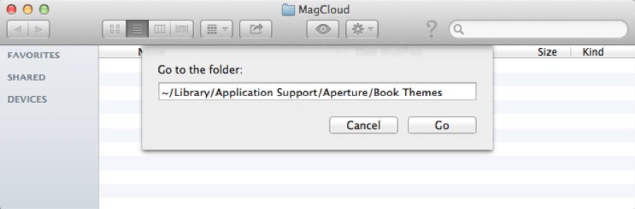
  1. Open a new Finder window and select “Go to Folder…” from the Go menu
  2. In the text field that appears, type: ~/Library/Application Support/Aperture/Book Themes
  3. Click Go
  4. Drag the “8 x 8 Square or Pamphlet” folder from the unzipped folder into this new Book Themes window

Creating a MagCloud-Ready Book

Now the fun part…creating your book!

Select Your Theme

  1. Open Aperture (if not already opened)
  2. Click the New icon in the upper left corner, then select Book from the drop-down menu
  3. Enter a Book Name for your book
  4. Select “Custom” from the Book Type drop-down menu
  5. Select the MagCloud theme you loaded (i.e. “8 x 8 Square or Pamphlet”)
  6. Click Choose Theme to create your book
Build Your Book

Aperture makes it easy to layout your book simply by organizing your photos in the book editor by date, rating, label, file name etc. and then selecting “Autoflow Unplaced Images”.  Of course your can reorder and move images from one page to the next at any time.

You can also customize your book by changing layout (i.e. 2 Up to 4 Up), adding text, selecting background colors etc.

Tips for Creating An Awesome MagCloud Book
  • Perfect bound publications can be anywhere from 8 to 384 pages long, but the total page count needs to be a multiple of 2.
  • Saddle stitch bound publications can be anywhere from 8 to 100 pages long, but the total page count needs to be a multiple of 4.
  • You can add and delete pages using the + and – buttons under the page display.
  • When adding text, don’t go beyond the theme margins (the edge of the image in the 1-up layout). The margins are set to the edge of the safe zone, and any text placed outside this area is in danger of being trimmed off in the print version.
  • If you have a lot of large photos in your publication, or if it is a lot of pages, it’s possible that your final PDF will be over MagCloud’s 300MB upload limit. If this happens, there are a few things you can do to reduce the file size after you export the PDF from Aperture. See the instructions you downloaded with your Aperture theme for how to reduce image size with Apple Preview or Adobe Acrobat Pro.

Export Your Book as a PDF

Once you’ve got your book looking exactly how you want it, its time to export it as a MagCloud-ready PDF file.

  1. After you have finished designing your book, click Print Book in the upper right-hand corner
  2. Select your “Color Profile” from the drop-down menu. In this case I’ve selected sRGB as my color profile to embed.
  3. Click the “PDF” button and select “Save as PDF…” from the drop-down menu
  4. Enter a name for your PDF and select where you want it to be saved on your computer
  5. Click Save

The PDF of your book is now ready to be uploaded to magcloud.com.

What types of MagCloud publications will you use Aperture to create?  Let us know in the comments section below.

Vote for MagCloud as a 2012 Small Business Influencer Champion!

It’s great to have more reasons to keep celebrating MagCloud’s birthday this month! We’re thrilled to hear that we were nominated for the Small Business Influencer Award this year.  As you may remember, we were selected as one of the last year’s Small Business Influencer Champions and hope to repeat that distinction again!

This prestigious recognition honors companies, organizations and people who have made a significant impact on the small business industry. We remain committed to improving our services and offering new products to assist small businesses with their marketing efforts. Over the last twelve months, we’ve rolled out Digest Landscape, new Flyer options, Square Format, Large FormatPremium Paper and Shipping Options, and still have more to come!

We would love your votes to help us reach the Top 100 by August 5. Have we made a meaningful and lasting impact for your business? Place a vote! Yes, you can vote every day. :)

For more information on the 2012 Small Business Influencer, be sure to follow @SMBInfluencer on Twitter or the folks behind this initiative – Anita Campbell (@smallbiztrends) and Ramon Ray (@ramonray). Let us know that you voted by leaving a comment below and thanks for your support!

Travel Photo Tricks and Tips

Vacationing this summer? Whether you’re flying internationally or driving just a few hours away, we want to help make every moment of your trip a little more memorable.

As promised in our Summer Fun with MagCloud blog post, we’ve got some great tricks and tips to help you capture your summer memories through photography.

Hitting the Beach

As fun as they are, beaches can prove to be tricky for photo opps! Some points to remember when capturing your fun in the sun:

  • Try shooting closer to sundown: Not only will there be less people there, but the sun will be at an angle that produces great shadows and colors.
  • Try black and white: This can completely change the mood and feel of a shot. It’s great for overcast or dull days, too.

For more beach tips, check out this helpful blog post!

Picnic-Perfect Pics

Family picnics make fantastic photos! When hanging out at the park and snapping shots between bites of potato salad, remember a couple of basic things:

  • Location, location, location: Picking a spot in the sun or the shade will make for a beautiful lighting situation!
  • Useful props: Place wax paper or white shower curtain between the sun and your subjects. This will diffuse the light and soften the shadows.

Check out even more ways to make your family picnic memorable by reading the full post from Olympus cameras here.

Making Vacation Last, Digitally

Shooting perfect shots of vacation can take some talent, even with your new digital camera! Bad vacation photographs get thrown away, while great shots can create a lifetime of memories. Remember these tips:

  • Power up: Nothing is worse than wanting to snap that perfect picture, and realizing your battery is dead!
  • Don’t be afraid to crop: Cropping a photo can change an average photo into a dramatic one, especially if you crop “off center.”
  • Rule of thirds: When you are lining up that beautiful church, amazing sunset or one-of a kid safari shot keep in mind composition and the rule of thirds dividing your photo into thirds both vertically and horizontally with the key subject at the intersection point.  Newer smartphones make this particularly easy to do with their Grid settings.
  • Put your own spin on landmarks and well-known sites: Rather than take the usual straight on shot of the Eiffel Tower consider taking it from underneath looking straight up, take a lush jungle shot in the rain, or shoot the crowd below from the top of the Empire State Building.  Don’t be afraid to take unique shots or see things as the locales do.
  • Go for contrast and color: Boat sales against a blue sky, a garden of wildflowers, colorful mailboxes on a cobblestone street all make for interesting travel shots with pops of color.

Here’s a few other tips to get you inspired.

We’re curious about your best vacation photos – what are some tricks and tips you’ve learned along the way? Please share with us in the comments below!

“Ask the Chief MagClouder” Twitterview

Our first “Ask the Chief MagClouder” Twitterview will take a closer look at our new large format products! It kicks off from 10:00 to 10:30 a.m. PST on Tuesday, July 17 on our MagCloud Twitter handle (@MagCloud) and our host will be Chief MagClouder Andrew Bolwell.

What are Twitterviews? It’s simply an interview conducted on Twitter, where you get to interview our Chief MagClouder about, in this case, the new large format products as well as any other MagCloud questions you have on your mind.


How can you participate? Starting now, submit questions for Andrew by either tweeting them to @MagCloud using the #MagCloud hashtag or ask them right here in the comments section of this blog post. We also encourage everyone to join our Twitterview from 10:00 to 10:30 a.m. PST on July 17 where Andrew will respond to your questions live.

As an added incentive, all fans who ask a question will be entered into a random drawing for a chance to win a $25 Paypal MagCloud gift card perfect for you, your colleagues, friends, family, etc. to purchase your favorite publications on MagCloud.com. The drawing is open to residents in the United States only. For the complete rules, see below.

Here’s a little more info about Andrew:

Andrew Bolwell loves to make things happen, and with over 20 years of high-tech experience, Andrew has spearheaded some of HP’s most groundbreaking business initiatives. Celebrating MagCloud’s fourth birthday, Andrew is excited to share new products and experiences that support the needs of MagCloud users. When he’s not steering the MagCloud juggernaut, crunching numbers and doing whatever it takes, Andrew can be found practicing his life philosophy that we’re not here for a long time, we’re here for a good time.

Don’t forget to follow our Twitter handle, @MagCloud, for the latest MagCloud news and updates, and ask those questions using #MagCloud or in the comments section here! We hope to see you (virtually) on Tuesday, July 17!

The giveaway opens on Friday, July 13, 2012. Entries must be submitted by 10:30 a.m. PST, Tuesday, July 17, 2012 and the winner will be announced via Twitter and our blog on Tuesday, July 17, 2012. The prize will be one (1) $25 MagCloud gift card and one (1) winner will be selected at random. All entrants agree to be contacted by Hewlett Packard for prize fulfillment. The drawings are open to MagCloud blog readers, Twitter followers and Facebook fans that reside in the United States and are at least 18 years of age at time of entry. No purchase necessary to enter or win. There is no limit on the number of entries from any entrant, but each entry must be submitted separately as a Tweet using the hashtag #MagCloud on Twitter or as a blog comment on this blog post. Anyone found to be in violation of any of our rules or third party networks will be ineligible. Entries in this contest will not be carried over into subsequent giveaways or drawings.

Go Big With Our Large Form Factor Products

MagCloud users deserve larger form factor products and we are happy to offer not just one but seven large product types.

Tabloid Product Family

At 11″ x 14″ trim size Small Tabloid is smaller than a standard newspaper but larger than our Standard letter-size product.  Our Large Tabloid product has a 17″ x 11″ trim size offering more room for images and content. All Tabloid products are published on premium cover stock, have Wire-O Binding, and are ideal for large format portfolios, custom calendars, manuals and more.

  • Small Tabloid: 11″ x 14″ and 14″ x 11″ trim size options
  • Large Tabloid: 17″ x 11″ trim size
  • $0.36 per page with full color printing
  • 8 to 90 pages in length in multiples of 2
  • $2.00 per copy for durable Wire-O Binding

Poster Product Family

Our full-color, double-sided Poster are printed on premium cover stock and come standard with UV coating giving them an extra sheen and making them more durable. Posters are ideal for promotions and special event keepsakes such as gallery exhibits, music festivals and fundraisers.

  • Available in 12″ x 18″ or 18″ x 12″ trim sizes
  • Full-color professional printing on 80# premium cover stock paper
  • Standard UV Coating front and back for increased durability
  • Each individual Poster is only $2 to print ($1.50 for orders of 20 or more).

Large Square

MagCloud is adding to its Square product family by offering a new large form factor Square product. At 12″ x 12″ trim size, this new product is great for one-of-a-kind portfolios, photo books or training material.

  • Available in 12″ x 12″ trim size
  • Durable Wire-O Binding
  • 80# premium cover stock
  • 8 to 90 pages in multiples of 2
  • $0.36 per page with full color printing
  • $2.00 per copy for Wire-O binding

Standard Landscape

Finally we are also expanding our Standard product line, with the addition of a landscape option. Measuring 11” x 8.5” and also using Wire-O Binding and premium #80 cover stock paper, this new product option is useful for portfolios, magazines, booklets, catalogs and more.

  • Available in 10.75″ x 8.25″ trim size
  • Durable Wire-O Binding standard
  • 80# premium cover stock
  • 8 to 90 pages in multiples of 2
  • $0.20 per page with full color printing
  • $2.00 per copy for Wire-O Binding

Note: Standard Landscape page and trim size will also be available as a Flyer option.

What do you think of these new products and how do you plan to use them?  Let us know in the comments section below.

Summer Fun with MagCloud

Over the next six weeks we’ll be sharing blog posts that discuss how to use MagCloud to plan vacations, create excitement for family reunions, capture all your summer memories and more.

First up is creating MagCloud published photo books directly from your iPad with the Poyomi Photo Book application. This iPad application makes it easy to create photo books while on the go–select photos, design your book, order, and have MagCloud print and deliver them before you even get home from your vacation.

Step 1: Select your Photos

Poyomi’s app makes it easy to choose photos for your book from your iPad albums including your camera roll and iCloud PhotoStream, or import them from third party websites such as Flickr, Facebook, Picasa, SmugMug and Dropbox.  Simply upload your photos to the Poyomi Book Editor by selecting the specific photos you want to include in your book.


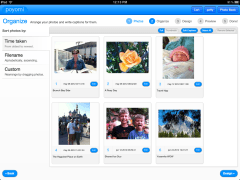
Step 2: Organize Your Photos

The Book Editor lets you organize the photos in your book by date taken, alphabetically or you can drag and drop them to create a custom arrangement.

You can also add captions, rotate images and ensure your photos print as large as possible by favoriting them.


Step 3: Design Your Book

Poyomi allows you to select from four of the MagCloud product types–Letter (aka MagCloud Standard), Digest, Digest Landscape and Small Square. You can also choose your binding type either Saddle Stitch Binding or Perfect Binding for books over 20 pages.

Poyomi’s design features include four color schemes for the inside of the book, as well as multiple type face colors for the cover title of the book.  Title your book and choose a wrap around cover photo or individual photos for the front and back of your book.

The Book Editor also allows you to crop and select portions of the cover and back photos for the perfect look.


Step 4: Preview Your Book

All that’s left is previewing and making final adjustments to your book.  You can write a brief intro to your book including using one of your travel photos as a background image, as well as creating a brief closing note to go at the end of the book.

Once you’ve previewed your entire book simply tap “Finish”.


Finished!

That’s it in a few easy steps you’ve created a travel photo book on your iPad without ever leaving your beach chair.

Poyomi gives you the option to save your book to your Poyomi account for editing when you get home or you can create a personal home page where friends and family can preview and order copies of your book. Finally you can purchase it directly from your iPad with a credit card or via a PayPal account.


How can you imagine using Poyomi’s Photo Book iPad app this summer?  Let us know in the comments section below.

Print and Digital: A Winning Combination

Print vs. digital has long been hotly debated. Recently, we’ve seen several experts weighing in on the topic, arguing that print and digital can coexist and will in fact strengthen a brand when used together. Of course, we’ve always known this at HP MagCloud (check out our Jan. 5 blog post), and we are thrilled when other people realize it doesn’t have to be an either/or proposition. The challenge is finding the right medium to use to tell your unique story, so that it’s heard and understood by your audience.

So what are people saying? Novelist Dave Eggers in the Guardian said, “It’s our admittedly unorthodox opinion that the two can co-exist, and in fact should co-exist. … But they need to do different things. To survive, the newspaper, and the physical book, needs to set itself apart from the web. Physical forms of the written word need to offer a clear and different experience. And if they do, we believe, they will survive.”

When should you choose digital? “For news, facts and information, let’s tell stories as they unfold: a tweet here, an update there, a database, a video clip, a timeline, a slideshow, a conversation, a list. Let’s master the tools of digital storytelling and learn to match our tools and techniques to the circumstances,” stated digital guru Steve Buttry on Poynter.org.

What about print? “Let’s respect the pure, traditional story – the narrative string of paragraphs – by reserving that form for real stories,” Buttry added.

We’re fortunate to live in a world where we have both options.

In telling your story, you’ll want to rise above the chatter. It’s a good idea to participate in the online conversation by using Facebook, Twitter, email newsletters and more to share what’s happening in the moment. You’re demonstrating your knowledge about your industry and connecting in a more immediate way with your audience.

Meanwhile, a print publication showcases your photographs and carefully crafted story to an audience who wants to linger over and slowly digest your content. No matter how great digital content is, readers can stash magazines in their purses, dog-ear the pages and tear out their favorite articles. Quoting The Economist (June 9 issue): “As long as there are coffee tables, people will want things to put on them.” The high quality of print makes you proud to display your work to clients, and likewise, your clients will be happy to share your magazine with people they bump into.

HP MagCloud provides both print and digital offerings because different stories beg to be told in different ways. Plus, you might reach new readers who prefer to read content on their iPad or smartphone. We realize there is much to consider, and one of the main deterrents of print is the expense and complexity. With HP MagCloud, it costs only 20 cents per page for Standard and Square products, there are no upfront costs and everything can be done via our website with a few clicks of the mouse. So a small business on a tight budget can afford to self-publish their content.

For a small business, blending print and digital elements into your marketing is a win-win. Does your business plan include both digital and print? If not, here’s your chance to consider both.