Publisher Spotlight: Portfolio Contest Winners Sean McCloskey, Cemal Ekin and Jeremiah Johnson

In this post, we’re excited to highlight the work of the top three winners of the MagCloud Portfolio Contest.

This photo of U2 is Sean's favorite concert photo. It was taken on the final night of their 2001 U.S. tour. (Credit: Sean McCloskey)

Sean McCloskey
Photographer Sean McCloskey, grand prize winner of the MagCloud Portfolio Contest, got his start shooting concerts while in college. His passion for the business led him to publish his first magazine just two months after graduation. He’s now been in the photography business for more than 16 years and as well as a magazine publisher for the past 13 years. Sean’s MagCloud contest entry is a showcase of his first 15 years in the concert photography business.

Thanks to MagCloud, Sean has been able to break out of the local market and get more eyes on his work. He found a way to not only distribute digitally but also easily maintain the high quality print distribution that’s so important to photographers.

He currently has four publications on MagCloud.com: SFL Music, Movie Zone, Streets and his submission for the Portfolio Contest. Check out Sean’s work and join us in congratulating him once again!

Photo of the Hagia Sophia from inside the dome. (Credit: Cemal Ekin)

Cemal Ekin
Cemal Ekin, one of our contest runners-up, is a true MagCloud whiz. He stumbled across the service when looking for a new way to spark innovation in his classroom at Providence College. His students began creating and publishing MagCloud magazines each semester – their publications were a hit and Cemal saw an opportunity to spread the word about his own work.

The portfolio he entered in our contest, along with his other publications, have really made an impact with clients and have helped attract new business opportunities. Whether at an unveiling party for his latest publication or a closed-door meeting with new prospects, it’s the quality of MagCloud’s print and binding that grabs the audiences’ attention. Obtaining shots of the Hagia Sophia from inside the dome is a rarity, and Cemal’s portfolio of this work not only wooed his community into voting for him in our contest but also spread his work to new contacts – notably ARTstor.org (a premiere collection for art and art history research) who accepted his photos of the dome’s detailed mosaics and structure of the dome into their exclusive collection.

Ekin has even written up the process he uses for preparing his photos for printing through MagCloud on his site, KeptLight.com. A big fan of the ease of publishing workflow, he breaks the process down in digestible steps. Have a look!

Don’t forget to view all of Cemal’s MagCloud publications here, including his portfolio submission. Bravo on your win, Cemal!
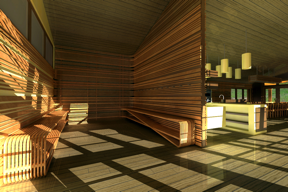
Entryway and mud-room of the PrairieHouse project. (Credit: Jeremiah Johnson)

Jeremiah Johnson
Designer and amateur photographer Jeremiah Johnson created his MagCloud portfolio to showcase his architectural and graphic design work along with his budding photography skills. Seeking work, he needed a solid portfolio to leave behind at job interviews and cold calls. From the start, Jeremiah knew that MagCloud’s publishing quality and value was tough to beat.

Jeremiah was thrilled to receive job offers from the first three firms he submitted his MagCloud portfolio to and accepted an offer from an architecture firm in Minneapolis. In addition to his design and photography skills, Jeremiah said that “the professional quality of the publication is what caught the eye of potential employers who often receive spiral bound booklets of inkjet printed pages from applicants.”

Congratulations on the win and the new job, Jeremiah! View his portfolio here and catch even more of his great work here.

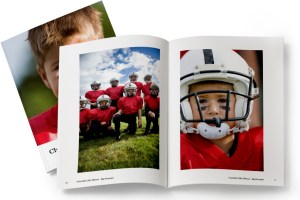
Maximize the Impact of Your Member Communications

Now that we’ve shared some of our best MagCloud examples of member communications, it’s time to talk content. What information is vital to include and what is best to leave out? Our take, like in most printed materials, is that less is more.

For many independent organizations, fundraising is typically a part of your member communications. Because of this, if not for other reasons, you must ensure that your materials are concise and compelling to make sure you’re reaching as many members as possible with your message.

Here are a few more tips to consider when composing your next member communication:

Spotlight Individual Members – Profiling a particularly active member can bolster involvement from the rest of the members who will strive to earn the honor as well, and it may drive the spotlighted guest to share the communication with his or her broader online network thus spreading the reach of your group.

Promote Your Social Media Channels – Many alumnae organizations have LinkedIn Groups and local community groups often have Facebook Pages. Whatever your channel, be sure you’re using your printed materials to promote your online social media channels. It’s a fast way to spread your message and it’s easy to communicate last-minute details about upcoming events.

Limit the Real Estate– All members are aware of the need for fundraising so when creating your materials, try to balance your fundraising call to actions with information that will inspire and inform members about your cause, club or organization. Each group will have a different setup, but no matter how many pages your publication is try to balance fundraising efforts with important news and updates.

Be Mindful of the White Space – We’ve spoken a lot about this subject in previous blog posts, and our advice remains the same. Make your images eye-catching and high quality (hire a professional photographer, if possible), but be sure you leave room on each page to avoid overcrowding.

Share your best practices for member communications in the comments below!

Portfolios Made Simpler With Flickr

Have you wanted to create a print portfolio for your photography, artwork or business but don’t have the design skills or the right software to get the job done?
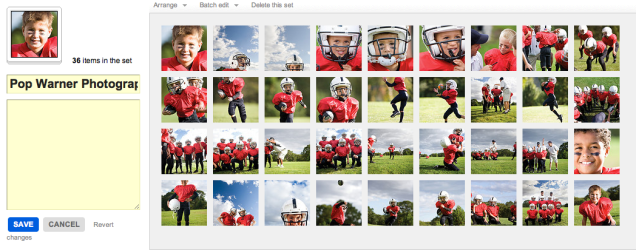

Here at MagCloud we are always looking to make things easier for you, which is why we offer the option to create a print publication using a Flickr photoset. It’s easy to use, and in just a few minutes MagCloud will take a set of your photos on Flickr and lay them out in a simple one-image-per-page template to create a tidy portfolio. What’s great is that it works almost instantly and is very easy to use, so if you need to get a collection off to a potential client immediately, or have procrastinated and need to get something together quick–then this is the tool for you. Follow along with my example below, and give it a try for yourself.

Here’s how it works:

1. Upload your images to Flickr and organize them in a photoset.
Be sure to put the images in the order you wish for them to show in the portfolio. This means your first image will be your cover image, and then the rest will follow. Since each image will be assigned to a page, you will want to have a number that is an increment of 4 (that means 4, 8, 12, 16… etc). My set in this example has 36 images, so it will be 36 pages long.

2. Edit the titles of your photos. (optional)
If you wish to include captions for your photos, such as credit information, location or other details, be sure to edit the titles of your photoset while in Flickr. You’ll have the option to include these titles at the bottom of each page of your final printed portfolio, so you could also use this space to include your contact information or copyright details.

3. Start the creation process at MagCloud.com/publish.
Once you are ready to publish, select the import from Flickr option on the Create Publication page. This will launch the importer, where you can select a photoset from your Flickr account.

4. Select your options and create your file.
The Title and Subtitle you enter here will appear on the cover of your publication. This is also where you can select whether you want to include photo titles and page numbers.

5. Preview your file and set binding options.
Take a quick look at your publication to confirm your settings. You can scroll through every page to see how your portfolio will look. Happy with it? Then select your binding options and publish!

6. You’re done!
See, now wasn’t that easy? Though this example is that of a children’s sports photographer, the Flickr Import could be used to make portfolios for your jewelry design business, fine art, architecture, decorating, crafts, or graphic design work. How you use it, is up to you.

A few tips and things to consider BEFORE you start your import:

What Image will be on my cover?
For simplicity, this should be the first image in your photoset.

What order do I want my images in?
The order that your images are in within your photoset, is the order they will appear in your MagCloud portfolio.

Which images will be facing on spreads?
If the first image in your set is the cover, then images 2 and 3 will be facing pages. It’s a good idea to go through your set to be sure that you like the arrangement of these photos (are people facing off the pages, or leaning against the outside edge of a page?) if so, you may want to swap around the order of your image.

Do I want to include captions or credits?
Because the title appears at the bottom of the page using this Flickr feature, you can also use this space for copyright information, or to include your contact information. In the examples below you can see how we accomplished this. To be sure every other page has the right information, just be sure to alternate the information in the titles of your images.

Is there any non-photographic content that I want to include like my contact information/ company logo?
To do this you have to get a bit tricky and create an image of the content and save it to flickr. You can use this trick to load verbiage into alternating pages, or if you want to include your company logo and contact information and logo on the back cover, this is a great work-around to do that. Simply create the image in any application that allows you to save an image (Flickr will let you upload JPEGs, non-animated GIFs, PNGs or TIFFs) and add it to your set.

What’s the maximum image size printed with the Flickr upload?
If you want to make sure your photo takes up as much of the page as possible, size it at 1875 by 2625 pixels at a minimum of 300 dots per inch resolution.

Are my images high enough resolution for printing?
The largest image size using the flickr uploader is 2475 by 2475 pixels on the covers and 1875 by 2625 pixels for interior images. For more information about photo quality and printing check out our blog post about getting the most out of your photos.

Can I have more than one photo on a page using the “Upload from Flickr” feature?
The “Upload from Flickr” feature currently only uses one photo per page. If you are adventurous, one way around this is to create a single image file (jpg, gif, png or tiff) that contains multiple photos and upload it as part of your Flickr set. Make sure the single image file is 1875 by 2625 pixels at a minimum of 300 dots per inch resolution. When your MagCloud publication is created, this file will be placed on a single page just like your other photos, creating the impression of multiple images on a single page like this example.

A Few Inspirations For Your Portfolio

As mentioned in our blog series, MagCloud is here to help publish your portfolio and provide options to create a big impression with a small format. So what’s the next step? We thought we’d offer a few examples to inspire you to start or update your existing portfolio. Portfolios are critical for designers, photographers and other small business owners who want to get exposure for their work and land new clients.
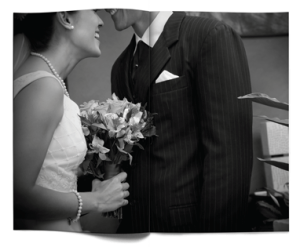
Whether you’re a musician, watercolor painter or even a blacksmith, you can capture a moment of creativity by browsing through more than 300 portfolios already on MagCloud. Draw additional inspiration from portfolios of other notable interior designers, graphic designers, and architects. Below are a few more examples of what your fellow publishers have been working on.

This collection of artist’s portfolios is a great example of using our digest format. For those conscious about budgets and the size of your portfolio, digest size provide an efficient way to share your best work in both print and digital formats.

As a small business, Sweet Pea Floral Creations showcases some of their favorite floral arrangements and highlights from client events and weddings.

Just graduated? Compile your best work for a great supplement to your resume, just like this advertising creative portfolio that Lauren Richer created.

Interior and architectural photographer David Duncan Livingston created various portfolios of his clean, welcoming photographs of homes, hospitality and products.

Below is a run-down of additional photography print portfolios that have caught our eyes.

  • The Art of Enzo Mondejar features an avant-garde take on portraiture by the gifted photographer, Enzo Mondejar. The images are creatively captivating and we hope they offer some inspiration for your print portfolio.
  • Nevertheless is the creative output of Peter Olschinsky, Verena Weiss and Gerhard Weib. This gorgeous layout design can teach us all more about how to present our images in the best light and perspective.
  • Finally, the Lolli POP Project is the work of photographer Massimo Gammacurta and is a great example of letting color explode onto a printed page and take off. Featured in Wired Magazine in December 2010, this project is both eye-catching and salivating.

What other portfolios have you seen that help inspire you to create your own? Share them with us in the comments below.

Make a Big Impression in a Smaller Package

Continuing our series on publishing your portfolio through MagCloud, today we take a look at a few design ideas for using the new Digest product to present your work in a more compact format. Digest publications provide the same professional image quality and finishing you’ve always gotten with MagCloud, but with a trim size of 5.25″ wide by 8.25″ tall, they take up only about half the space in your bag. Plus with a cheaper price point (16 cents per page) you can stretch your budget a bit further, and get your work into the hands of even more potential customers.

The question is, how to design within this more constrained space and still highlight your work? To help you get started, we’ve listed a few ideas below…

Use Both Pages

Take full advantage of the available space with images of your work spanning both pages, and bleeding off the trim edges. If you are going to be opting for perfect binding and want to place your images across the spine, be sure to check out our tips for designing for perfect binding.

Highlight One Piece of Work Per Page

Place one image per page to create a kind of photobook. This format is particularly conducive to lookbooks for fashion collections, with each page containing one look.

Combine Images and Text Across a Spread

Make a photo of your work the focus of one page, either with a full bleed or as a contained image, and then include descriptive text on the opposing page. This way each spread focuses on one project, combining both imagery and text to tell the story of each piece of work.

Think Outside Portrait Orientation

Until we are able to offer a true landscape product, show off your work in a landscape format by rotating your content 90 degrees, such that the spine of the publication is on the top edge of the page. If you want to add some practically to your portfolio, and ensure it gets kept around for the coming year, use this rotated format to make a mini calendar, with each month highlighting a different piece of past work.

Create a Themed Booklet with a Segment of Your Work

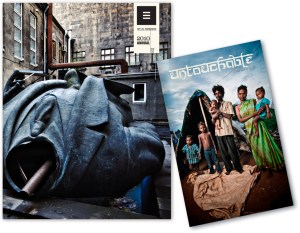
When photographer Trey Hill learned about our new Digest format, he used it to combine a collection of his images into a photo story called Untouchable. These are images that are included as part of his larger 2010 Photography Annual, but the smaller form factor offers a more focused look at the story this series of photos tells. See for yourself how Trey has used this smaller format to tell his photo story: we’re taking 25% off the production costs on all print orders of Untouchable from now until the end of October.

Have you had a chance to experiment with our new Digest format to create your portfolio? Let us know in the comments what your design strategy has been.

HP MagCloud: Create High-Quality Business Materials on a Small Business Budget

This post was written by Melissa_Zieger and originally appeared on the blog for 367 Addison Avenue, HP’s online community for small and medium businesses, on September 22, 2011. You can view the original post here.

Did you know that HP has a content publishing web service that can be used to create everything from your own magazine to business materials like catalogs and portfolios? It’s called HP MagCloud – invented by HP Labs, is a self-service publishing platform that allows businesses to easily create into professional-quality publications that can be printed on demand, shipped globally, or distributed digitally.

Better yet, there’s no upfront cost and MagCloud can turn your content from a PDF to delivered printed publication in just three days!

Using MagCloud’s digital storefront, customers can order the latest issue of their favorite publication and have it printed on demand and delivered directly to their doorstep, or download for reading on their digital device of choice. Plus, all content is printed to order using HP Indigo technology, delivering professional print quality with no waste or overruns, reducing the impact on the environment.

Businesses are using MagCloud to create everything from fashion catalogs and knitting guides to photography and architectural portfolios. I recently sat down with two small business customers using HP MagCloud to find out more about how the service is benefiting their business.

Alex Tinsley started her knitting pattern design business, Dull Roar, nearly six years ago. Prior to discovering MagCloud, Tinsley was only able to provide her customers with a PDF of her patterns via her blog. Today, she uses MagCloud to transform PDF versions of her design work into high-quality professional catalogs that she can distribute in both digital and print formats without a huge impact on her business’ bottom line.

“The quality of the printing is really just beautiful, and it’s pretty much the only place you can get that kind of quality in small quantities,” said Tinsley. “I love that it runs without much input from me – I just upload the issues and collect the income. MagCloud handles all the sales, printing and shipping.”

The ability to offer customers both print and digital formats helps Tinsley meet her customer’s needs without making an upfront investment in the creation and printing. Tinsley says that most of her customers prefer the digital copy for instant gratification, but that she uses the hard copies as giveaways and gifts. She’s also used the publication as a handout at tradeshows, which enables her to drive views to her website and increase downloads of her digital catalog.

Trey Hill, a Dallas-based photographer and storyteller, started using MagCloud in 2010 to create storytelling portfolios of his work. He needed a way to not only show the pictures he had shot but also to showcase his journey.

Hill uses Adobe InDesign to create photo portfolios and uses MagCloud to print his digital creations on-demand as a way to attract new business and share with clients as a thank you for their business. Hill says the ability to have both print and digital versions is important. “The print quality increases the value of my business, but we live in a digital world so it’s still important to provide a digital format, as well,” he said. “As a small business owner, not having to buy 1,000 copies to get a great price point is worthwhile. And my customers are blown away by the quality.”

Since using MagCloud, Hill has started to see a change in what his customers have come to expect – they now see him as a storyteller, not just a photographer.

About Alex Tinsley

An avid knitter since 2004 and knit design enthusiast since 2006, Alex Tinsey’s designs can now be seen in publications like Knitty, Knit Simple, the Knit Picks Independent Designer Program, and (soon) Knit Scene. You can access Tinsley’s MagCloud products here.

About Trey Hill

Trey Hill was one of the founding creatives behind I Am Second and his portfolio includes work for Addison Road, Relevant Magazine and the Dallas Stars. He works all over the world and has had the privilege of photographing some of the planet’s most revered and most overlooked people. You can access Hill’s MagCloud products here.

Get The Most Out Of Your Images

They say a picture is worth a thousand words, but if that picture is grainy or squished, it’s not going to be saying anything good. To help you include images that speak volumes in your next MagCloud publication, this installment of our Design Blog Series includes a short list of image DOs and DON’Ts:

DON’T use images copied off a website
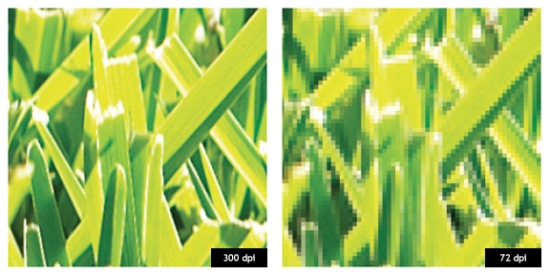
Aside from the potential copyright issues associated with taking images off of websites, photos used on the web are almost always screen resolution, or 72 pixels per inch (ppi, or more commonly, dpi). This is roughly a quarter of the 300 pixels per inch that is the recommended resolution for printing. If you use an image less than 300 dpi in your MagCloud publication, you run the risk of getting a noticeably pixelated, or ‘fuzzy-looking’ image in the print copy.  The lower the resolution of your image, the more noticeable the pixelation will be, so a 72 dpi image off the internet will look very ‘fuzzy’ in print.

DO use images from your camera or stock photography websites
Images taken with a personal camera or purchased from a stock photography website like iStockphoto will generally be high enough resolution for printing.

An easy way to check if your images are high enough resolution for printing is to open your final PDF and zoom in to 350% on-screen. If an image still looks clear at 350% zoom, like the 300 dpi image on the below left, then this image will look great in your printed copy. If an image looks pixelated at 350%, like the 72 dpi image shown below right, then it will likely look pixelated in your print copy too.

300 dpi vs 72 dpi at 350% zoom

It’s also good to keep in mind that if you double the size of an image, the number of pixels per inch will drop by half. This is because doubling the size of an image doesn’t change the number of pixels in the image, it just increases the number of inches that the pixels have to fill. For example, if you have a 1” x 1” 300 dpi image, which is 300 pixels by 300 pixels, doubling it in size to 2” x 2” means that there are now 300 pixels for every 2 inches, making it a 150 dpi image.

DON’T squish or stretch your images
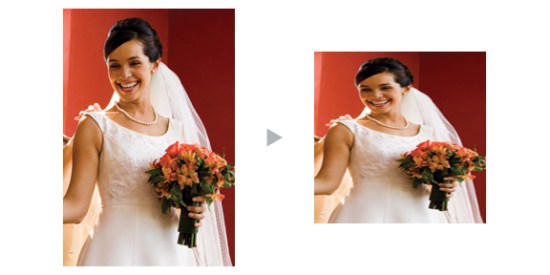
You have a rectangular photo, let’s say 4” x 6”, but you want it to be square in your MagCloud publication. Sound familiar? One solution would be to just squish or stretch the rectangular image into the square size you want, but here is the inevitable result:

Stretched/Squished Example

DO scale and crop your images
To avoid squishing and stretching the subjects of your photos, the better option is to use scaling and cropping to resize your images. Scaling your images maintains their aspect ratio (the ratio between the width and height of the image), keeping a rectangular image as a rectangle, then the image can be cropped (i.e trimmed) down to the size you want, like so:

Scale/Crop Example

In Adobe InDesign, QuarkXpress, Microsoft Publisher and Apple Pages, you can crop images by creating an image placeholder in the size you want, and then placing your image into the placeholder. These programs allow you to adjust the image independently of the placeholder, and the placeholder will “crop” the image in your final publication. In Microsoft Word and Microsoft Publisher, you can use the Crop Picture feature to manually crop the image itself down to the size that you want. Both methods will help you avoid stretching or squishing your subjects.

DON’T use images that are really dark with low contrast

Your computer screen is brightly back-lit, but unfortunately print publications are not. As a result, details that are dark or low contrast on screen may not be as visible in your printed copy. Overall, you can expect the print you receive to appear darker than what you see on screen, so it’s best to avoid using darker images or those with very low contrast to begin with. If you want to try lightening or increasing the contrast in your images in a photo editing software like Photoshop, check out these photo retouching tips and tricks.

DO embed your color profiles

To get the closest representation in your print copy as compared to what you see on screen, make sure that you embed the original color profiles of your images in the final PDF. We’ll dive more into detail on this next week in a post on color, but in the meantime check out our Getting Started page for downloadable instructions on how to do this in your design program of choice.

We would love to hear your favorite tricks for getting your images to standout. Please post them in the comments section below.

Put MagCloud to Work

You heard that right. MagCloud can help bring your professional projects to life in print and digital. Our service is a great way to showcase your work to customers, clients, colleagues, partners etc.

Besides magazines, we’ve seen a variety of creative ways that MagCloud customers have used our service for their most demanding business needs.  So whether you are creating a portfolio for client meetings, company brochure, customer newsletter or product catalog, MagCloud will take your publication from PDF to printed magazine and digital download with just a few clicks of the mouse. Planning an event? We’ve got you covered there too. Our event planners and marketing customers have utilized MagCloud to print event souvenir programs, meeting programs, handouts and brochures. You can even publish your workshop manuals with us too.

Whatever the purpose – fun, commemorative, professional or informational – there are no boundaries to the way people are using MagCloud. Let us bring your story to life. MagCloud can help promote your company, products and services in both professional quality print format or digitally for viewing on a PC or mobile device. Whether you are ordering 1 or 1000 copies, MagCloud will ship your business documents to customers and colleagues all over the world. Visit magcloud.com/work and learn about the many ways we can help you make your next gallery exhibit, client meeting, workshop, convention and fundraising event that much better.

What other ways do you use MagCloud? Share your past, current projects and future ideas in the comment section below.

Create a Calendar with iWork’s Pages

Today we are focusing is on creating a calendar with Apple iWork’s Pages.

Hey PC users: check out yesterday’s post about using Microsoft Word, or check back tomorrow to see  how to use MagCloud’s Flickr Uploadr to create a super cool calendar with just a few clicks of the mouse.

Let’s get started with Pages.

I’m a new fan of Pages, (Apple’s design tool that comes in their iWork productivity suite) and if you are Mac user looking to do some basic design without spending a ton (iWork retails for just $79 at store.apple.com) it’s an easy program to use, and is great for projects like a family calendar.

You can create a lot of great looking calendars using the exact same template, just by making a few changes to fonts, color and pictures.

Preview Wedding Photography Calendar Preview Parma Photography Calendar on MagCloud Preview my Family Calendar on MagCloud

GETTING STARTED:

The template is already set up with 28 pages, so making a few customizations and saving the file as a PDF should be quick and easy!

Download the basic calendar template that I designed here, or at the bottom of this post, you can preview and download some of the variations that I created using the same template, by making a few modifications to the style sheet.

MAKE IT YOUR OWN:
Because I designed this template for use with MagCloud, it’s already formatted to accomodate bleed and trim settings. This means you can just start modifying the style to fit your needs. Because this Pages template has a built-in Paragraph style sheet, it will be easy to keep a consistent style throughout your calendar.

Change view to “Facing pages”
This not only helps with visualizing layout, but also will help you keep the orientation of your photos straight when placing them in the document.

Styling your Calendar
Not making a family calendar? Then go through each page and make the necessary adjustments to layout and fonts. As I mentioned before, all of the above calendars use the exact same layout, with slight tweaks to the fonts and colors. It’s amazing how simple style changes can make a template your own. There are 3 styles in the template: “Title,” “Days of the Week” and “Numbers of the Month;” so changing these styles will transform the look of your calendar. Let’s get started!

Adjusting a Paragraph Style:

Show Font Window1. Expose the “Font Window” by selecting the “A” icon in the Toolbar (If for some reason you don’t see the toolbar at the top of your application frame, then Select VIEW >> Show Toolbar, then select the “A” icon)
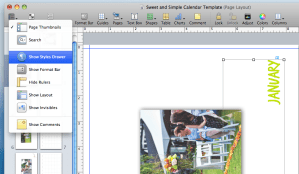
Show Styles Drawer

2. Select a block of text that you wish to modify

3. Make desired changes to font, size, weight and color using the “Font Window.” As you make selections, you should see the font change on the page.

4. Expose the “Styles Drawer”

Redefine Style from Selection

5. Select the block of text again–notice how it highlights the selected style in the “Styles Drawer.”

5. Update your paragraph style sheet so that all of the subsequent uses of this style reflect the style changes. You can do this by either “right-clicking” or “ctrl+ click” on the name of the font style in your “Styles Drawer”, then select “Redefine Style from Selection.”

Adding Special Dates to the Calendar:

Half the fun of making your own calendar, is including special dates that are important to you. So, whether you are creating a calendar for your child’s sports team, and you want to include their match dates; or if you are creating a calendar for your family, and you want to include Birthdays and Anniversaries; or if you want to create a calendar for your business and include special events and sales– it’s easy to do.

Because the numbers of the month are dependent on one another, typing directly in the square won’t work. Instead, follow the instructions below to add text boxes to your calendar. (Tip: You can also use these steps to add captions to your photos)

1. Select the Text Box Icon from the Toolbar (it looks like a “T” in a box)–
this will create a small box that you can move around the page

2. Type the information (ie. “Mom’s Birthday” or”Ladybugs vs. ‘Lil Giants”)

Grabbing the corners of the frame, adjust the size to 1.4 x1.03. Grabbing the corner of the text box, adjust the size of the box to 1.4 x 1.0 (this way you can see how it will fit in the day’s square)

4. Adjust the size if the text so that it fits well inside the box and select your desired color and font.

Create New Paragraph Style

5. Highlight the text again.

6. In the Styles Drawer, hold down the “+” at the bottom of the menu and select “Create New Paragraph Style from Selection” (You can also select FORMAT >> “Create New Paragraph Style from Selection” from the application menu bar)

7. Name your new style. This makes it possible fro you to use this style for other dates as you add them to your calendar.

Rotate the Text Box using the Metrics Tab in the Inspector toolkit8. With the text box selected, go to the “Metrics” tab in the Inspector window; use the rotation settings to rotate the text 90º.

9. Drag the box to the appropriate date on the calendar page.

Tip: Save yourself some extra steps by copying and pasting this text box throughout the document. (Select the text box and use “command+ C ” and “command+ V” to copy/paste) Then you can change the text, but it will maintain the style, size and rotation.

Save your file as a “Template” for future uses

If you plan to create another calendar, be sure to save your personalized document as a template. It’s easy to do, just select “File> Save as Template.” This puts a copy of your file into the Pages Template Chooser so you can find it easily next time you launch the application.

Tip: Because your using a template to create your calendar, and have the power of HP MagCloud’s digital printing, there’s no reason you can’t personalize your calendars… Perhaps change the cover image for Aunt Margaret’s calendar? Or make one with more photos of the kids for you In-Laws? Or create calendars that cater to your clients or program sponsors… it’s up to you!

TURNING YOUR DOCUMENT INTO A PDF:
You’re done designing? Yay!
This part couldn’t be easier! Simply select “FILE>> Export.”
Leave the default settings for PDF, and save your file.

WANT MORE INFORMATION ABOUT PAGES?

Apple’s Pages ’09 site

Apple Store: iWork $79

PREVIEW the modified templates:

Preview Wedding Photography CalendarPREVIEW Template modified for a wedding photographer on MagCloud


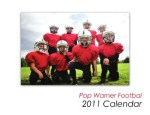
PREVIEW Template modified for the PopWarner Team on MagCloud


PREVIEW Template modified for a business (Venetian Glass Blowers) on MagCloud


Preview Parma Photography Calendar on MagCloudPREVIEW Template modified for Parma, Italy Calendar on MagCloud


Preview my Family Calendar on MagCloudPREVIEW Template modified for a family calendar on MagCloud