If you’ve been holding off on publishing through MagCloud because you didn’t have the design skills, couldn’t afford expensive design software and didn’t have a best friend who is a graphic designer, why not use a template in a more accessible application?
PC users, I apologize, as this post doesn’t apply to you, but Mac lovers: GET EXCITED.
 With Apple’s iWork Pages it’s easy to make a MagCloud-ready PDF. Here in my second exploration of basic design software, I’ll dive into using Apple’s design tool that comes in their iWork productivity suite (retails for just $79 at store.apple.com) to create your MagCloud publication.
When you open Pages it will offer you a number of template options. Any designed to print full size on an 8.5”x 11” piece of paper are almost great starting points for creating MagCloud publications. A number of other sites also offer Pages templates, but for my example today, I’m going to use the standard “Program” template in the application’s “Template Chooser”.





The original Pages version is available here: Download original Pages Template and my MagCloud-ready version with a Southern California theme, is available here: Download Modified Template
GETTING STARTED:
To get started, you’ll want to find and open a template.
In this case I found mine in the “Template Chooser” within the Pages application. Because the template is designed for a US Letter sized paper (8.5” x 11”) it will be really easy modify for my own use.
CUSTOMIZING A TEMPLATE:
Apple’s Pages templates all come with built-in Paragraph and Character style templates which make it much easier to keep a consistent style throughout your publication.
Rather than start with a blank document, I always start with a template in Pages and modify it to suit my needs, this way I already have built-in paragraph and character styles.
*With this particular application, it’s my suggestion that you work on setting up your template before you start adding any of your content.
Add all pre-designed pages within the template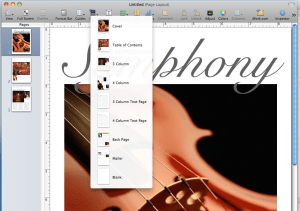
Within the template there are a number of layout styles available. In my example here there are eight (varying from a cover, table of contents, feature article and 4-column text page, etc).
The reason for doing this is that you want to see what’s available to you, and actually modify the “template” so that you can use it again and again, rather than having to copy and paste design elements repetitively throughout the design process.
 Change view to “Facing pages”
This not only helps with visualizing layout, but also will help you decide which page styles are going to be right-hand pages and left-hand pages.
Add guides to pages and adjust layout for trim
Adding guides to the outside edges of each page will ensure that everything will fit inside the trim line). Because MagCloud trims its documents to 8.25” x 10.75” we are going to lose 0.125” inches off the top and bottom, and 0.25” off the outside edge. This means in order for our template to be centered on the printed page, we are going to have to adjust the content on the page. With your Rulers active and visible, you’ll want to drag guides into place (0.13 in from the top and bottom, 0.25 from the outside edges). Be sure when you are designing your templates that you are making a conscious decision as to which pages will be left-hand pages and which will be right-hand pages. It will help to name them as such when you “capture” the layouts in a later step.
Adjust style sheets to your needs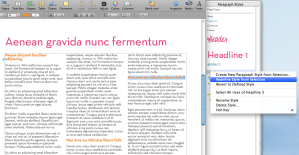
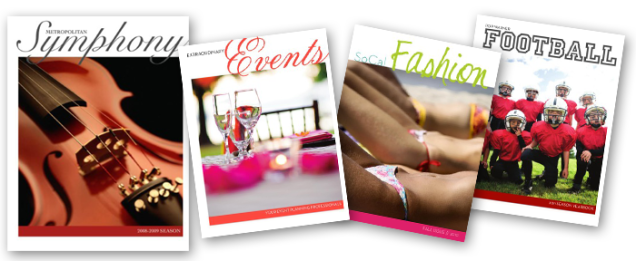
Not making a ‘Metropolitan Symphony Program?’ Then go through each page and make the necessary adjustments to layout and fonts. You’ll notice this is exactly the same layout, with different fonts and colors. Amazing how simple style changes can make a template your own.
Tip: After you have adjusted a font in the font menu, such as the headline, update your template style sheet so you can easily apply the same style again. You can do this by either “right-clicking” or “ctrl+ click” on the name of the font style in your “Styles Drawer”, then select “Redefine Style from Selection.”
“Capture Pages” for future use
Save yourself a lot of work in the future by establishing your own templates with your style/colors and fixed text. Once you have modified the provided pages in the template with your own fonts and colors, you can “Capture Pages” to use in your template over and over again. You can do this by “right-clicking” or “ctrl+ click” on the page thumbnails on the left margin or by selecting “FORMAT> Advanced> Capture Pages”
 Tip: since you have adjusted your content for the trim settings, be sure to name pages accordingly, like “Left-Feature” or “Right-4 paragraph story”). To delete the old template pages, select “FORMAT> Advanced> Manage Pages.”
Commit to a page count and layout
Planning ahead will save you a lot of design time. You should come up with an outline for your publication before you start laying out pages or entering content. This is important because inserting one page at the front of your document will throw off the layout for all of the subsequent spreads. You should also take your layout into consideration when designing and capturing your template spreads, because certain content will be better suited for a right-hand or left-hand page layout.
Save your file as a “Template” for future issues
If you plan to have future issues with this same style, be sure to save your personalized document as a template. It’s easy to do, just select “File> Save as Template.” This puts a copy of your file into the Pages Template Chooser so you can find it easily next time you launch the application.
TURNING YOUR DOCUMENT INTO A PDF:
This part couldn’t be easier! Simply select “FILE> Export.” Leave the default settings for PDF, and save your file.
WANT MORE INFORMATION ABOUT PAGES?
Apple’s Pages ’09 site
Apple Store: iWork $79
PREVIEW THE TEMPLATES ON MAGCLOUD
Original Brochure Template
Original Brochure Template with minor changes
Transformed Brochure Template with Southern California theme

 A wise person once said ‘You never get a second chance to make a first impression’. In fact, it just takes a few seconds or a cursory glance for a person to make a judgment about us. Our subsequent actions, behavior and professionalism may change that perception slightly, but not to a great extent.



 We’ve all seen over-designed documents that at times make us cringe.



 Publisher's Corner