

‘Tis the season holiday cards and newsletters, and MagCloud is here to help! As we’ve discussed before, MagCloud’s print-on-demand capabilities offer a great way to produce personalized holiday communications on an affordable budget. With the premium 80# cover stock we use on all sizes of our Flyer and Pamphlet products, combined with the commercial quality of our full-color digital printing, you can rest assured that your message will look professional and polished whether you are keeping in touch with business clients or corresponding with family and friends.
Holiday Newsletters and Cards for Your Business
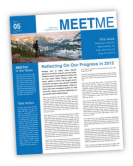 We have a number of businesses and organizations that use MagCloud for their newsletters year-round, and the holidays are no exception. As we near the end of the year, it’s a great time to connect with clients and members to update them on the prior year and get them thinking about the year to come. If you own a photography business, for example, you can use this as an opportunity to highlight some of your best work from the past year and remind previous customers about the other services you offer. Or if you are in charge of member communications for a nonprofit organization, now is a great time to highlight the work you’ve done in 2012, and encourage member participation in the new year.
No matter what business you are in, MagCloud’s 8.25″ x 10.75″ Pamphlet product is the perfect format for your holiday newsletter with four pages for full color images and text, a clean half-fold binding, and a professional-weight paper stock, all for as low as $0.60 per piece when you order 20 or more. Simply create your PDF in the software of your choice, upload it to MagCloud, and order as few or as many copies as you’d like. We can even take care of the distribution of your newsletter for you, and drop-ship copies of your newsletter to an address list at no additional cost.
 If you don’t feel like a long-form newsletter is the right fit for your business, you could also create and send a custom greeting card instead. MagCloud’s 5.25″ x 8.25″ Pamphlet format fits perfectly into A9 envelopes, which can be found at any paper or office supply store, and the 80# cover stock that these products are printed on gives them a great professional feel. For only $0.48 per piece when you order 20 or more, this Pamphlet format offers an affordable way to incorporate your products, employees, or the work that you’ve done into your holiday greetings, along with your own branding and a more personalized message, rather than sending a generic card to your clients or organization members.
Holiday Newsletters and Cards for Your Family
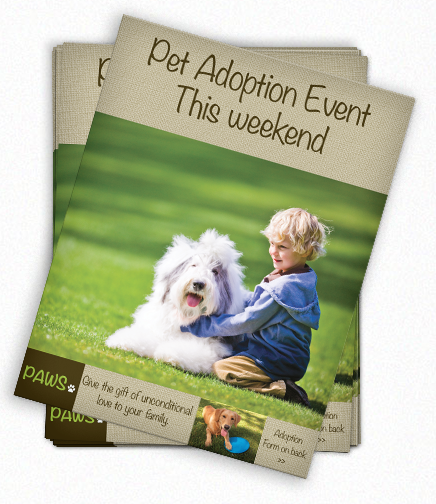
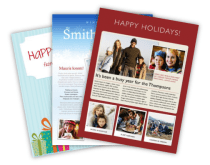 Of course, businesses aren’t the only ones that send cards and newsletters during the holiday season. Holiday newsletters from families have become the norm in recent years as a way to update friends and relatives on the family’s activities over the prior year. Combining these updates with family photos into a single printed piece is a great way to streamline your holiday communications, either as a double-sided Flyer or using one of MagCloud’s four-page Pamphlet products for additional space.
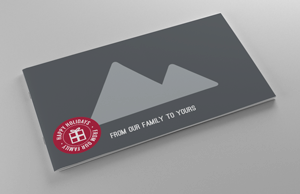
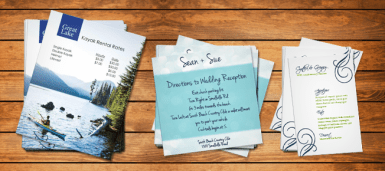
 If a newsletter isn’t your style, how about a custom greeting card. MagCloud’s 5.25″ x 8.25″ Pamphlet product makes great half-fold cards while the 5.5″ x 8.25″ or 8.25″ x 5.25″ Flyer works well as an oversized postcard. Both fit perfectly into A9 envelopes, and at only $0.24 per piece for 20 or more of the Flyers, or $0.48 per piece for 20 or more of the Pamphlets, both offer a blank slate to create affordable holiday greetings that are unique to you and your family. Whether you create a collage of family photos or scan some of your children’s artwork for the cover of your card, you can be sure that it will be met with a smile upon arriving at its destination.
Templates
 To help you design your holiday newsletter or greeting card for printing through MagCloud, below are links to templates in a variety of formats and software programs. Each link below will take you to a preview of a publication created with that template on the MagCloud site, where you’ll find links in the description to download the corresponding template for a variety of software programs. You can also find a number of letter-sized newsletter templates in programs like Apple Pages, or online at office.microsoft.com for Microsoft Word and Microsoft Publisher. These work well with MagCloud’s 8.25″ x 10.75″ Pamphlet and Flyer products. After you’ve designed your file, be sure to follow the instructions on our Getting Started page to export your PDF.
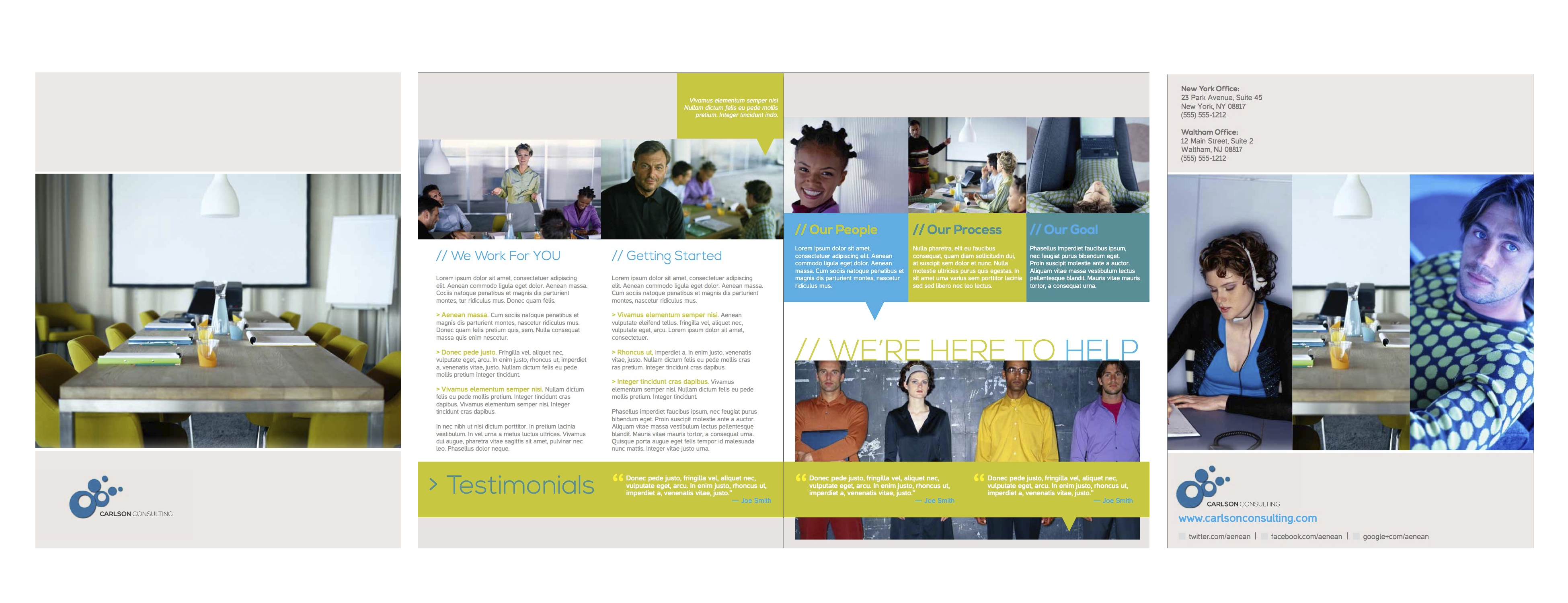
4-page Business Newsletter (8.25″ x 10.75″ Pamphlet)
4-page Holiday Newsletter (8.25″ x 10.75″ Pamphlet): Adobe InDesign (CS4 or newer) | Microsoft Word | Apple Pages
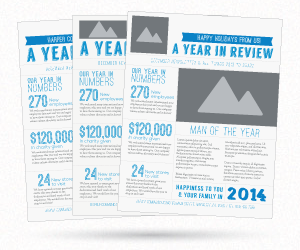
2-page Holiday Newsletter (8.25″ x 10.75″ Flyer): Red Design | Blue Design
Left-Folded Holiday Card with One Image (5.25″ x 8.25″ Pamphlet)
Left-Folded Holiday Card with Three Images (5.25″ x 8.25″ Pamphlet)
Top-Folded* Holiday Card with One Image (5.25″ x 8.25″ Pamphlet)
Top-Folded* Holiday Card with Three Images (5.25″ x 8.25″ Pamphlet)
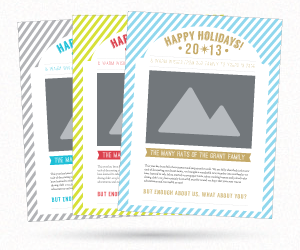
Portrait Flat Holiday Card (5.25″ x 8.25″ Flyer)
Landscape Flat Holiday Card (8.25″ x 5.25″ Flyer)
*Keep in mind that if you are using the 5.25″ x 8.25″ Pamphlet for your greeting card and want a top-fold, you will need to upload a PDF with the design rotated, in the same way you would if you were creating a calendar.






 Pup Culture
 Spot Magazine
 Animals Voice


 XXC Magazine





 Adobe’s recent update to Lightroom added a Book module. Currently, the module is limited to a set selection of sizes, however it does allow users to export the books they create as a PDF. Until Lightroom allows you to create books in custom sizes, books created with the Small Square and Large Square sizes can be exported as PDFs and used to create 8″ x 8″
 For an 8″ x 8″ MagCloud publication, select your Book Settings to match those shown to the right. Specifically:
 For a 12″ x 12″ MagCloud publication, select your settings to match those shown to the right. Specifically:
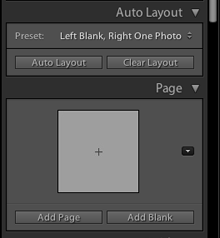 One option for adding pages is to choose a Preset under the Auto Layout section, and click the Auto Layout button. This will automatically add pages to your book and layout all the photos from the collection you have selected based on the Preset you specified. This is a great way to get a book laid out very quickly, but all of your page layouts will be the same. If you want to change any of your page layouts after using the Auto Layout function, you can always do so by selecting the page and choosing a different layout from the Page section.
 When you have finished laying out your content, click the Export Book to PDF button in the bottom right-hand corner of your screen. Select a name for your PDF, and choose where you want it to be saved on your computer. After you click the Save button, you can track the progress of your PDF in the upper left-hand corner of the screen. Lightroom will export two PDFs: one that is a single page and has “Cover” added to the filename and another that is a multi-page PDF. For creating a MagCloud publication, you can disregard the cover PDF, and just upload the multi-page PDF to the
  When selecting your layouts and choosing images, it’s good to keep in mind how your PDF will be trimmed by MagCloud. The Lightroom layouts all have a pretty good margin around them, so there shouldn’t be an issue with keeping content inside the MagCloud-recommended safe zone.
 Over the past few weeks, we’ve looked at various ways
 Our Flyer product family is growing. We have expanded the size options for
  Publisher's Corner