Q+A with Professional Photographer James Worrell

Simplicity, color and humor. These are the keys to the powerfully graphic images that James Worrell’s clients depend on to tell their stories and sell their products.

When it comes to promoting his work to new clients and keeping connected with previous ones, the New York City-based editorial and advertising photographer uses those same concepts to stand apart from his competitors.

“To have an affordably and beautifully printed version of my portfolio in this day and age when everything is online – it’s extraordinary, and it makes a lasting impression,” Worrell says. “There’s something still wonderful about the printed piece.”

  Tell us more about your work and your “Photography for Thinking” philosophy.

James Worrell I’ve been a still-life photographer for the past 17 years, shooting everything from cosmetics to food. What I love to do the most is conceptualized still life. Clients will call with rough ideas – maybe they’re telling the same story over and over and they need a new way to present it visually.

That’s where “Photography for Thinking” comes in. My wife and I bounce ideas off each other, produce sketches and send them to the client. The back-and-forth process starts from there.

  How does publishing your portfolio fit into your marketing strategy?

JW My clients are inundated with marketing pieces from photographers and other creative types. So if I can do something slightly different and slightly more special, I’ll increase my chances that someone will pick it up, look at it and even save it.

MagCloud is a wonderful tool that allows me to do a substantial piece, in short print runs, and get it out there at a decent price. And, from a visual perspective, it looks really good. A lot of print-on-demand services are expensive and the quality is poor. My brand is my brand – everything I produce is of the highest quality.

I always turn to MagCloud for part of my marketing process. You have to keep working and exploring ideas, and you have to remain excited about your work. MagCloud is one of those platforms that keeps you fresh.

  You did a very special promotional piece this summer.

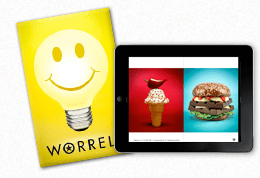
JW Yes, in July we ordered 70 custom-printed boxes with my logo on them, each with a light bulb jar filled with yellow M&Ms candy – some had a star printed on them; others featured “Think Worrell.” And we included a 40-page printed catalog of my work called “Worrell: Photography for Thinking.” We created the catalog using MagCloud. We hand-delivered about 45 boxes and mailed the rest. Plus, we shot a fun video of how we pulled the whole package together.

That promotion resulted in three strong gigs right away and several nice thank-you emails from clients and potential clients.

  What got you started publishing through MagCloud?

JW I’ve always been an early adopter of technology. I read about MagCloud on a photo blog, right when the service was introduced. I’ve stuck with the service because it works.

  What tips would you give to someone new to self-publishing?

JW My best piece of advice is: Don’t overdo it. MagCloud offers a simple, elegant platform. Just get started. Don’t overthink it. Use it for what it is: a way to show your work.

  If your portfolio was an ice cream flavor, what would it be and why?

JW I see my business as the perfect vanilla ice cream cone – not some crazy Ben and Jerry’s flavor – just a simple, elegant vanilla. Usually, less is more and the simplest idea can be the most effective, if you produce it properly.

Q+A with Rachael Cavallo of Palu Ltd.

Rachael Cavallo refers to her job title as “magician.” She and her coworkers – her fellow “magicians” – run Seattle-based Palu Ltd., specializing in the design and manufacture of affordable home furnishings. It might take a bit of magic, she says, to combine fine craftsmanship, quality materials and contemporary style with the needs of an increasingly green world – yet Palu remains committed to environmental responsibility in all aspects of its business.

And when it comes to publishing catalog that help sell Palu products, Cavallo leaves the magic to MagCloud. “It’s been absolutely wonderful – and we especially appreciate the fast turnaround,” she says. “I can’t recommend MagCloud highly enough.”

  Tell us a little bit about Palu.

Rachael Cavallo We like to imagine things differently. From a broad range of chairs to cabinets, dining tables, mirrors and more, our line offers versatile furniture that is elegant, appropriate and approachable.

We recognize that the business of making furniture can have a heavy impact on our environment and our world. We are constantly working to minimize the impact we have and to promote positive change. We actively support sustainable and accountable forest management, fair labor practices, energy conservation, recycling, transparency and innovation in everything we do.

  How did you get started publishing through MagCloud?

RC We used to do a catalog with each item having an individual page, and we assembled all of the pages into binders. It didn’t take long, though, for customers’ binders to become unorganized – especially when we’d add or discontinue items. If we weren’t there to update the customers’ binders personally, it just wasn’t working. Plus, our printer wasn’t doing a very good job. So we needed a new platform.

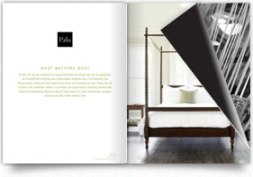
We found MagCloud and began creating individual booklets by room. So we have a bedroom booklet, a dining room booklet, a living room booklet, one for accessories – and the like. So now when we have revisions, we just alert customers to the revised booklets and they can order them directly from MagCloud.

  How has MagCloud improved your business?

RC I like that we can do very small print runs. We can easily put together a 12-page catalog every few months, print out a few and send those to anyone who’s interested in what we have to offer. We’ll do about 400 or 500 at a time. And if we need, say, three more, then we order just three more. Or 300 more. The quantity is never a problem.

The expense is so small compared with the benefit of always having something for customers to hold on to. That’s always been the challenge for us.

  What tips would you give to someone new to self-publishing?

RC Learn your publishing software. I think that’s the most important tip I can give. We use InDesign, and we had a local designer create 10 styles of a template that we use on a regular basis. InDesign is a wonderful tool. Learn to use it, and it will not fail you.

  If your catalog were an ice cream flavor, what would it be?

RC I’m going with Marionberry Swirl because vanilla is its classic base – you can’t go wrong with that. The marionberry comes from our part of the country – and our pieces definitely have a Seattle/Northwast flair. The marionberry shows that we’re classic, but with a special twist.

Q+A with Kyle Menard of BRINK Magazine

Kyle Menard has loved magazines since he could read. So much so that he once even dreamed of opening a newsstand selling magazines from around the world. “Like the kind you see in New York City,” he says.

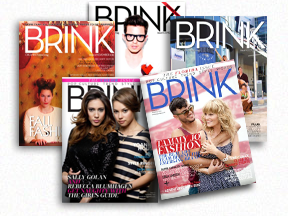
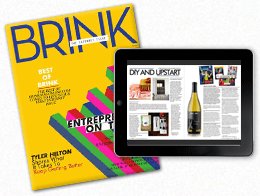
Now an adult in the digital age, Menard has directed his passion for print into a magazine of his own. In 2009, he launched BRINK, an Orlando, Fla.-based bimonthly magazine that celebrates entrepreneurs – those already successful and those just starting – and the spirit that makes them all so special. BRINK was voted “Best Magazine in Orlando 2012” by TheDailyCity.com readers.

  How did BRINK come about?

Kyle Menard  I’m just a huge fan of magazines and wanted to create a magazine of my own. So I put all my ideas together and named the magazine BRINK – because it’s always exciting to be on the cusp of something new, whatever that might be.

BRINK celebrates entrepreneurs and shares their stories and the lessons they’ve learned along the way. We feature entrepreneurs in the realm of entertainment, fashion, human interest and pop culture – everyone from indie musicians and actors to designers and artists – people who’ve quit their day jobs to live their dreams. We hope these stories inspire future entrepreneurs to create their own paths to success.

  How has publishing a magazine changed for you in the past five years?

KM My name has definitely become more recognizable in Orlando. And through the years people have become more willing to work with me and participate in BRINK. They want to join in the conversation. There’s something about publishing a print magazine that gives you more credibility.

There’s been a lot of talk about the demise of publishing, but print is not going anywhere. Online is great – everyone loves immediate gratification. But people still want to hold something in their hands. They want the physical magazine that they can hold – they want to experience a deeper connection.

  How did you get started publishing through MagCloud?

KM I did a web search for “publishing magazines” and found MagCloud. I began with a simple eight-page prototype. And after teaching myself Photoshop, going through some MagCloud tutorials and trial and error, I’ve never looked back.

  Why did you choose MagCloud?

KM We’re always evolving, and MagCloud is always evolving. The convenience factor is huge. If we need something printed right away, MagCloud can do that. If we need perfect bound instead of saddle stitched, MagCloud can do that. If we need 10 copies shipped to Spain, again, MagCloud makes all that possible. Plus, MagCloud is always encouraging us to do more with our magazine. They don’t just print your PDFs. They really care about your success.

View MagCloud Publications in Your Web Browser

Today we are excited to announce a new web-based viewer that enables publishers to bring stunning versions of their publications to life in any modern web browser on both desktop and mobile computers.

Now publishers can upload a single PDF file and immediately distribute as a free or paid digital publication, in print, in a web browser or as a PDF download.

The web viewer delivers an immersive reading experience for users. Simply click the “read now” button and the publication launches within the web viewer. Readers can page forward and back, rotate, zoom in and out, and enter full-screen mode. Pages can be viewed individually or as a spread, and are easily navigated with thumbnail and all-pages views. Additionally, users can buy a printed copy, download a PDF version or add to their Digital Library for viewing later.

The web viewer supports all HP MagCloud publications, regardless of format, on any desktop or notebook computer running a modern web browser.

The web viewer technology also offers hyperlink support, benefiting publishers and users by allowing you to link from your catalog of products back to an ecommerce site, link directly to advertisers’ web pages, allow customers to draft emails to an address listed in your brochure just by clicking on it or provide information about the author.

Publishers can also monitor how well their readers engage with their online publications via the Stats section in their account.  You can see important web viewer reading information including the number of total readers, how often your publication was read, pageviews, shares, hyperlinks clicked, click through rates etc. for all your collections or a single publication.

Publishers and readers can promote their favorite publications by sharing publications they like with friends and colleagues via email or social media channels or embedding a badge or link that launches  the web viewer directly from their own website or blog.

All publishers who currently have digital distribution turned on for their publications will automatically have web viewer versions available on the MagCloud website. To turn digital distribution on simply select Sell Online (after uploading your PDF and selecting your binding). This is where you will add any markup to your print version, and will have the option to opt-in to digital distribution.  Opting-in to digital distribution is a one time setting that instantly gives readers digital access via the web viewer and PDF download.

What do you think of the new MagCloud web viewer?  Let us know in the comments section below.

Ask MagCloud: Can I Write on a MagCloud Publication with Pen or Pencil?

We receive a lot of great questions from our MagCloud community, but this particular one really sparked our curiosity—so we decided to investigate! A new MagClouder, Patricia, submitted the following question on our Facebook Page:

“I just discovered you guys and want to know if the paper you publish in would be suitable to write on with either pen or pencil. I’m interested in uploading a student planner, much like a ‘day minder’ so I want to make sure the paper is not coated in any way. Some such paper can make it hard to write with pencil or makes some ink smudge. Thanks for your help!!!”

MagCloud publications are printed on an uncoated satin paper stock that is both FSC-certified and acid-free (for more information on our paper, check out this FAQ ). To answer Patricia’s question, we decided to test it out first-hand. Check out the video to see what we found out.

Passing the smudge-proof test is especially great for those of you who use MagCloud to create personal planners, calendars, to-do lists and beyond!

Do you have a question for MagCloud? Check out magcloud.com/help, or ask us directly via Facebook or Twitter.  We’d love to hear from you.

Make Summer Last All Year – Turn Your Photos into a Calendar

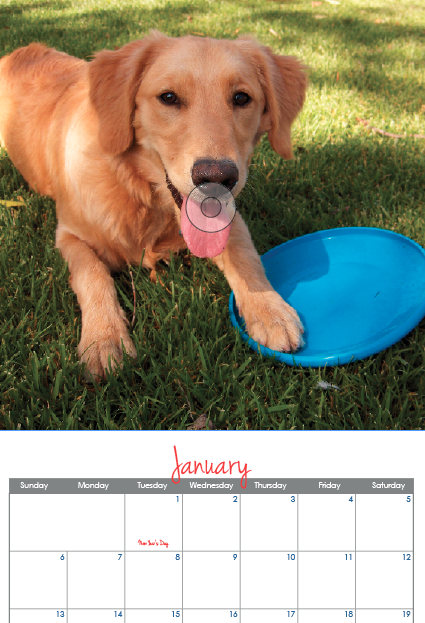
In the last few weeks, we’ve been talking about ways to turn your photos into something special with MagCloud. Whether that’s creating a photo book with Photoshop, Lightroom or Aperture, or creating a Summer Memory Magazine, MagCloud makes it easy to enjoy your photos in beautiful print and digital formats. So why not enjoy Summer all year-round by creating a calendar with your photographs?

To help you get started, we’ve created 6 templates for you to use with Adobe InDesign and Apple Pages. Simply add your own photos, special dates and details, upload your PDF to MagCloud and you’re set! You can sell your calendar online in the MagCloud Storefront or use our Direct Mail feature to send a copy to all of your friends with just a few clicks of the mouse.

Let’s get started!

Select the Format/Size of Calendar

Our templates are available in 3 sizes:

  • Small Square (8″ x8″) calendars (ideal for square photos like those from Instagram) with Saddle  Stitch Binding (28 pages – $5.60/each + Shipping)
  • Standard (10.75″ x 8.25″) calendars with Saddle Stitch Binding (28 pages – $5.60/each + Shipping)
  • Large Square (12″ x 12″) calendars with Wire-O Binding (28 pages – $12.08/each + Shipping)

*Remember that prices drop 25% off when you order 20 copies or more. So if you’re looking to order gifts for friends and family, or a great way to promote your business–a MagCloud-published calendar may be the perfect solution.

Select Your Software

InDesign CS5 & Newer

InDesign CS4

Pages

Script (handwriting) Typeface used in templates: Jenna Sue

Calendars for Business

You may also remember that last year we talked about using a MagCloud-printed calendar to promote your business. In exchange for you summer vacation photos, you can easily add images of your products, team members, or local scenery. Add your logo to the back cover along with a bit about your business and contact information and voila–you’ll keep your brand top-of-mind and in front of your customers all-year-round.

Since last year’s calendar template was so popular we also decided to revamp it for 2013. Enjoy!

That sounds too complicated for me.

Don’t want to use either of the above applications? MagCloud Partner Poyomi has an easy-to-use web-based platform that helps you create 14″ x 11″ calendars that are printed by MagCloud. With their service you can easily upload photos from your computer or connect to your accounts on photo-sharing services like Flickr, Smugmug, Picasa and Facebook.

*Please note that using the Poyomi tool and templates to create a calendar or photo book will affect the pricing. For Poyomi pricing, visit poyomi.com/pricing

To get started with the Poyomi calendar tool click here.

MagCloud Project: Framed Poster

Last month, we introduced a handful of new product types, including a new Poster format. Posters are available in 18″ x 12″ landscape and 12″ x 18″ portrait sizes, and use the same high quality print output as all of MagCloud’s products, for only $2 per printed Poster. In addition to being a great way to advertise an event or new product for your business, these new Posters are also a great opportunity to get large format prints of your photos at an affordable price. With that in mind, today I am going to show you how easy it is to make framed art for your home using MagCloud’s new Poster format, and a photo taken with the popular photo app Instagram.

http://vimeo.com/48024577

The first step is to create a PDF file that you can upload to the MagCloud website. You’ll want to export your square Instagram photo from your phone’s Camera Roll/Gallery and put it on your computer for editing. Using the photo that Instagram saves to your iPhone or Android device will be of higher quality than using the photo that gets posted to your Instagram account. Once you have your photo on your computer, you have a few options for creating your PDF. I’ve listed some steps specific to this project below, but check out the Getting Started page on the MagCloud website for more general instructions in other software programs.

Create Your PDF in Adobe Photoshop:

  1. Open your original image
  2. Go to Image > Image Size and set size to 3675 pixels by 3675 pixels at 300 pixels/inch resolution. Select “Bicubic Smoother (best for enlargement)” from the Resample Image drop down menu and click OK.
  3. Go to Image > Canvas size and set width to 18.25 inches, leaving height at 12.25 inches, and click OK.
  4. Go to File > Save As and select “Photoshop PDF” from the Format drop down menu. Make sure the box to embed color profile is checked and click Save. In the PDF Export window, select “Press Quality” from the Adobe PDF Preset dropdown menu, and uncheck the box for “Preserve Photoshop Editing Capabilities.”
  5. Upload your PDF to MagCloud as usual*

Create Your PDF in Adobe Lightroom:

  1. Import your original image
  2. Go to the Print module and select “Single Image/Contact Sheet” as the Layout Style.
  3. Click the Page Setup button and choose “Manage Custom Sizes” from the Paper Size dropdown menu. Create a new custom page that is 18.25 inches wide and 12.25 inches tall, with a User-Defined Non-Printable Area that equals 0.00 inches on all sides. Click OK twice to return to Lightroom.
  4. Make sure all the boxes under Image Settings are unchecked. Under Layout, set all of your Margins to 0.00 inches and set the cell size: Height = 12.25 inches | Width = 18.25 inches. Under Print Job, select “Printer” next to Print to and make sure the Print resolution is 300 ppi.
  5. Click Print, then select “Save as PDF” from the PDF dropdown menu. Pick a name for your PDF and click Save.
  6. Upload your PDF to MagCloud as usual.*

Create Your PDF in Apple Aperture:

  1. Import your original image
  2. Go to File > Print Image and select Custom from the Paper Size dropdown menu. Enter 18.25 inches x 12.25 inches as the Paper Size, with a Landscape Orientation, and select Maximum to Fit from the Image Size dropdown menu. Make sure the box next to Crop Image to Fill is NOT checked so the whole image appears on the page.
  3. Click Print, then select “Save as PDF” from the PDF dropdown menu. Pick a name for your PDF and click Save.
  4. Upload your PDF to MagCloud as usual.*

*After uploading, you will be told that your PDF is not long enough. Select “Proceed with this PDF” to have an extra page added automatically.

After you’ve uploaded your PDF to MagCloud, simply order a print copy and select your desired shipping method. When your print arrives, trim off the 3” white edges on either side so that you have a 12” x 12” copy of your photo, which can then be placed into the frame of your choice. The square VIRSERUM frame from IKEA is a great option – it’s available in both white and dark brown to match a variety of décor, and includes a mat with an 11 ½ inch square opening for only $19.99. Using the VIRSERUM frame, you can get your photos off your phone and turn them into a framed piece of custom art to display in your home for less than $25.

Eternalize Summer Memories With Your Own Magazine

Though Summer’s heat lingers on, Labor day is just around the corner marking the unofficial end of Summer.  Whether your family took a big trip or just used the lazy afternoons to hang out together, you are sure to have plenty of memories – and pictures – you want to save.

For many, vacation photographs wind up unorganized and spread amongst their hard drives, cell phones, Instagram and Facebook–doomed to be lost in the shuffle. With that in mind, why not take an afternoon and organize your family’s vacation experience, photographs, and mementos into a summer memory magazine?

With MagCloud’s beautiful print quality and direct mail options, you can even order copies to be sent directly to grandparents, cousins and friends to enjoy.

Getting Started: Where will you create your PDF?

First, you’ll want to select a platform to design/assemble your MagCloud-ready PDF­. You can use web-based Poyomi, or software like Adobe InDesign, Quark, Apple iWork Pages, or Microsoft Word.

As you get started, you can choose to start with a pre-designed template from the software (if available), or with a plain MagCloud template available here. You may even remember a post from awhile back, when we used Apple Pages’ built-in Templates to create magazines.

Organize Your Images and Treasures

Next, gather together your vacation photographs and organize them into a single folder. Then select the images that most effectively represent your vacation experience.

Collect any small items that you may have picked up along the way (i.e., a drink coaster with a resort’s logo, maps, airline ticket stubs, brochures from attractions, etc.). Such items can be scanned and added throughout your magazine and provide a more personal touch to the project. For example, you can use your ticket stubs from the theme park to give a different look to your family’s latest roller coaster adventure.

Order and Details

Although you have complete creative control over how you assemble your summer memory magazine, the easiest way is to assemble things is in chronological order so those enjoying your magazine can experience your vacation from start to finish. Throughout the publication you can include  quotes from your family members, or funny anecdotes – like when the duck bit the zoo keeper during his presentation.

Be sure to take the time to caption your photographs, indicating the “who, what, when, and where” of each picture. This will be helpful for others viewing your memory magazine and for you in later years when small details slip from memory.

Write a short paragraph for each of your summer highlights. Ask your children for input and have them answer questions about their favorite parts of the summer. You’ll be amazed by what they come up with and it’s always fun to look back and remember what was happening in pop culture at the time.

Some details you may want to include:

  • Favorite Summer Memory
  • Places and people you visited
  • Friends made
  • Activities and Games played
  • Movies watched
  • Books read
  • Song that was on repeat in the car
  • The silliest moment of the summer

Design Can be Daunting

When it comes to assembling your summer memory magazine, don’t worry if you don’t have a lot of design skills or experience. You can look at magazines for inspiration, simply use photos and captions for a basic layout, or even re-purpose templates that have nothing to do with this purpose. You can find inspiration anywhere, you just have to look past the content and look at the design. For example, the magazine pictured above used our Microsoft Publisher Brochure Template as a starting point for the layout. The design was a perfect way to include ample text to tell the story that went along with the photos. A few tweaks to colors and typefaces and we were able to completely transform the look of the original design..

As an additional example below, we used the layout from an Apple Pages design template for a school yearbook. With a few changes (and by deleting the extra clip art that made the layout look  “education-centric” we were able to create a casual scrapbook-style. Adding a scanned scrap of paper with Sara’s favorite memory from the water park gave the page a personalized feel.

Microsoft Word also has some great “Newsletter Templates” that are built-in to the software (Mac) or available online. Below are some samples that could be easily tweaked and used as the interior pages of your memory magazine.

No matter what software or platform you choose to create your magazine in, there are lots of sources for inspiration. So start designing and have some fun with it!

Have you created a photo magazine or book with MagCloud to commemorate and event, trip or season in your life? Tell us about it, or share your publication in the comments below!

Turn Your Summer Pics into a Photo Book with Apple Aperture

Looking for something to do with all those great photos you’ve taken this summer of trips, pool parties, nature hikes and more?  Why not create a photo book keepsake to share with friends and family so you can relive the great memories for years to come.

Apple Aperture is a great tool for keeping photos organized, polishing them up and even creating MagCloud-ready photo books.  We’ve added new Software-Specific Instruction Packets for Aperture to our Getting Started page for all of our product sizes. These downloadable folders contain MagCloud-specific templates and instructions for Aperture 3.0 and newer.

Below are a few tips to get you started.

Organize Your Photos

The first step is selecting the photos you want to use for your book.  Aperture makes it easy to weed through the large volume of photos you’ve taken this past summer with the Smart Album feature.  Create a new smart album using ratings (i.e. all your fave photos who you gave 3 or more stars too), and/or keywords (i.e. summer, Hawaii trip, beach) to select your favorite photos for inclusion in your book.

Tip for Instagram Users:

While Instagram doesn’t allow you to send directly to Aperture the smart folks over at ApertureExpert.com have outlined a simple way to use Flickr as a go between to bring your Instagram photos directly Aperture.  One thing to note for MagCloud-ready publications is that the photos Instagram sends to Flickr are low resolution and may not print well so we recommend after you’ve created your Instagram album in Aperture to transfer the pictures from your mobile device to your Mac via iCloud or cable sync, and replace one by one the Flickr pictures with your higher resolution images from your Camera Roll.

Oh and if the whole Instagram importing and resolution workarounds seem like too much check out the Aperture Instagram Presets created by photographer Casey Mac and create your own Instagram like photos directly in Aperture.

Create Your Book with a MagCloud Photo Book Theme

Once you’ve organized your photos it’s time to select what size book you want to create.  We’ve created Aperture themes and instructions for each MagCloud product from Digest to Tabloid; simply download the files from our Getting Started page.

Installing the Aperture Book Theme

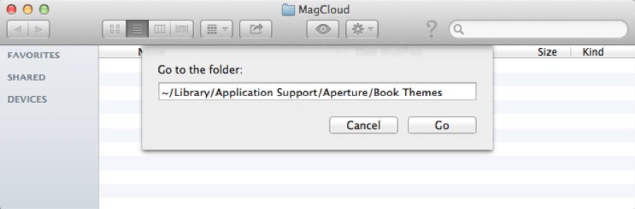
  1. Open a new Finder window and select “Go to Folder…” from the Go menu
  2. In the text field that appears, type: ~/Library/Application Support/Aperture/Book Themes
  3. Click Go
  4. Drag the “8 x 8 Square or Pamphlet” folder from the unzipped folder into this new Book Themes window

Creating a MagCloud-Ready Book

Now the fun part…creating your book!

Select Your Theme

  1. Open Aperture (if not already opened)
  2. Click the New icon in the upper left corner, then select Book from the drop-down menu
  3. Enter a Book Name for your book
  4. Select “Custom” from the Book Type drop-down menu
  5. Select the MagCloud theme you loaded (i.e. “8 x 8 Square or Pamphlet”)
  6. Click Choose Theme to create your book
Build Your Book

Aperture makes it easy to layout your book simply by organizing your photos in the book editor by date, rating, label, file name etc. and then selecting “Autoflow Unplaced Images”.  Of course your can reorder and move images from one page to the next at any time.

You can also customize your book by changing layout (i.e. 2 Up to 4 Up), adding text, selecting background colors etc.

Tips for Creating An Awesome MagCloud Book
  • Perfect bound publications can be anywhere from 8 to 384 pages long, but the total page count needs to be a multiple of 2.
  • Saddle stitch bound publications can be anywhere from 8 to 100 pages long, but the total page count needs to be a multiple of 4.
  • You can add and delete pages using the + and – buttons under the page display.
  • When adding text, don’t go beyond the theme margins (the edge of the image in the 1-up layout). The margins are set to the edge of the safe zone, and any text placed outside this area is in danger of being trimmed off in the print version.
  • If you have a lot of large photos in your publication, or if it is a lot of pages, it’s possible that your final PDF will be over MagCloud’s 300MB upload limit. If this happens, there are a few things you can do to reduce the file size after you export the PDF from Aperture. See the instructions you downloaded with your Aperture theme for how to reduce image size with Apple Preview or Adobe Acrobat Pro.

Export Your Book as a PDF

Once you’ve got your book looking exactly how you want it, its time to export it as a MagCloud-ready PDF file.

  1. After you have finished designing your book, click Print Book in the upper right-hand corner
  2. Select your “Color Profile” from the drop-down menu. In this case I’ve selected sRGB as my color profile to embed.
  3. Click the “PDF” button and select “Save as PDF…” from the drop-down menu
  4. Enter a name for your PDF and select where you want it to be saved on your computer
  5. Click Save

The PDF of your book is now ready to be uploaded to magcloud.com.

What types of MagCloud publications will you use Aperture to create?  Let us know in the comments section below.

Using Photoshop to Create a Vacation Photobook

Following up on last week’s blog post about using the new Book Module in Adobe Lightroom 4 to create Square MagCloud publications, today we are looking at an easy way you can use Adobe Photoshop to create a vacation photobook with MagCloud’s landscape-oriented Standard and Digest products. We’ve also added new Software-Specific Instruction Packets for Photoshop to our Getting Started page for all of our product sizes. These downloadable folders contain MagCloud-specific templates and instructions for Photoshop CS4 and newer, as well as step-by-step instructions to help you create your publication from scratch using any version of Photoshop.

1. Pick Your Photos

To get started with your photobook, the first thing you need are photos. For the photobook we’ll be creating today, all the images will be full-bleed and extend to the edge of the landscape-oriented pages. As a result, landscape-oriented images will work best for this type of book. If you wanted to use both portrait and landscape-oriented photos, then one of our Square products might be a better fit. You can find instructions for using Photoshop to create an 8″ x 8″ or 12″ x 12″ Square publication on the Getting Started page on the MagCloud website.

In addition to the orientation of your photos, the resolution is also important. We recommend using images that are 300 pixels per inch. Therefore, if you want to create a small Digest size photobook, you should use images that are at least 2550 pixels wide by 1650 pixels tall, or roughly the largest image size available from a 4 megapixel digital camera. If you want to create a larger Standard size photobook, your images will need to be higher resolution – at least 3300 pixels wide by 2550 pixels tall, or roughly the largest image size available from an 8 megapixel digital camera. If you are using high quality images from at least an 8 megapixel digital camera then your images should be fine for either size, however you can check the manual for your camera to be sure, or check the dimensions of your images in the file information on your computer.

2. Create Pages in Photoshop

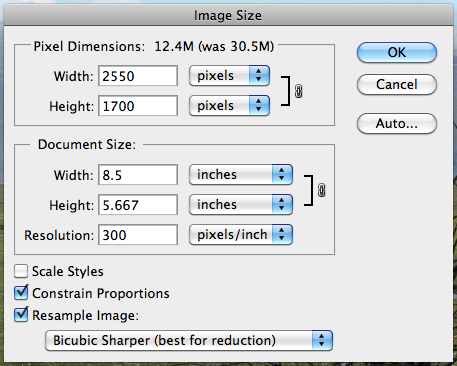
To create each page in your photobook, including the front and back covers, open the image you want to use in Photoshop and go to Image > Image Size. Make sure that the boxes are checked next to “Constrain Proportions” and “Resample Image”, select “Bicubic Sharper” from the dropdown menu, and set the Resolution to 300 pixels/inch. If you are creating a Digest size publication, set the width to 8.5 inches. If this causes the height to drop to less than 5.5 inches, then set the height to be 5.5 inches. Note that this will cause the width to be greater than 8.5 inches, but the image will be cropped to compensate for this in the next step. Similarly, if you are creating a Standard size publication, set the width to 11 inches. If doing so causes the height to drop to less than 8.5 inches, then set the height to 8.5 inches and allow the width to go above 11 inches. When you are finished, click OK.

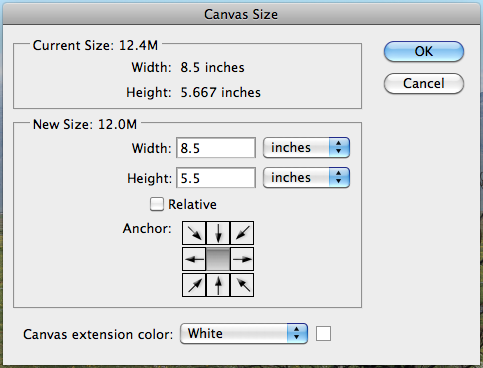
Next, go to Image > Canvas Size. Select “inches” from the dropdown menu, if it’s not selected already. If you are creating a Digest size publication, set the Width to 8.5 inches and the Height to 5.5 inches. If you are creating a Standard size publication, set the Width to 11 inches and the Height to 8.5 inches. Click OK, and when you are warned that some clipping will occur, click the button to Proceed.

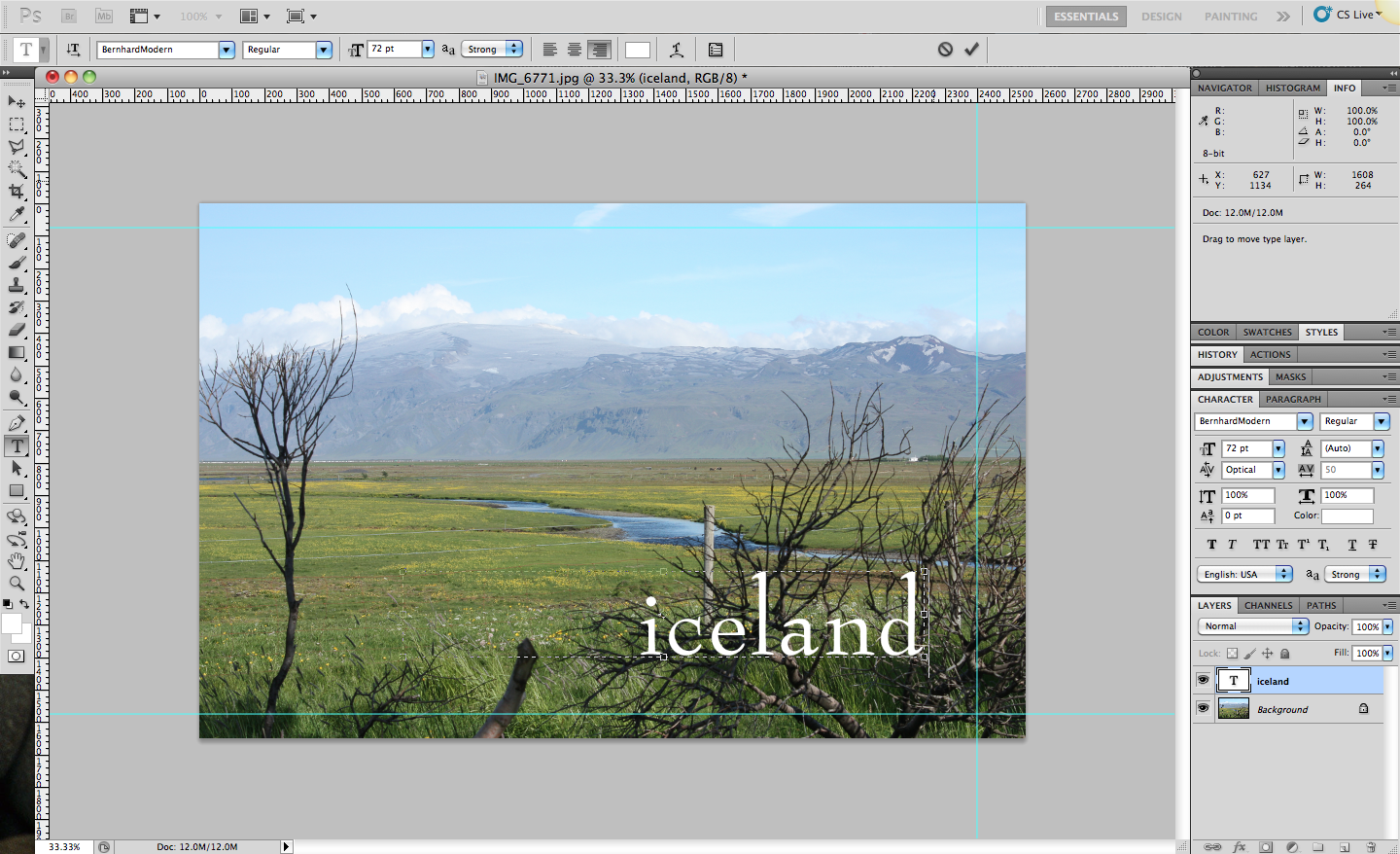
If you would like to add any text over your full-page image, like a title on the cover page, you can do so now using the text tool. Keep in mind that Digest publications will have 0.125″ trimmed off the top and bottom edges, and 0.25″ trimmed off the outside edge (the right, in the case of the cover), and since the trim can vary slightly in either direction, it’s best to keep any text at least 0.25″ inside of this trim line. Similarly, landscape-oriented Standard publications are trimmed 0.125″ on all sides, and also have holes punched on the inside edge for the Wire-O binding (the left, in the case of the cover). Therefore, if you are creating a Standard size photobook, it’s a good idea to keep text 0.25″ inside the trim line on the top, bottom and outside edge and 0.5″ inside the trim line on the inside edge for this size of publication. If you will be adding a lot of content, it may be helpful to add guides to remind yourself where the trim will occur.

When you are happy with the look of your page, go to File > Save As. Select “JPEG” from the Format dropdown menu and make sure that the box next to “Embed Color Profile” is checked. Your color profile may be something other than the sRGB profile shown in the screenshot at right, but embedding your color profile will help ensure that our Indigo presses are able to reproduce your images with the best color possible no matter what color profile they use. Select a name for your file and choose where you want it to be saved on your computer, then click Save. I recommend saving all your page files to a new folder and naming your files numerically, with the cover as Page001.jpg, the inside front cover Page002.jpg, and so on, as this will make it easier to create your final PDF. In the JPEG Options window that appears next, select “Maximum” from the Quality dropdown menu and select the radio button next to “Baseline (Standard)” under Format Options, then click OK.

Repeat these steps for each of the pages in your photobook, resizing and cropping one image for each page. If you want to include pages in your book that don’t include an image, as I did on the inside front and back covers in my publications, take a look at the templates and instructions in the downloadable Instruction Packets on the our Getting Started page. These instructions and templates start with a blank document in Photoshop, rather than modifying an existing image file.

3. Combine Pages into a MagCloud-Ready PDF

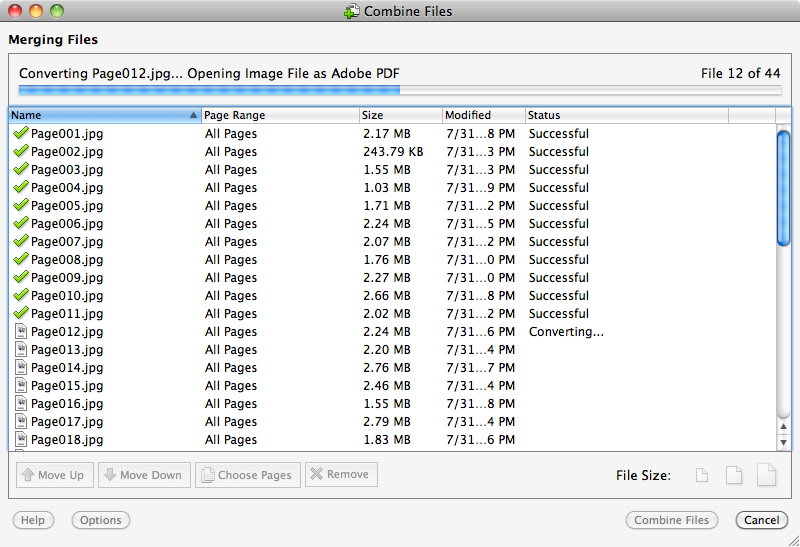
Once you’ve created all of the pages for your photobook, it’s time to combine these pages into a single multipage PDF using Adobe Acrobat Pro. Open Acrobat and go to File > Create File > Merge Files into a Single PDF. Click the button to Add Files and select all the page JPEGs you just created. Sort the files alphabetically by name to put the pages in numerical order, or use the Move Up/Move Down buttons to rearrange the order of the files. When you are happy with the order, select the largest file icon on the far right where it says File Size and click Combine Files. When prompted, choose a name for your final PDF and click Save. Your PDF is now ready to upload to MagCloud!

If you don’t have Adobe Acrobat Pro, an alternative method is to use Adobe’s subscription-based CreatePDF service either online or within Adobe Reader to convert your JPEG files to PDFs and combine them. The other option is to save your pages as PDF files out of Photoshop instead of JPEGs, and then combine these single page PDFs into one multipage PDF using a PDF viewer like Apple’s Preview. You can find instructions to do this in the Instruction Packets on the Getting Started page. The downside to this method is that it will result in a PDF that is much larger than the method using JPEG files, and you may be in danger of going over MagCloud’s 300MB file upload limit.

[UPDATE 1: Adobe Bridge is also another good option for combining your Photoshop files into a single multipage PDF. After you’ve created your pages, open Bridge and select all the page files. Click on the Adobe Bridge “Output” workspace and choose the PDF output option and the relevant page size for the product you are creating. Set the Layout to 1 column and 1 row, and make all margins 0″, then click Save. This will export a PDF that is ready to upload to MagCloud. Thanks to our reader Chane for this tip!]

[UPDATE 2: CreatePDF converts JPEG files to 72 dpi PDF files, which results in PDFs that are roughly 4x the dimensions they should be. Therefore, if you will be using CreatePDF to create your multipage PDF, it would be best to export your page files from Photoshop as PDF files. Note that CreatePDF only allows you to combine 10 files at a time, so you will need to combine your PDFs in groups of 10 and then recombine those. Thanks to our reader Jeffrey for these tips!]

You can see the photobooks I created in Photoshop and Acrobat Pro using these instructions on the MagCloud website: Digest and Standard