How to Create a MagCloud-Ready PDF in Lightroom 4

Adobe’s recent update to Lightroom added a Book module. Currently, the module is limited to a set selection of sizes, however it does allow users to export the books they create as a PDF. Until Lightroom allows you to create books in custom sizes, books created with the Small Square and Large Square sizes can be exported as PDFs and used to create 8″ x 8″ Square, 8″ x 8″ Pamphlet, 8″ x 8″ Flyer, and the new 12″ x 12″ Square MagCloud publications. In today’s post we’ll be sharing the settings you can use to do this along with some design tips, and we’re also launching Information Packets for Lightroom 4 that can be downloaded on our Getting Started page for all of our 8″ x 8″ and 12″x 12″ products.

Creating Your Book

To get started, the first thing we suggest is that you create a collection in Lightroom of the photos you will want to include in your book. Once you’ve created your collection, select the “Book” module from the menu in the top right-hand corner of your screen.

For an 8″ x 8″ MagCloud publication, select your Book Settings to match those shown to the right. Specifically:

  • Select “PDF” next to Book
  • Select “Small Square” as the Size
  • Select “Softcover” as the Cover
  • Set the JPEG Quality to 80
  • Select “sRGB” as the Color Profile
  • Set the File Resolution to 360 ppi
  • Check the box next to Sharpening and set to “Standard”
  • Select “Glossy” as the Media Type

For a 12″ x 12″ MagCloud publication, select your settings to match those shown to the right. Specifically:

  • Select “PDF” next to Book
  • Select “Large Square” as the Size
  • Select “Hardcover Image Wrap” as the Cover
  • Set the JPEG Quality to 80
  • Select “sRGB” as the Color Profile
  • Set the File Resolution to 310 ppi
  • Check the box next to Sharpening and set to “Standard”
  • Select “Glossy” as the Media Type

Once your settings are taken care of, the next step is to lay out the pages of your book. When designing for MagCloud, you can disregard the Front and Back Covers in the Lightroom layout. Instead, treat page 1 as the cover of your publication, page 2 as the inside front cover, and so on. Keep in mind that if you are creating an 8″ x 8″ Flyer, your publication will only be 2 pages long: page 1 will be the front of your Flyer and page 2 will be the back of your Flyer. If you are creating an 8″ x 8″ Pamphlet, your publication will only be 4 pages long: page 1 will be the front of your Pamphlet, page 2 will be your left inside page, page 3 will be your right inside page, and page 4 will be the back of your Pamphlet.
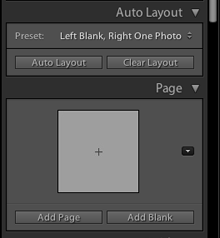
One option for adding pages is to choose a Preset under the Auto Layout section, and click the Auto Layout button. This will automatically add pages to your book and layout all the photos from the collection you have selected based on the Preset you specified. This is a great way to get a book laid out very quickly, but all of your page layouts will be the same. If you want to change any of your page layouts after using the Auto Layout function, you can always do so by selecting the page and choosing a different layout from the Page section.

Your other option is to add pages one at a time, specifying unique layouts and picking photos as you go. To do this, pick a layout in the Page section, then click the Add Page button. Once the page has been added, you can drag images from the Filmstrip at the bottom of the window and drop them on the gray image placeholders to add them to the layout. If the layout you selected includes text, you can also click on the text box and start typing. This is convenient if you want a more custom book, but it will take longer than using the Auto Layout option.

When you have finished laying out your content, click the Export Book to PDF button in the bottom right-hand corner of your screen. Select a name for your PDF, and choose where you want it to be saved on your computer. After you click the Save button, you can track the progress of your PDF in the upper left-hand corner of the screen. Lightroom will export two PDFs: one that is a single page and has “Cover” added to the filename and another that is a multi-page PDF. For creating a MagCloud publication, you can disregard the cover PDF, and just upload the multi-page PDF to the MagCloud website.

After your file finishes uploading, you’ll see a message that the PDF is the wrong size. This is because Lightroom exports files that are 6.875″ x 6.875″ and 11.875″ x 12″, while MagCloud uses PDFs that are 8.25″ x 8.25″ and 12.25″ x 12.25″, respectively. By clicking “Proceed with this PDF” MagCloud will automatically resize the PDF to fit our specifications, resulting in a PDF where all the images are the MagCloud-recommended resolution of 300 dpi. From there, you can continue with the rest of the MagCloud Publish process as usual, previewing your publication and setting your binding, pricing and distribution options.

Picking Layouts for MagCloud Publications

When selecting your layouts and choosing images, it’s good to keep in mind how your PDF will be trimmed by MagCloud. The Lightroom layouts all have a pretty good margin around them, so there shouldn’t be an issue with keeping content inside the MagCloud-recommended safe zone. 12″ x 12″ Square publications and 8″ x 8″ Flyers are trimmed equally on all sides by MagCloud, so the only thing you need to consider is that the outside 1/8 inch or so of any full-page images will be trimmed off. On the other hand, 8″ x 8″ Square and 8″ x 8″ Pamphlet publications are trimmed more on the outside than the inside, so layouts with centered content may appear off-center in your final MagCloud publication. In print, perfect bound publications won’t be as noticeable, because the binding will take up some of the extra space on the inside edge, but saddle stitch bound publications and Pamphlets will be more obvious. For these publications, asymmetrical layouts and layouts with full-page images will generally look better.

Cover Design Tricks in Lightroom

Since the first and last numerical pages of your publication will be the covers, rather than the Front and Back Covers specified by Lightroom, you won’t be able to use the specific cover layouts that Lightroom provides. One of the benefits of this is that you can mix and match your front and back covers, as compared with the Lightroom options where the front and back cover layouts are paired together. Many of the cover templates are also available as page templates, but one layout that is used frequently in the cover templates and is not available in the page templates is text on top of a full-page image. Even though there isn’t a specific page template for this layout, you can get the same effect by using the full page text layout, and then adding a background image to the page.

If you are searching for a layout to use on your cover that includes both text and images, don’t limit your searching just to the “Text Pages” layout menu. There are a number of layouts hidden within the photo-centric layout menus that also include text. Many of these will likely be better for creating an interesting cover, since the images are given at least equal, if not more, focus than the text. Another way to expand your options for both your cover and interior pages is to use a different program to design a layout, and then import it as an image into Lightroom and place it on a page using one of the preset layouts. For example, you could design your cover and place it in the 1 photo full-page image layout on page 1. Doing so offers you more creative freedom in designing your layout than Lightroom allows.

Overall, Lightroom is a great option if you want to create a simple, photo-centric 8″ x 8″ or 12″ x 12″ MagCloud publication. Whether you are creating a proof book, portfolio, or even a catalog, the preset layouts and easy interface help simplify the process of creating your PDF. We hope to be able to provide instructions in the future for creating our other product sizes through the Lightroom Book Module, but in the meantime, check back here on the blog over the next few weeks as we highlight other photo tools you can use to create your MagCloud product, no matter what size you want it to be.

For more general information about using Lightroom 4, please see the Adobe website.

Product Spotlight: Tabloid, Large Square, Standard Landscape, and Posters

Introducing a batch of additional products on the MagCloud website. Our 11″ x 14″ and 14″ x 11″ Small Tabloid size, 17″ x 11″ Large Tabloid size, 12″ x 12″ Square size and 10.75″ x 8.25″ landscape-oriented Standard size all use our Wire-O Binding type. This binding method consists of a double-loop wire binding and pages that are all printed on our thicker 80# cover stock. Not only does the heavier paper stock offer a more substantial feel to these publications, but the wire binding allows them to lay flat and makes it so the pages of the publication can be rotated 360 degrees around the binding and is more durable.

Our Poster format is available in 12″ x 18″ and 18″ x 12″ sizes, and printed on the same 80# cover stock used for Flyers and Pamphlets. MagCloud Posters can be printed on both sides with the same high quality, full color digital printing used with all MagCloud products, and are made more durable with a UV coating on both sides at no extra cost. The best part is that all of this costs just $2.00 per printed Poster, or $1.50 per piece if you order 20 or more.

For inspiration, here are a few ideas for how these products can be used:

Calendars

The Wire-O Binding on the 12″ x 12″ Square and 11″ x 14″ Tabloid make these products great for calendars. Just rotate your content 90 degrees prior to uploading your PDF so that the binding will be on the top edge of your calendar. If you want to use fewer pages in your publication, the larger page size of the 17″ x 11″ Tabloid allows enough space for all the content for a single month to fit on a single page, making a tall and narrow calendar. A 12 month calendar with one page per month, plus two extra pages for the front and back covers will cost you just $7.04.

Catalogs

The larger format of all of these products offer an even greater opportunity to show off your products and services in a catalog format. Furthermore, both the unique shape of the 12″ x 12″ Square and the oversize dimensions of our 17″ x 11″ Large Tabloid will let your catalog stand out from the competition. In all cases, the thicker paper these products are printed on has a more substantial and expensive feel to help you leave a lasting impression on potential customers.

Portfolios

The landscape orientation of the 10.75″ x 8.35″ Standard, 14″ x 11″ Small Tabloid and 17″ x 11″ Large Tabloid offer a great canvas for displaying architectural renderings, fashion designs and large format photography as part of a portfolio. And with the same high quality digital printing you expect from MagCloud, you know you’ll be able to put your best foot forward when displaying your work.

Training Manuals

The ability for the pages of the Tabloid publications to rotate completely around the binding and lay flat makes them great for training manuals. As the trainee moves through their training, the wire binding will allow them to flip to the section they want to view and keep it displayed as the top page in the publication. This eliminates the need to hold open a book with one hand and also alleviates any concerns of losing one’s place.

Proof Books

We’ve discussed a number of ways wedding photographers can use MagCloud for their business, and our larger formats open up even more opportunities. What better way to encourage your clients to order larger format prints then to display their proofs in a large format book? Also, if you offer the option for professionally designed and hardbound photobooks to your clients, these larger formats offer an affordable way to show off how the book might look in print before investing in the expensive final copy.

Cookbooks

Similar to training manuals, the lay flat feature of the Tabloid products is also a benefit for cookbooks. It allows the cook to open the book to the recipe they want to make, so they won’t need to be flipping pages to find their place when they are in the midst of a recipe. The heavier paper stock is also a benefit for the durability of cookbooks, as the thicker pages aren’t as likely to rip if they should get stuck together over the years.

Brand Identity Guidelines

We’ve seen a number of brand identity guides published through MagCloud, detailing the appropriate colors, fonts and imagery that should be used for a particular brand. These guides are generally kept close by as a quick reference for designers, and as such can benefit greatly from the lay flat capabilities of these products. In addition, the larger page sizes of the Tabloid products offers twice as much space on a single page as our Standard products, allowing for more examples and detailed information within a given page of the publication. For example, instead of having fonts spread over multiple pages, they can be consolidated into a single page, making it easier for a designer to see all their options at once rather than having to flip through pages.

Media Kits

Show off the best of your business to the media in a large format they won’t soon forget. The professional feel of the heavier paper, combined with the high quality of MagCloud’s digital printing will make you look like a multimillion dollar company, without requiring a multimillion dollar budget.

Event Posters

Even with options like email newsletters, online ads, and direct mail, sometimes posters are the best way to get the word out about an event to a local audience. Whether you are advertising a concert, fundraising event, theater production or sports league sign ups, you can be sure to make a good impression with MagCloud’s full-color posters, printed in quantities of as few or as many as you need. And since no minimum order is required, you can order copies of your poster as you need them, and come back to order more when you run out.

Large Format Photography Prints

Similarly, the lack of a minimum order makes it possible to order just a single printed Poster if you’d like. This offers a great opportunity for professional and amateur photographers alike to order large prints of their photos for framing.

In-House Advertising Posters

In addition to advertising events out in the community, our Poster format can also be used in-house to highlight products and features in a high quality printed format. You can order a single copy if you only have one location, or if you have multiple locations, use our Ship to Group feature to ship one poster to each of your physical storefronts for a consistent display at an affordable cost.

Art Prints

Combining the Poster format with the MagCloud storefront offers a great opportunity for graphic designers and artists to sell their work. Content producers can add a markup beyond the $2 print cost, and for every print they sell, MagCloud will print and ship a copy to the customer directly and pay back the markup to the publisher at the start of each month.

We’re sure that there are many more ideas for how to use these products beyond what we’ve highlighted here, whether it’s using the Poster product to display the seating chart for your wedding or creating motivational posters for your classroom. If you have an idea that wasn’t mentioned, let us know in the comments below!

Go Big With Our Large Form Factor Products

MagCloud users deserve larger form factor products and we are happy to offer not just one but seven large product types.

Tabloid Product Family

At 11″ x 14″ trim size Small Tabloid is smaller than a standard newspaper but larger than our Standard letter-size product.  Our Large Tabloid product has a 17″ x 11″ trim size offering more room for images and content. All Tabloid products are published on premium cover stock, have Wire-O Binding, and are ideal for large format portfolios, custom calendars, manuals and more.

  • Small Tabloid: 11″ x 14″ and 14″ x 11″ trim size options
  • Large Tabloid: 17″ x 11″ trim size
  • $0.36 per page with full color printing
  • 8 to 90 pages in length in multiples of 2
  • $2.00 per copy for durable Wire-O Binding

Poster Product Family

Our full-color, double-sided Poster are printed on premium cover stock and come standard with UV coating giving them an extra sheen and making them more durable. Posters are ideal for promotions and special event keepsakes such as gallery exhibits, music festivals and fundraisers.

  • Available in 12″ x 18″ or 18″ x 12″ trim sizes
  • Full-color professional printing on 80# premium cover stock paper
  • Standard UV Coating front and back for increased durability
  • Each individual Poster is only $2 to print ($1.50 for orders of 20 or more).

Large Square

MagCloud is adding to its Square product family by offering a new large form factor Square product. At 12″ x 12″ trim size, this new product is great for one-of-a-kind portfolios, photo books or training material.

  • Available in 12″ x 12″ trim size
  • Durable Wire-O Binding
  • 80# premium cover stock
  • 8 to 90 pages in multiples of 2
  • $0.36 per page with full color printing
  • $2.00 per copy for Wire-O binding

Standard Landscape

Finally we are also expanding our Standard product line, with the addition of a landscape option. Measuring 11” x 8.5” and also using Wire-O Binding and premium #80 cover stock paper, this new product option is useful for portfolios, magazines, booklets, catalogs and more.

  • Available in 10.75″ x 8.25″ trim size
  • Durable Wire-O Binding standard
  • 80# premium cover stock
  • 8 to 90 pages in multiples of 2
  • $0.20 per page with full color printing
  • $2.00 per copy for Wire-O Binding

Note: Standard Landscape page and trim size will also be available as a Flyer option.

What do you think of these new products and how do you plan to use them?  Let us know in the comments section below.

Summer Fun with MagCloud

Over the next six weeks we’ll be sharing blog posts that discuss how to use MagCloud to plan vacations, create excitement for family reunions, capture all your summer memories and more.

First up is creating MagCloud published photo books directly from your iPad with the Poyomi Photo Book application. This iPad application makes it easy to create photo books while on the go–select photos, design your book, order, and have MagCloud print and deliver them before you even get home from your vacation.

Step 1: Select your Photos

Poyomi’s app makes it easy to choose photos for your book from your iPad albums including your camera roll and iCloud PhotoStream, or import them from third party websites such as Flickr, Facebook, Picasa, SmugMug and Dropbox.  Simply upload your photos to the Poyomi Book Editor by selecting the specific photos you want to include in your book.


Step 2: Organize Your Photos

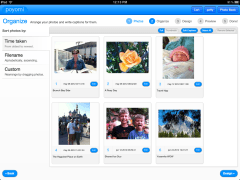
The Book Editor lets you organize the photos in your book by date taken, alphabetically or you can drag and drop them to create a custom arrangement.

You can also add captions, rotate images and ensure your photos print as large as possible by favoriting them.


Step 3: Design Your Book

Poyomi allows you to select from four of the MagCloud product types–Letter (aka MagCloud Standard), Digest, Digest Landscape and Small Square. You can also choose your binding type either Saddle Stitch Binding or Perfect Binding for books over 20 pages.

Poyomi’s design features include four color schemes for the inside of the book, as well as multiple type face colors for the cover title of the book.  Title your book and choose a wrap around cover photo or individual photos for the front and back of your book.

The Book Editor also allows you to crop and select portions of the cover and back photos for the perfect look.


Step 4: Preview Your Book

All that’s left is previewing and making final adjustments to your book.  You can write a brief intro to your book including using one of your travel photos as a background image, as well as creating a brief closing note to go at the end of the book.

Once you’ve previewed your entire book simply tap “Finish”.


Finished!

That’s it in a few easy steps you’ve created a travel photo book on your iPad without ever leaving your beach chair.

Poyomi gives you the option to save your book to your Poyomi account for editing when you get home or you can create a personal home page where friends and family can preview and order copies of your book. Finally you can purchase it directly from your iPad with a credit card or via a PayPal account.


How can you imagine using Poyomi’s Photo Book iPad app this summer?  Let us know in the comments section below.

Creating a PDF? We’ll Help You Get Started

As we continue to add new product sizes to the MagCloud service, we’ve made it easier to find the requirements for the product you want to create with our Getting Started page. This new page in the Create section on the MagCloud site lets you select the product, trim size, and binding type for the publication you want to create, and then provides you with the appropriate PDF specifications, things to keep in mind when designing your publication, and step-by-step information packets to help you get started.

In the PDF specifications section, we not only provide the correct PDF size, trim size, safe zone, and bleeds for creating a MagCloud-ready PDF but we also make it easier to understand what these concepts are and how they relate to one another. As you hover over each of these values on the right, you’ll notice that the corresponding area gets highlighted in red in the diagram on the left. At the same time, a text description of what the specification is appears next to your cursor, letting you know, for example, that the PDF Size is the page size of the PDF you will upload to MagCloud. Below the PDF specifications, there is a section for Additional Information that is specific to the publication you are hoping to create. This area lists things that are important to keep in mind while designing your PDF, from embedding fonts to allowing space for the 2D barcode that goes on the back page of your publication.

Finally, at the bottom of the Getting Started page are links to download Information Packets for a variety of software programs. Clicking on one of the icons will download a .zip file, which unzips to become a folder specific to that program and the product, trim size and binding you initially selected. Each folder contains a PDF with step-by-step instructions to help you design a MagCloud-ready PDF from scratch, or modify an existing document for use with MagCloud. In addition, many of these folders also include templates or presets that can be used in conjunction with the step-by-step instructions to help jump-start your creation process.

At the moment we offer Instruction Packets for Adobe InDesign, QuarkXPress, Microsoft Word for Mac and PC, Apple iWork Pages, and Microsoft Publisher. We are planning to add instructions for additional software in the near future though, so keep an eye on the blog for news about those additions. And if there’s a type of software that you would like to see MagCloud-specific instructions for, we’d love to hear about it in the comments below.

Print and Digital: A Winning Combination

Print vs. digital has long been hotly debated. Recently, we’ve seen several experts weighing in on the topic, arguing that print and digital can coexist and will in fact strengthen a brand when used together. Of course, we’ve always known this at HP MagCloud (check out our Jan. 5 blog post), and we are thrilled when other people realize it doesn’t have to be an either/or proposition. The challenge is finding the right medium to use to tell your unique story, so that it’s heard and understood by your audience.

So what are people saying? Novelist Dave Eggers in the Guardian said, “It’s our admittedly unorthodox opinion that the two can co-exist, and in fact should co-exist. … But they need to do different things. To survive, the newspaper, and the physical book, needs to set itself apart from the web. Physical forms of the written word need to offer a clear and different experience. And if they do, we believe, they will survive.”

When should you choose digital? “For news, facts and information, let’s tell stories as they unfold: a tweet here, an update there, a database, a video clip, a timeline, a slideshow, a conversation, a list. Let’s master the tools of digital storytelling and learn to match our tools and techniques to the circumstances,” stated digital guru Steve Buttry on Poynter.org.

What about print? “Let’s respect the pure, traditional story – the narrative string of paragraphs – by reserving that form for real stories,” Buttry added.

We’re fortunate to live in a world where we have both options.

In telling your story, you’ll want to rise above the chatter. It’s a good idea to participate in the online conversation by using Facebook, Twitter, email newsletters and more to share what’s happening in the moment. You’re demonstrating your knowledge about your industry and connecting in a more immediate way with your audience.

Meanwhile, a print publication showcases your photographs and carefully crafted story to an audience who wants to linger over and slowly digest your content. No matter how great digital content is, readers can stash magazines in their purses, dog-ear the pages and tear out their favorite articles. Quoting The Economist (June 9 issue): “As long as there are coffee tables, people will want things to put on them.” The high quality of print makes you proud to display your work to clients, and likewise, your clients will be happy to share your magazine with people they bump into.

HP MagCloud provides both print and digital offerings because different stories beg to be told in different ways. Plus, you might reach new readers who prefer to read content on their iPad or smartphone. We realize there is much to consider, and one of the main deterrents of print is the expense and complexity. With HP MagCloud, it costs only 20 cents per page for Standard and Square products, there are no upfront costs and everything can be done via our website with a few clicks of the mouse. So a small business on a tight budget can afford to self-publish their content.

For a small business, blending print and digital elements into your marketing is a win-win. Does your business plan include both digital and print? If not, here’s your chance to consider both.

MagCloud for Graduation Memories

Congratulations class of 2012! Now that you’re graduated, what’s next? Graduation parties? Summer travels? Job hunting? If it’s any and/or all of the above, then we’ve got you covered.

From party invitations to summer travel itineraries to professional portfolios to thank you cards, we’ve put together some ways that MagCloud can help prepare you for the next step in your life.


Graduation Parties

Hosting a graduation party? MagCloud’s new square product is perfect for invitations and party programs. After the party is over, create a one-of-a-kind scrapbook with photos and memories so you’ll never forget the special day.


Summer Travels

Traveling this summer? Whether you are traveling alone or with friends, keep track of flights, train schedules, hostels, and global destinations before you leave – our flyers are perfect for travel notes and itineraries!  After your trip, compile all of your pictures and memories into a Square photo book or scrapbook to share with your friends and family!  Need a little help designing that photo book then try out our partner Poyomi’s on-line templates.


Job Hunting

Looking for the perfect job? Show off your work by creating a portfolio with MagCloud’s new 8×8 square product, or make your resume stand out with our Flyer or Pamphlet products.


Thank You Cards

A simple ‘thank you’ note goes a long way. Use our smaller flyer products to create unique thank you cards for your family and friends for their support – and even your potential employer after you nail that interview.


Have you used MagCloud in planning or celebrating a graduation, or other special event? We would love to hear how – please share in the comments below!


Congrats again, graduates and good luck!

How to Use MagCloud for Your Tutoring Business

Over the past few weeks, we’ve looked at various ways teachers and professors can use MagCloud to help their students get ahead in the classroom. Outside of school, MagCloud’s print on demand and digital publishing tools can also be a great resource for professional tutors, for everything from personalized study aids for their pupils, to marketing their business with promotional brochures and flyers.

Tutoring Aids

Whether you are tutoring a student in a subject one-on-one, or offering test preparation to a larger group, MagCloud can be a great resource for printing up workbooks and study guides that are tailored to the needs of your students. With no minimum order quantity required, MagCloud lets you print as few as one copy, making it easy for you to create personalized study aids tailored to your students’ needs both in and out of your tutoring sessions. For example, if you are helping a student prepare for the SAT, you could use MagCloud to provide your pupil with a printed workbook of practice questions that he or she can complete as homework, a digital reference guide of common mathematical formulas that can be viewed in PDF format, and a pocket review book with common vocabulary words and definitions, all tailored to the areas of the test where they need the most help. You can create these documents using any program that can export a PDF file, and easily update them for new students by uploading a new version of the PDF to the MagCloud website.

To get started, check out the step-by-step instructions offered in the MagCloud PDF Guides, and browse through our product specs on the new product pages.

Marketing Tools

In addition to publishing print and digital publications for your students, you can also use MagCloud as a marketing tool for your tutoring business. Our Pamphlet product is perfect for making brochures that include testimonials from past students, the range of services you offer, and your contact information. Similarly, our single-sheet Flyer product is great for creating price lists or highlighting your services in a more compact format. MagCloud’s print on demand capabilities mean you can order copies of your brochure or price list as you need them, in smaller quantities that traditional printing requires. You can even direct mail copies of your brochure to an address list of potential clients using MagCloud’s Ship to Group feature, or offer all of your marketing materials in a digital format through your MagCloud storefront for potential clients to view as a PDF. If at any point you want to add a testimonial or update your pricing, you can do so simply by uploading a new PDF to the MagCloud website.

If you need help getting started with a brochure or price sheet for your tutoring business, or are looking for some inspiration, check out our past blog posts about brochures and flyers for additional tips and templates.

Are you a tutor who has used MagCloud as a resource for your business? Let us know how in the comments below!

Powerful Publishing Tools for Professors

Over the last week we talked about using MagCloud in education, as a powerful tool for teachers, and a great asset for students who want to present their work professionally. Today we are moving forward with the same theme to discuss how professors can use MagCloud in higher education.

Whether you teach at a major university, a local community college or a continued education course, print materials for classes are always a concern as far as budget, turnaround-time and quality. MagCloud can help you with all of those challenges, providing beautiful printing, easy-to-use digital distribution options and no-minimum print runs to help you publish content for your students in a timely, affordable and more sustainable fashion. Let’s take a look at a few solutions for professors:

Syllabi

The syllabus is traditionally handed to students as a printed document on the first day of class. For distance education courses, the syllabus can be posted online or even better, mailed to students. By publishing your syllabus through MagCloud, you make it easy for your students and yourself. You can order a bulk of them to hand out in class, direct your students to download a digital version to their PC, tablet device or you can use our ship-to-group feature to drop ship a copy to each of your students on a mailing list.

Easy Re-prints:

There’s always at least one student who loses their syllabus, so when they come to you for help, MagCloud gives you an easy place to direct them–your own unique page–where they can choose whether they want to get a digital version or order a new printed copy that will be delivered right to them, requiring very little effort on your part.

Handouts/Flyers

Throughout the semester/quarter there are regularly occasions to distribute supplemental handouts and flyers. Handouts are a great way to provide support material like graphs, tables, or diagrams, or even slide notes to compliment PowerPoint presentations.

You can use handouts for specific project assignments, recruiting students to join the club you advise, or supplements to the lesson plan. No matter what the purpose, MagCloud is a great asset for printing any number of flyers or handouts. There’s no need to run to the print shop, as you can easily place an order online and have them delivered straight to your office in as little as 3 days.

Other Handout Ideas:

  • lesson outlines
  • supply and reading lists
  • activity guides
  • supplementary materials like graphs and statistics
  • lab assignments
  • study guides
  • slide notes for presentations

Course Readers

Course readers provide professors with the ability to customize specific texts for their classes. The material may include chapters from books, articles from magazines/newspapers, website print-outs, cases, or their own work. As a professor, you know that pulling this content together in a way that is compelling for the students is challenging. Standard black and white photo-copies can be tough to read, and photographs, illustrations and art suffer from poor print quality. MagCloud let’s you deviate from these long-antiquated types of course readers by making it possible for you to offer them as both full-color prints and in various digital formats.
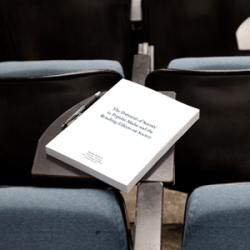
Benefits of using MagCloud for your Course Readers:

  • free storage of the digital master in PDF format
  • no cost to you or your department– it’s free to publish, you/your students only pay when ordering print or marked-up digital files
  • publishing is immediate, so your course pack is available to students as soon as you click “publish”
  • it’s easy to make your content available to your students in print and digital formats
  • easily place orders for direct delivery to the department or use our ship-to-group feature to distribute to a mailing list
  • full-color, full-bleed printing makes it possible to showcase art, photography and imagery beautifully–no more grainy black and white images
  • easily direct students from all of your classes to collections for their course–you can sort publications by subject or class, and make it easy for your students to access all of your printed course materials in one place

Lab Manuals

If you have authored your own lab manual, you simply need to upload your document as a PDF file for publishing. You can choose whether to order the manual to distribute in class, or if you want to make it available for students to purchase themselves. MagCloud will produce high quality books up to 384 pages from your PDF that can be made available for print, digital download.

Student & Alumni Newsletters & Magazines

We know that being a professor means that you do a lot more than teach classes, so whether it’s for your Mock Trial Team or Journalism Faculty, publishing a newsletter through MagCloud will definitely help your community’s message stand out from the crowd.

Along with community newsletters, a number of educators are using MagCloud to publish the student magazines that they advise. MagCloud’s on-demand printing options mean that you don’t have to sacrifice print quality for a smaller budget or even a small readership. Whether your students are putting together a publication for their program of a couple hundred, or even for their class of 30, you can be confident that all publications are printed in full color with a full bleed on HP Indigo digital presses. These commercial presses have been calibrated to provide a high quality output of all your content, from crisp text to brilliant graphics. Our professional service features make it possible for your students to turn out a publication you can all be proud of.

Example Publications:

A Note About Using Copyrighted Work:

Federal copyright laws protect all original works of authorship fixed in a tangible medium. When using material that has been written, recorded, or designed by someone else, it is important to make sure that you are not violating copyright law by improperly using intellectual property belonging to someone else. While some items are public domain, most course readers are not considered “fair use” of published works and copyright owners retain all rights to grant or deny permission to use. In other words, do your homework before you print someone else’s content.

Are you an educator using MagCloud? Share in the comments section how you’ve used MagCloud for your needs.

MagCloud for Students

Earlier this week, we touched on ways that teachers can use MagCloud for everything from class assignments to printing coursework, but MagCloud can be a great resource for students too. Today we’ll look at a few ways that students can use MagCloud for both schoolwork and extracurricular activities.

Thesis and Final Projects

As we are nearing the end of the school year, many students are likely working to complete a thesis or final project. MagCloud offers a great option for publishing these works, whether you are writing a text-heavy dissertation or putting together a more visual project culminating a study in design or photography.
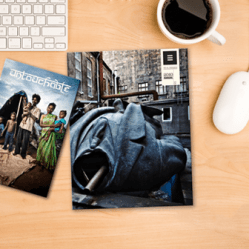
For text-based works, the MagCloud Standard product can be used for printing and binding up to 384 letter-sized pages, with printing in full color to accommodate both text and any corresponding images and graphics, and a perfect binding that gives your publication a professional look and feel. At the same time, you can make your publication available in a digital format, for viewing as a PDF download.

For students completing projects in an area of art or design, our Square and 8.5” x 5.5” Digest products are both great options for showing off graphic works that are anywhere from 2 to 384 pages long. With a single PDF upload, you’ll be able to create a high quality printed piece that does justice to the work you’ve put into your project, and also have the option for a digital version that can be viewed on any computer or mobile device.

Example Publications:
Photography Series
MFA Thesis
High School Senior Project
BFA Thesis Process Documentation
Graduate Thesis Process Book

Portfolios

For students studying architecture or design, as well as those with a more literary or journalistic focus, having a portfolio of work is of great importance, particularly looking beyond the school year. Whether you’re interviewing for an internship, applying to schools, or looking for a job, having a strong portfolio of your past work will likely be an important factor in achieving your goal. As we’ve discussed before, using MagCloud to publish your portfolio offers a number of convenient options, both during school and beyond.

While you are in school, you can easily update your portfolio on the MagCloud site as you complete new work, simply by uploading a new PDF to your MagCloud account. You’ll also have the option to keep your portfolio private, so only you can see it, or make it public for others to browse on the MagCloud website. When it comes time to apply for the position or program you want, you can order as few or as many print copies of your portfolio as you need, or even direct mail copies to a list of addresses. You can also offer a digital version of your portfolio and direct people to the URL for your publication in the MagCloud storefront, where they can download it as a PDF.

Example Publications:

Yearbook/Photography Student Portfolios
Architecture Design Portfolio
Interior Design Portfolio
Fashion Design Portfolio
Architecture Portfolio for Graduate School Admissions

Resource for Student Groups

During the school year, MagCloud is a great resource for students outside the classroom. At all levels of education, students active in clubs, sports and other extracurricular activities can use MagCloud for printing flyers, newsletters, and even full-length magazines. For example, when a club or sport is looking to attract new members or publicize an event, the MagCloud Flyer and Pamphlet products can be a great way to get the word out and offer additional information, without requiring a large volume of prints.

For groups that are more established, particularly at the college level, MagCloud’s Standard, Square and Digest product types offer a great opportunity for creating newsletters to stay in touch with both current members and alumni alike. Groups can take advantage of MagCloud’s direct mailing service for recipients who prefer receiving something in print, and simultaneously offer the same publication in digital formats for downloading as a PDF.

A number of middle school, high school and college-aged students have already used MagCloud to publish student-run magazines on topics ranging from art and literature to fashion and lifestyle. Regardless of the topic, MagCloud lowers the barrier to entry for creating these types of magazines, with no upfront costs and no minimum print runs. Students can offer their publication through the MagCloud storefront for customers around the world to purchase and read in both print on demand and digital versions. Printed copies can also be ordered for local distribution as they are needed instead of all at once as a large bulk order, cutting down on the cost of storage and potential waste.

Example Publications:
BYU Editing Students’ Travel Magazine

UF Asian American Students’ Magazine
Emerson College Lifestyle Magazine
AIGA Colorado Design Magazine
Journalism Students’ Fashion Magazine
High School Literary and Art Journal

Are you a student who has used MagCloud, either in or outside the classroom? Let us know in the comments below!